Templates
Workspace Templates are reusable messages per channel. Subtitle in the product: Manage templates for all the channels.
Live URL: live.chatmaven.ai/workspaces/templates
Open Templates
Top bar Workspaces → sidebar Templates.
My Templates vs Template Library
- My Templates — Templates owned by your workspace (table view).
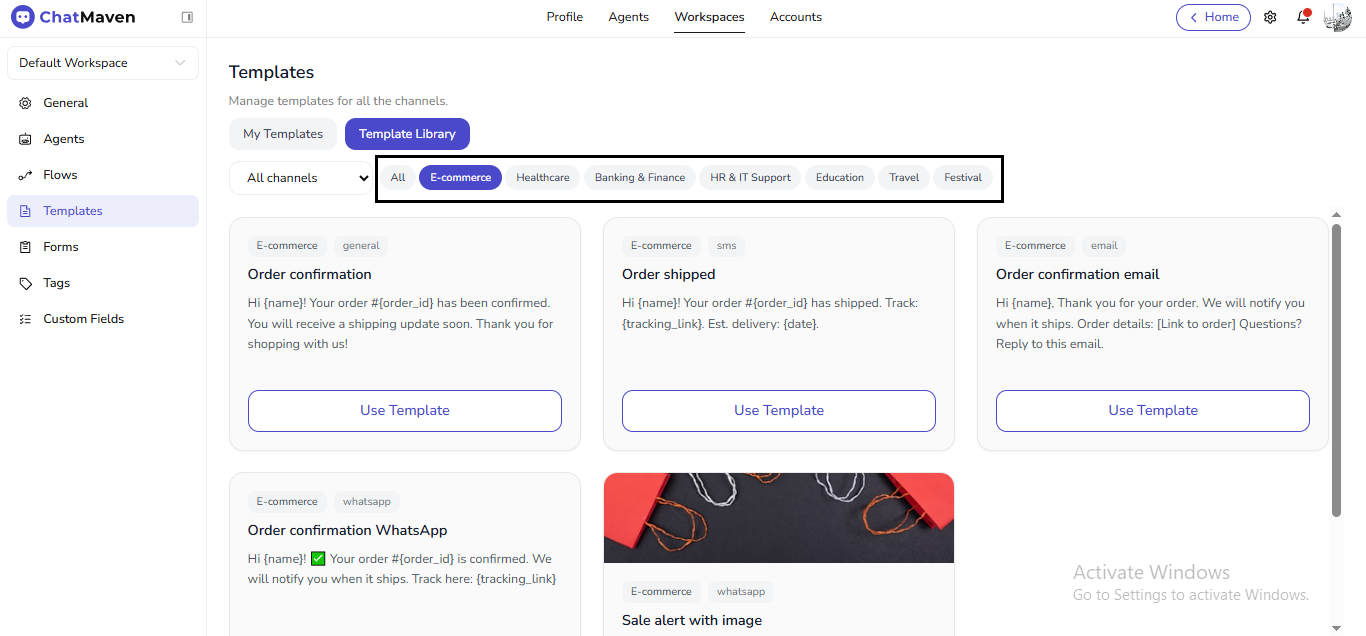
- Template Library — Curated cards you can add with Use Template; filter by channel and category (for example E-commerce, Healthcare, Banking & Finance).
List and filters (My Templates)
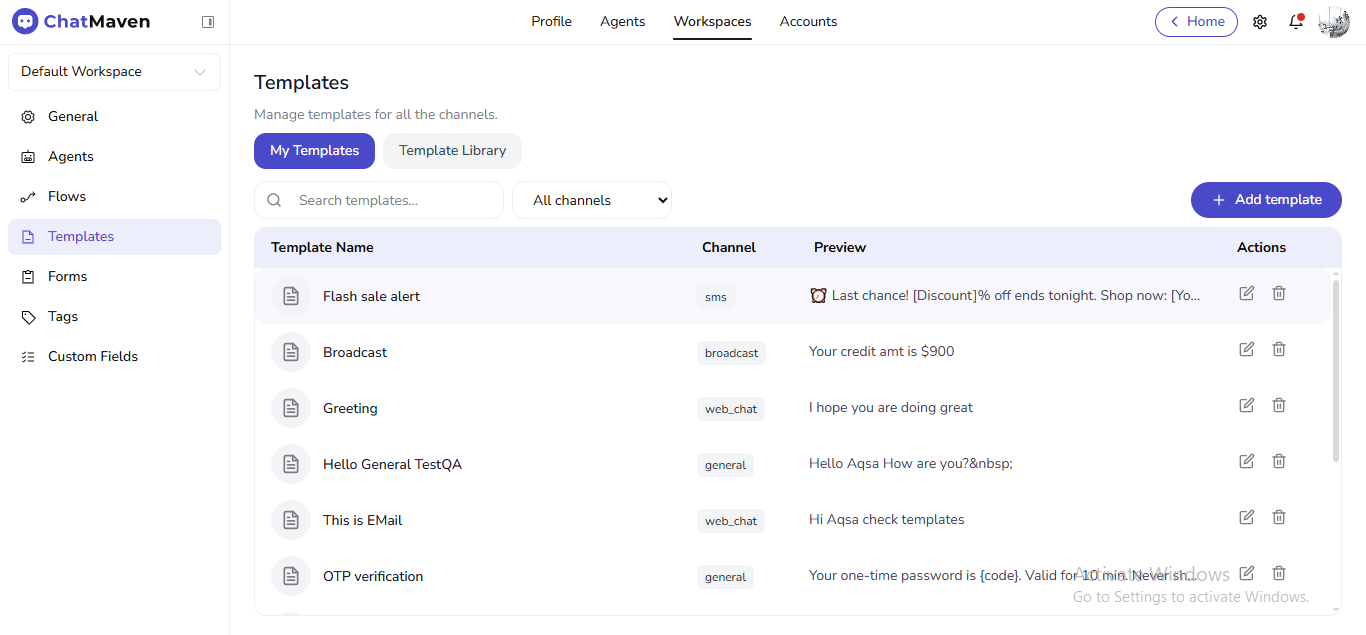
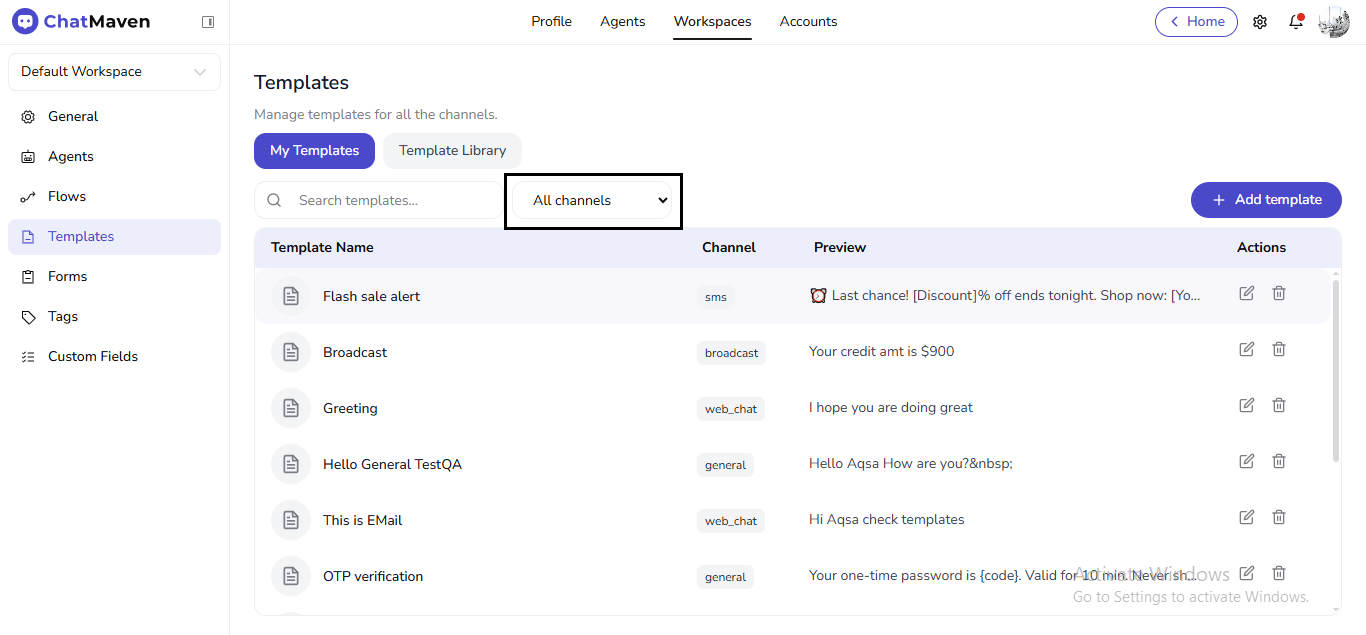
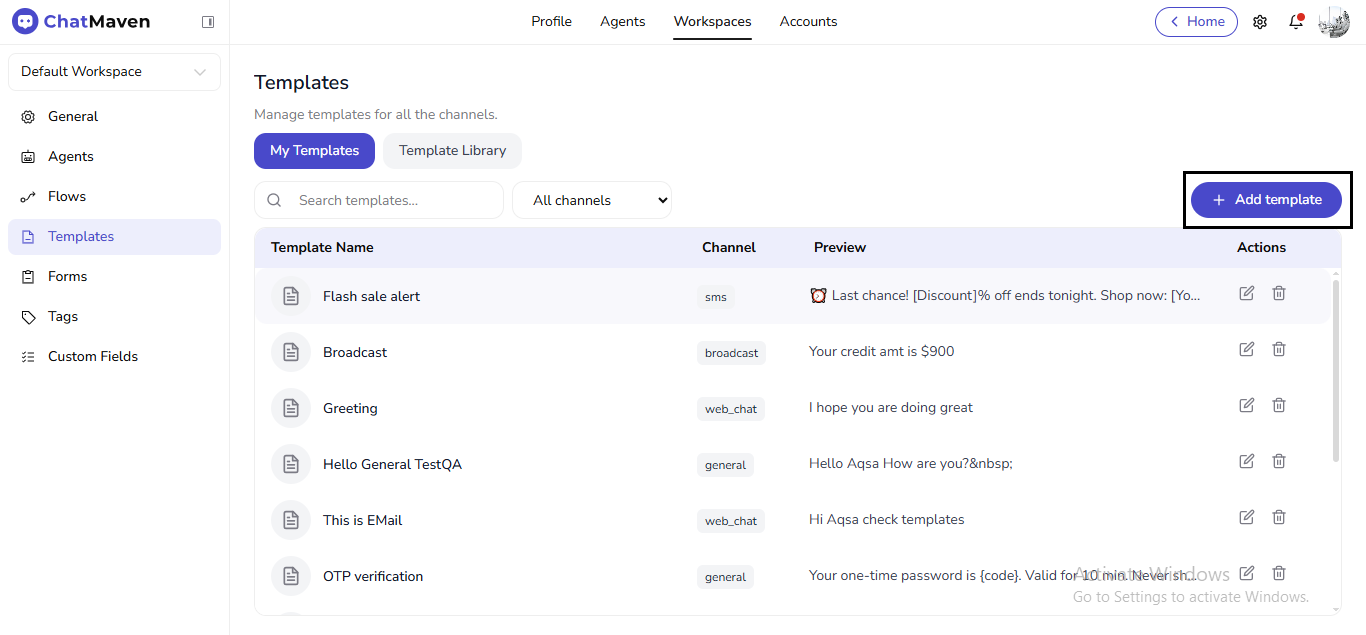
Use Search templates… and the Channel dropdown (All channels, Broadcast, SMS, Email, Web chat, WhatsApp, and others your account shows). Add template opens the create dialog.
Create a template
- Click Add template.
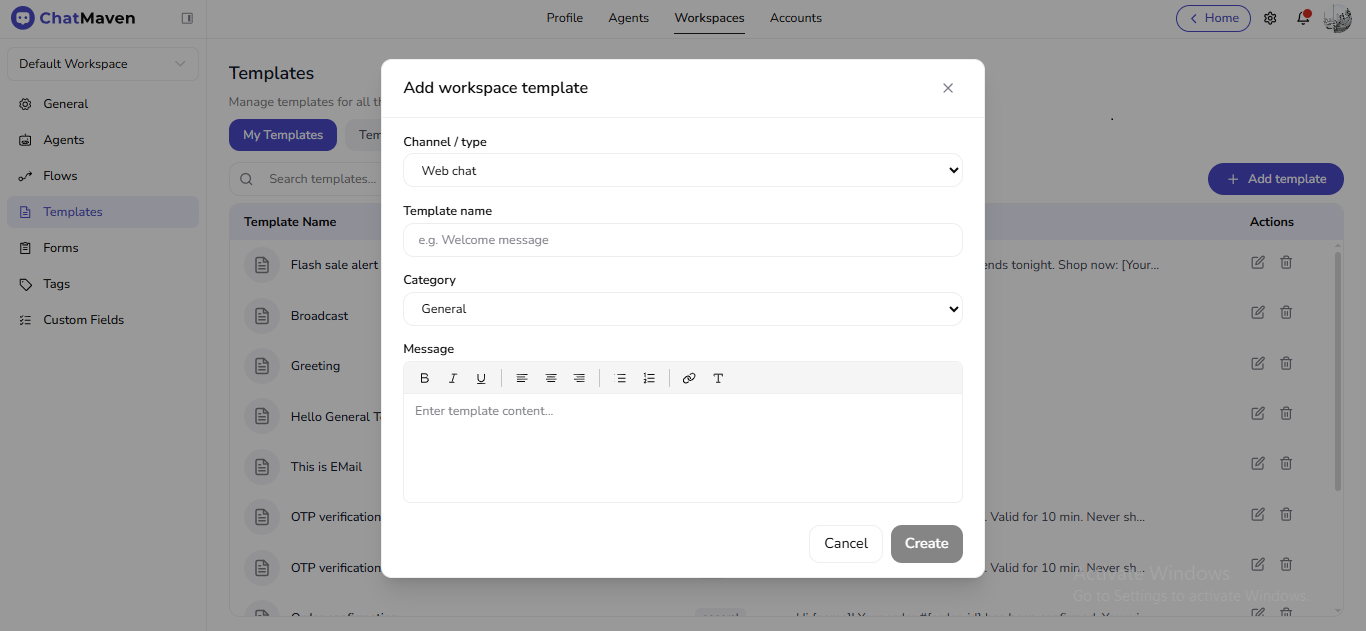
- In Add workspace template, set Channel / type, Template name, Category, and compose the Message in the rich-text area.
- Click Create when enabled; Cancel closes without saving.
Browse the Template Library
- Open the Template Library tab.
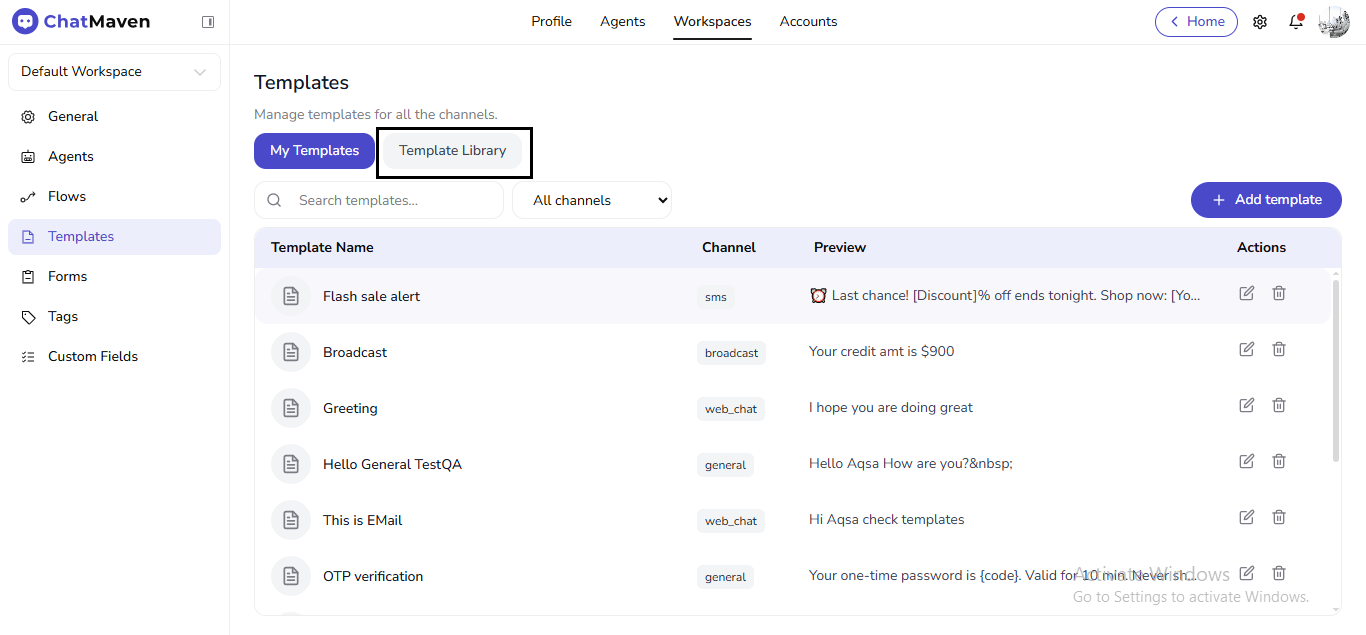
- Open a card’s Use Template to add it to your workspace. Previews use placeholders such as
{name}or{order_id}.
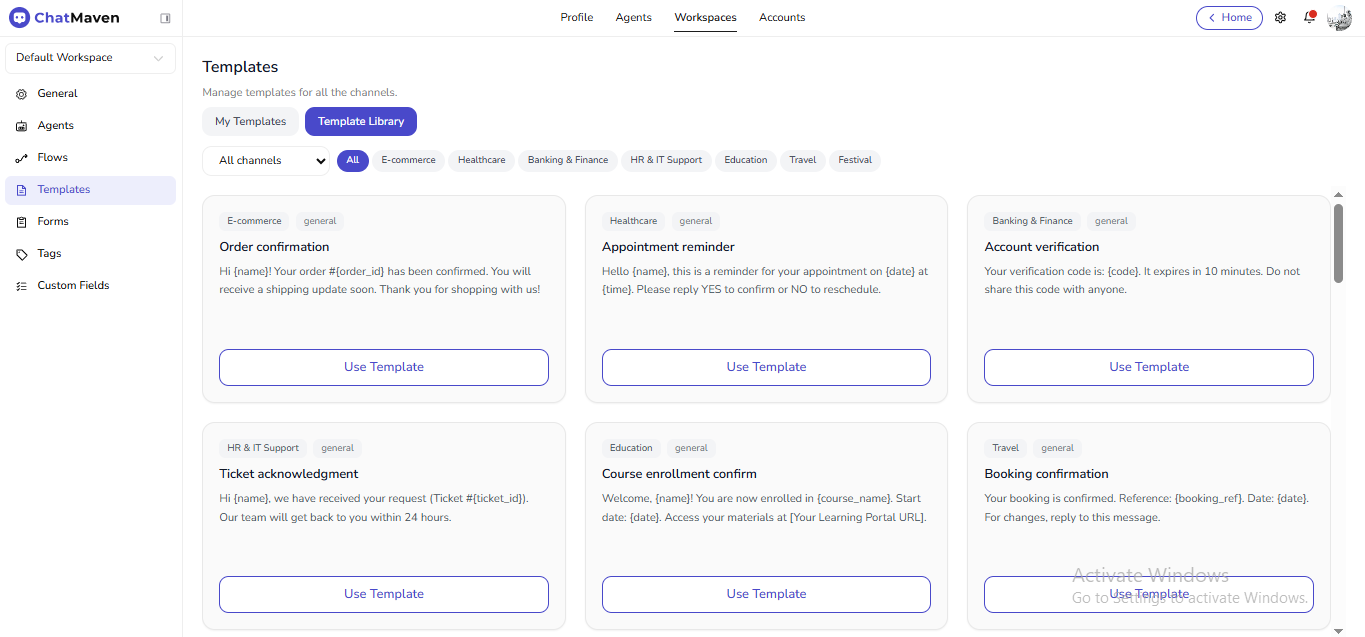
- Filter by All channels
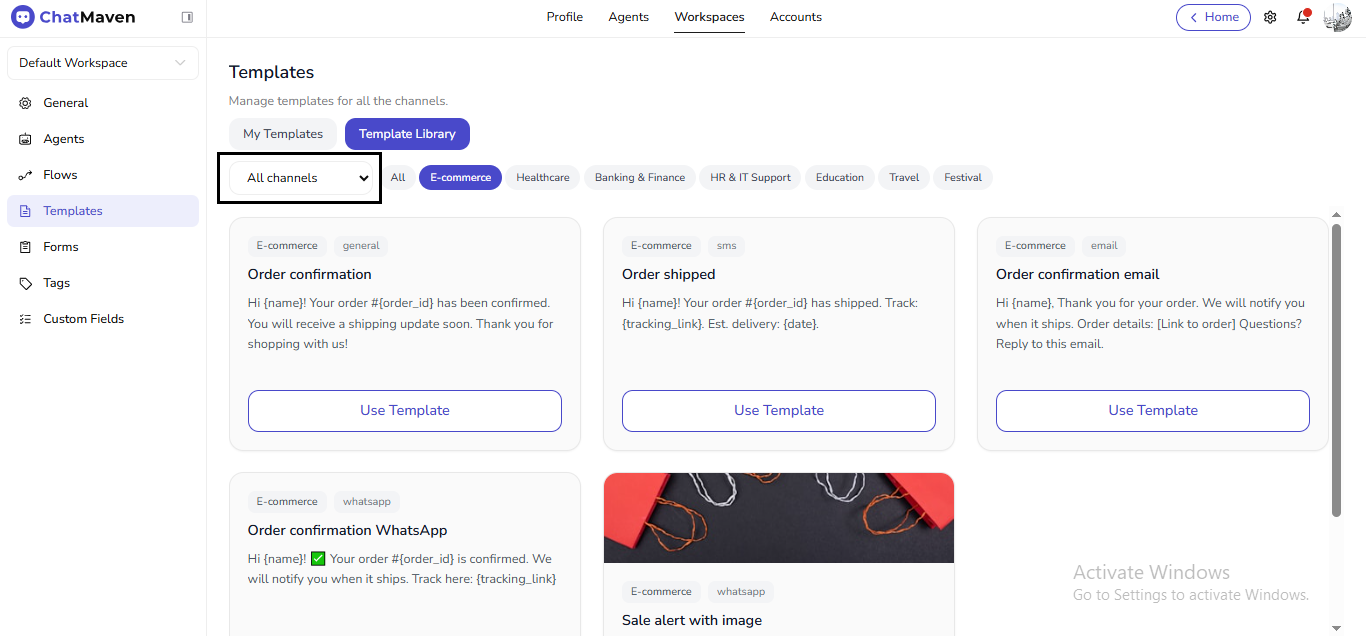
By category chips (All, E-commerce, Healthcare, etc.).
Edit a template
- On My Templates, in Actions, click the edit (pencil) icon for the row.
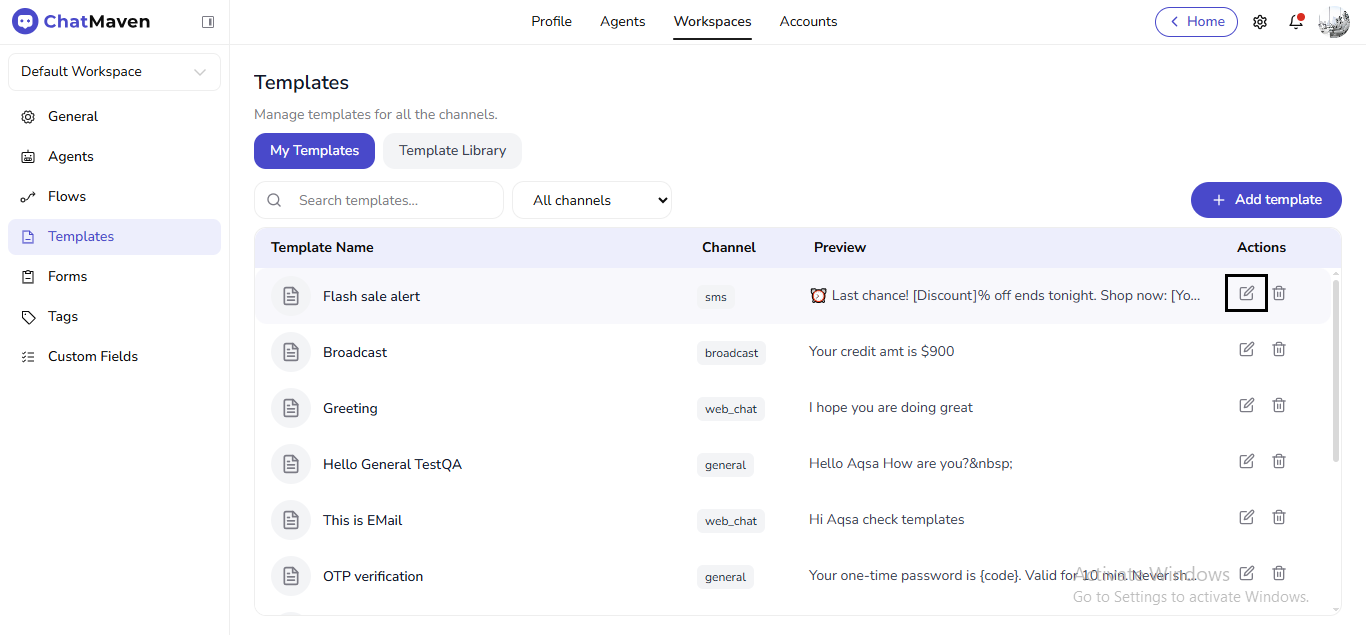
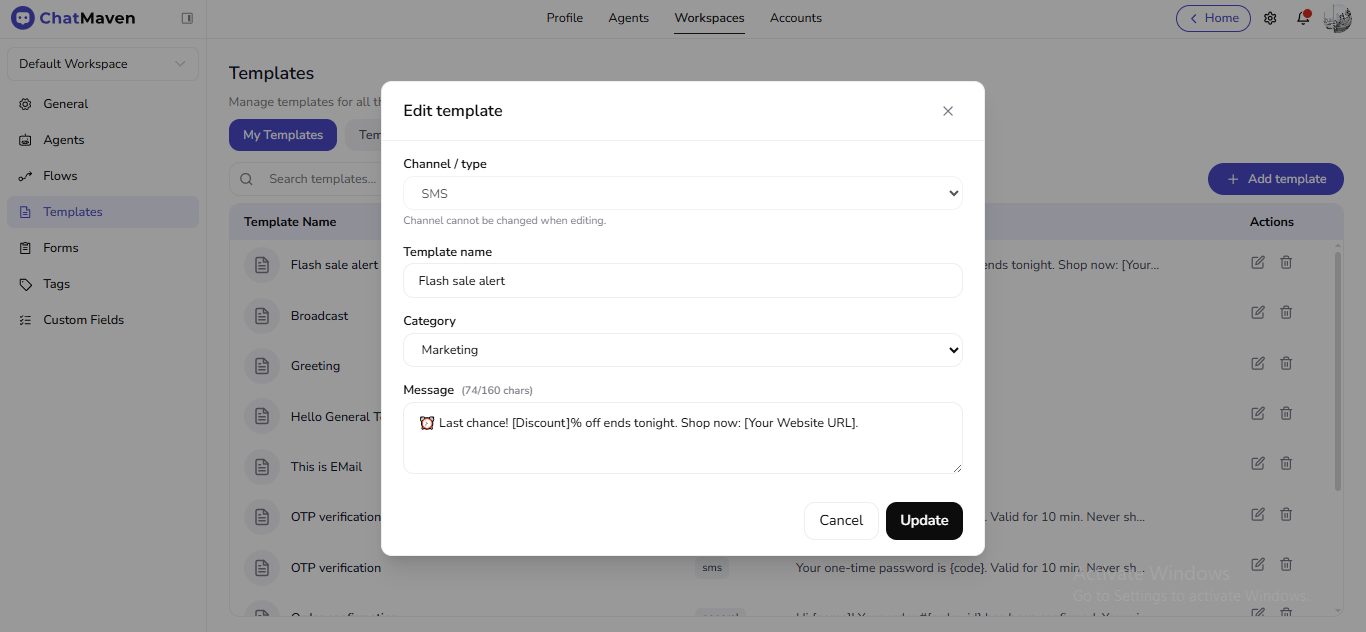
- In Edit template, update Template name, Category, and Message. Channel / type usually cannot change when editing (the product states the channel is fixed after creation).
- Click Update to save or Cancel to close.
Delete a template
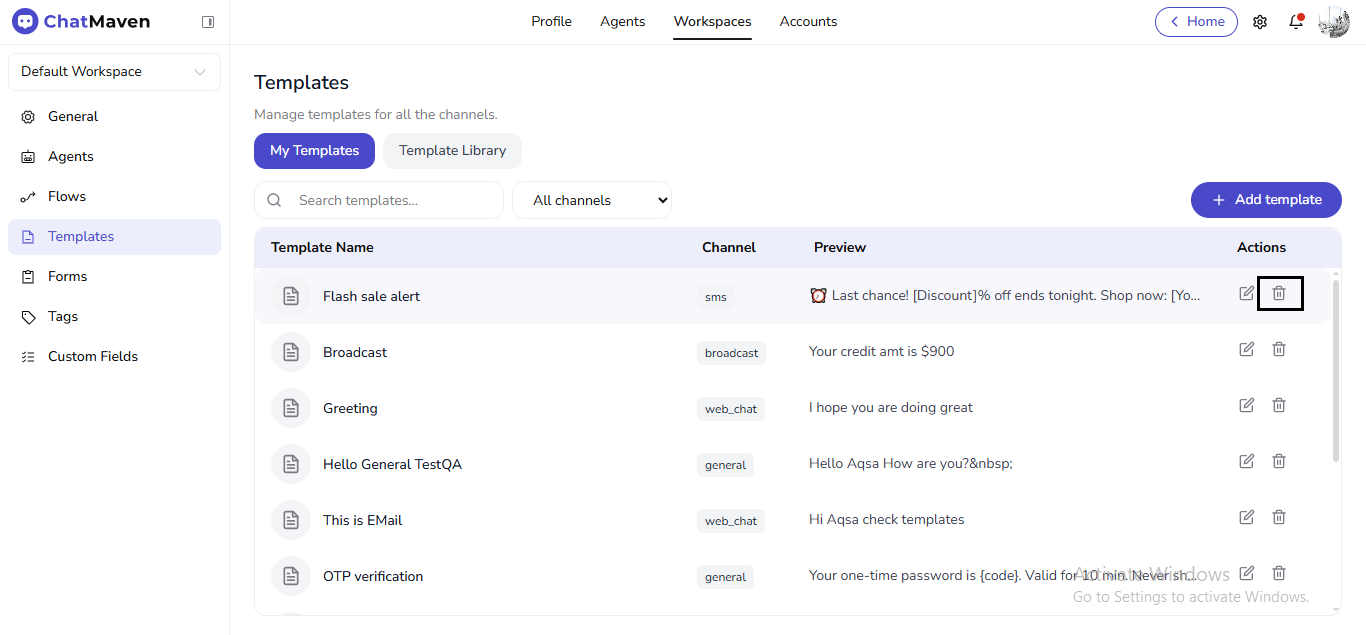
- In Actions, click the trash icon.
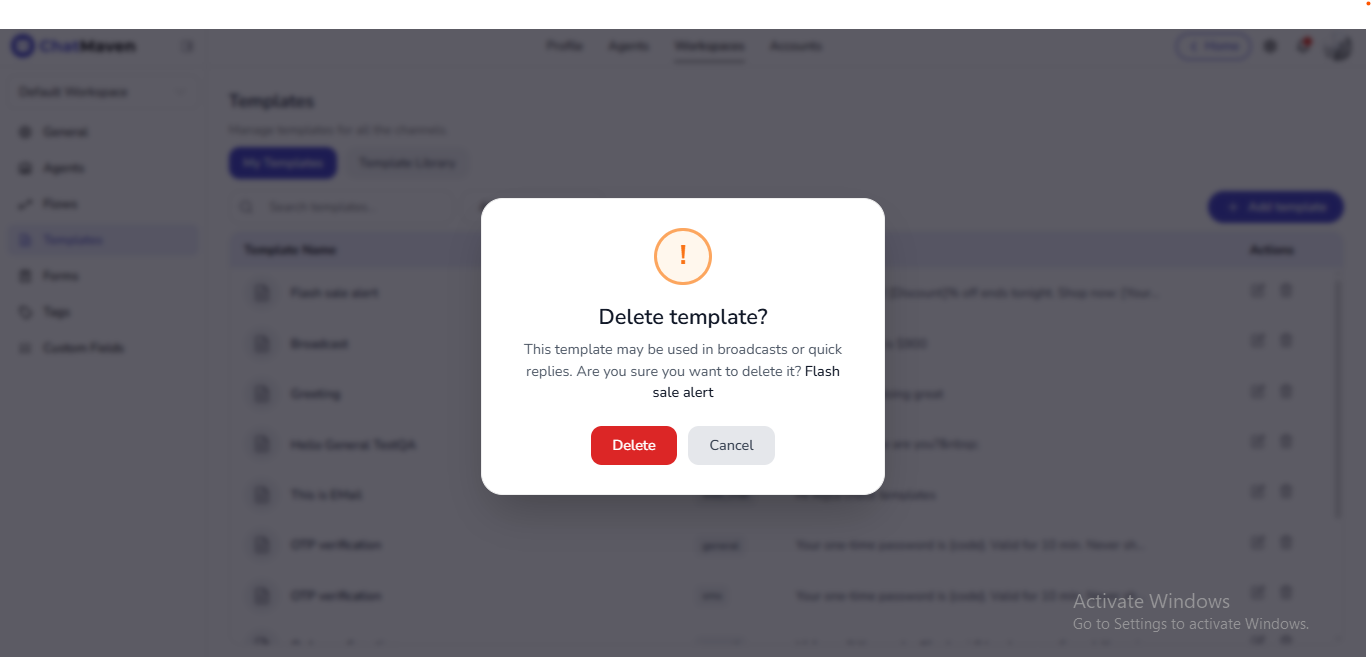
- In Delete template?, read the warning (templates may be used in broadcasts or quick replies). Confirm Delete or choose Cancel.
Related
- Getting Started with Workspaces
- Flows overview — Message and WhatsApp Template steps
- WhatsApp Templates