WhatsApp Appearance
Appearance video
Watch the Walkthrough video:
If the embedded player does not load, open it directly here: WhatsApp - Appearance video.
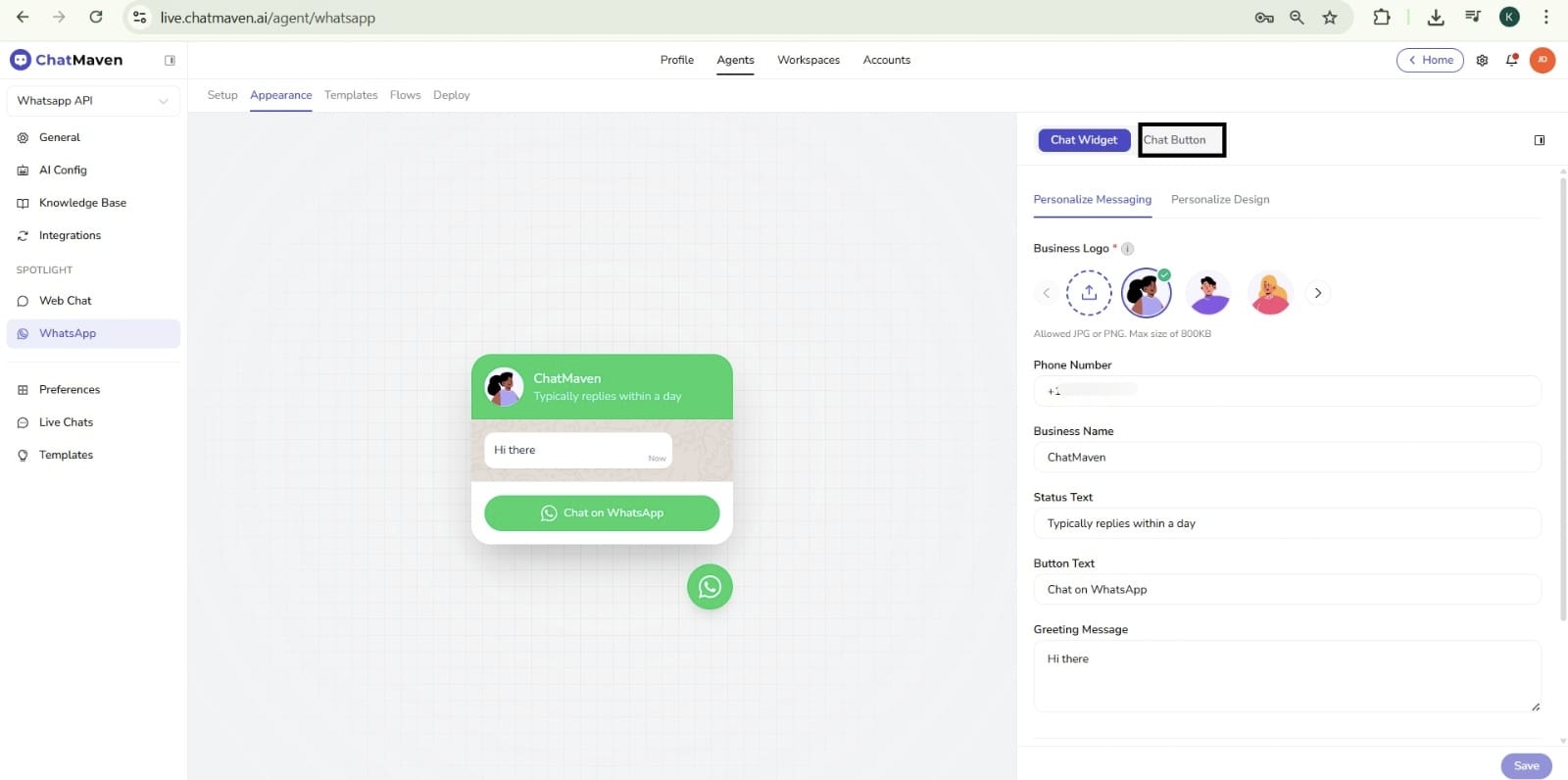
Customize how your WhatsApp chat widget or chat button looks and behaves on your website or app. Use the Chat Widget tab for the full bubble (logo, greeting, header), or the Chat Button tab for a compact labeled button that opens WhatsApp with optional pre-filled text.
Complete the WhatsApp Integration setup and connect your WhatsApp number before customizing appearance.
Opening the Appearance settings
- In ChatMaven, go to Agents and select your agent (e.g. Bradd Agent).
- In the left sidebar under SPOTLIGHT, click WhatsApp.
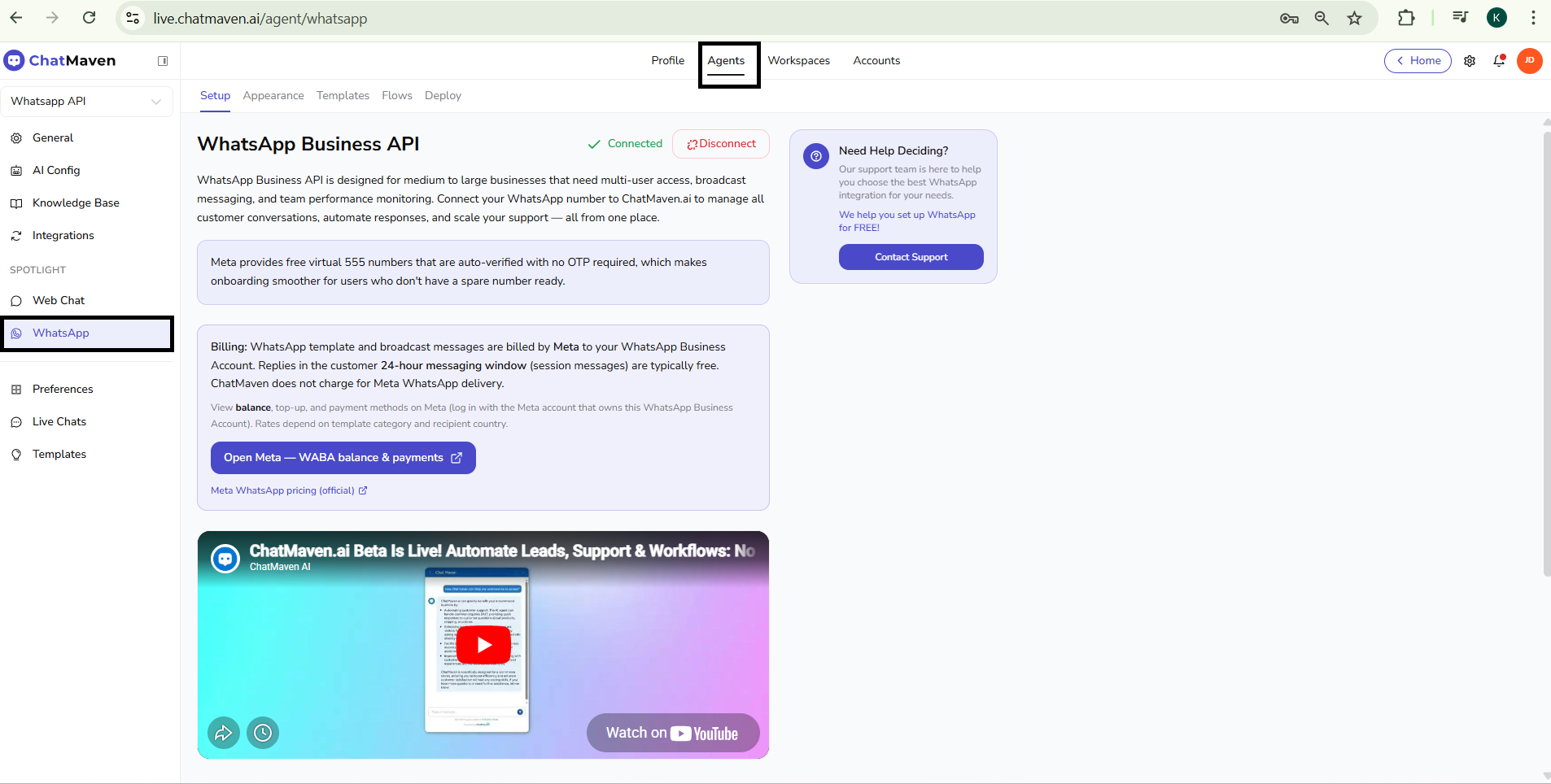
- At the top, open the Appearance tab.
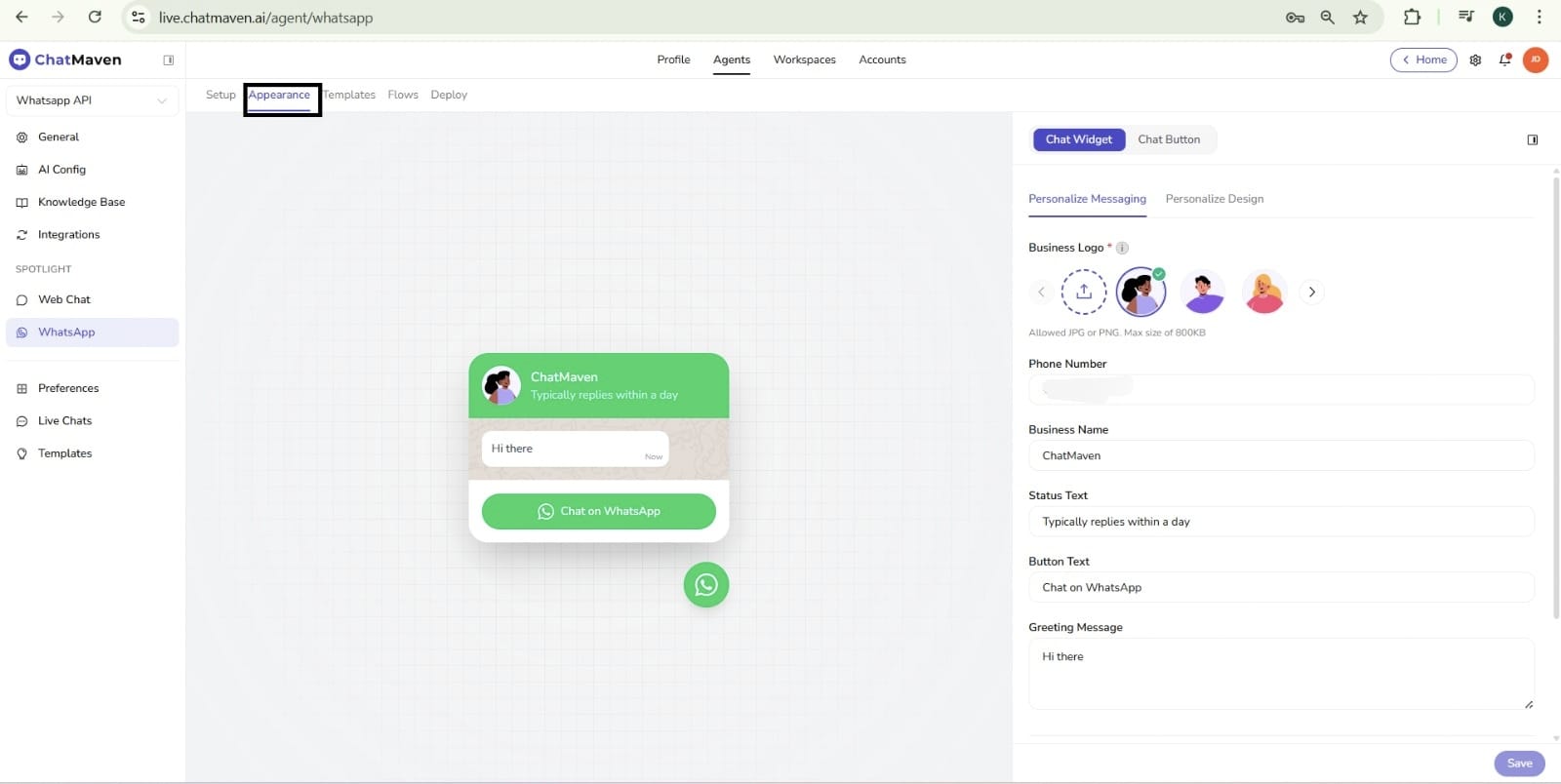
You’ll see a live preview in the center and configuration options on the right.
Choosing Chat Widget or Chat Button
At the top of the right-hand panel, switch between:
- Chat Widget — Full chat bubble with header, greeting, and main action button.
- Chat Button — Compact floating button that opens WhatsApp when clicked.
Only the options for the selected tab apply. Configure the Chat Widget first below, then scroll to Chat Button for the button-only settings.
Chat Widget
Select the Chat Widget tab when you want visitors to see your logo, business name, status line, and greeting before they open WhatsApp.
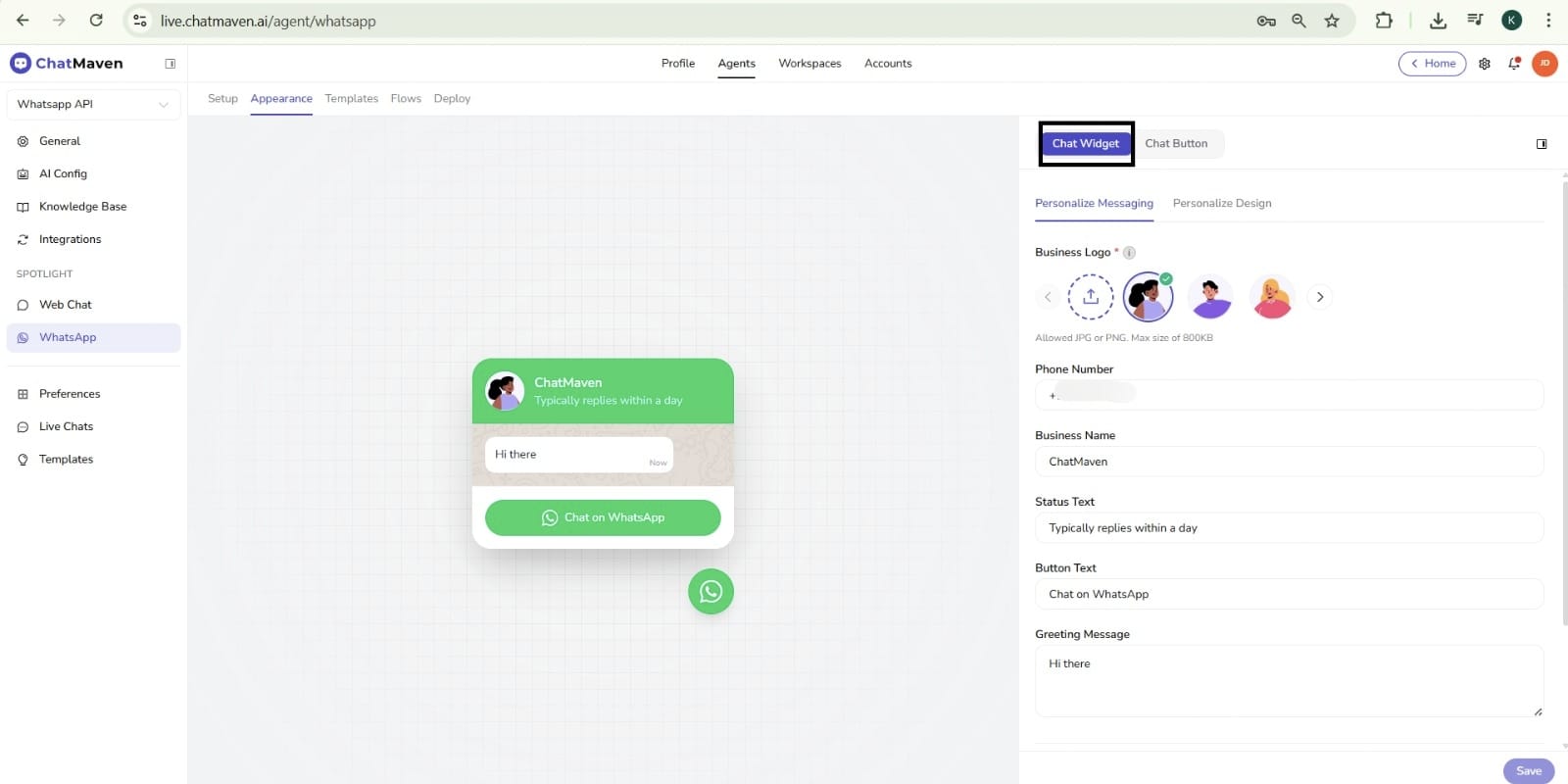
Personalize Messaging (Chat Widget)
These fields appear when Chat Widget is selected.
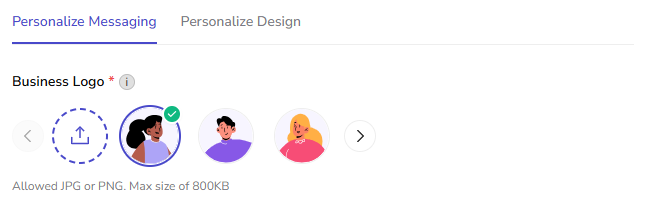
Business Logo
- Upload your business logo so it appears in the widget header.
- Allowed formats: JPG or PNG.
- Max size: 800 KB.
- You can upload multiple logos and use the arrows to choose which one is active.
Phone Number
- The WhatsApp number shown and used for the “Chat on WhatsApp” action.
- Enter it in international format (e.g. +918662034977).

Business Name
- The name shown in the widget header (e.g. ChatMaven).
- This is the main label users see next to your logo.

Status Text
- Short line under the business name (e.g. Typically replies within a day).
- Use it to set expectations (e.g. response time or availability).

Button Text
- The label on the main call-to-action inside the widget (e.g. Chat on WhatsApp).
- This is the text users click to open the WhatsApp chat from the expanded bubble.

Greeting Message
- The first message shown inside the widget before the user starts the conversation (e.g. Hi there).
- Keeps the tone friendly and sets context.

Personalize Design (Chat Widget)
These controls style the Chat Widget look and feel.
Theme Color
- Required. Sets the primary accent color used by the widget theme.
- Choose from the color swatches in the palette (including the gradient option).

Chat Background
- Choose Image or Color for the message area background.
- If Image is selected, set the path or URL in Background Image (for example
/chats-background/whaatsapp-default-bg.png). - Helper text in the UI: Enter image path or URL.

Header Background Color
- Background color for the widget header (logo and business info).

Name Text Color
- Text color for the business name in the header.

Status Text Color
- Text color for the status line under the name (for example response-time text).

Button Text Color
- Text color for the main call-to-action button label inside the widget.

Button Background Color
- Fill color for the main call-to-action button.

Button Border Radius
- How rounded the CTA button corners are (for example 24px for a pill-like shape). Pick a value from the dropdown.

Save (Chat Widget)
After you change any Chat Widget options, click Save (typically bottom right) so the embed picks up your updates.
Chat Button
Select the Chat Button tab when you want a minimal floating button (with your label and styling) that sends people straight into WhatsApp.
Personalize Messaging (Chat Button)
These fields appear when Chat Button is selected—not on the Chat Widget tab.
| Field | What it does |
|---|---|
| Button Text | The visible label on the button (for example Chat on WhatsApp). This is what people read before they tap. |
| Pre-filled Message | Text that appears already filled in in the user’s WhatsApp compose box when the chat opens. Use it for a polite opener or context (for example Hello! I’d like to get in touch.). |

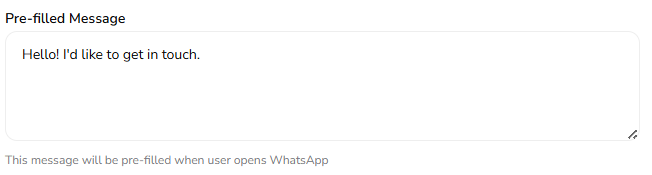
Below Pre-filled Message, the product shows a short hint that this text is pre-filled when the user opens WhatsApp—so customers can send it as-is or edit it before sending.
Button Design (Chat Button)
| Field | What it does |
|---|---|
| Theme Color | Required. Pick the main color for the button from the palette (solid swatches such as purple, orange, red, pink, blue, teal, black, brown, plus a multi-color gradient option). Choose the swatch that best matches your site’s brand. |
| Button Border Radius | How rounded the corners are. For example 24px (Rounded) gives a pill-like shape; other presets in the dropdown let you match flatter or sharper UI on your page. |


Preview
The center panel updates as you edit the active tab.
- Chat Widget tab: Check logo, business name, status, greeting, chat background style, and button styling (text/background colors + border radius).
- Chat Button tab: Check button label, color, corner radius, and placement. The Pre-filled Message shows in WhatsApp after click, not inside the on-page preview.
Recommended next steps
- Save separately after you finish each tab if you use both modes during setup.
- Test the Chat Widget flow end-to-end, then switch to Chat Button and confirm WhatsApp opens with your Pre-filled Message when you expect it.
- Keep Status Text and Greeting Message (widget) short; keep Chat Button label short and use the pre-filled line for extra context.
- Use a recognizable Business Logo and Business Name on the Chat Widget tab so the bubble is clearly your brand.
- Keep text contrast high (for example, light text on dark header/button colors) to maintain readability.
Need help?
FAQ and troubleshooting
Changes to colors or header do not show for customers.
Publish or save changes in ChatMaven, then ask a tester to restart WhatsApp or open a new chat thread. Cached session UI can lag briefly.
Branding looks wrong on desktop vs mobile.
WhatsApp controls much of the chrome; you can usually customize the business profile and message templates. Extreme customization may be limited by Meta’s client.
Where do I manage the phone number display name?
That is typically in Meta Business Suite / WhatsApp Manager, not only in ChatMaven. Align your verified display name with Meta’s policies to avoid rejection.