Flow trigger
Every flow begins with a START node. The trigger defines when a contact enters the flow. After you set the trigger, connect steps on the canvas and scope the flow with Active, agents, and channels as needed.
See Flows overview for the list page and builder layout.
- Open live.chatmaven.ai/workspaces/flows.
- Click Edit on a flow (or Add flow for a new one).
- Click the START node on the canvas.
Open trigger settings
- Open a flow in the builder.
- Click the START node on the canvas.
- Configure the trigger in the right-hand panel.
- Click Save at the bottom of the builder.
Trigger types
Conversation Started
The flow runs when a new conversation starts on a channel and agent that match the flow's scope.
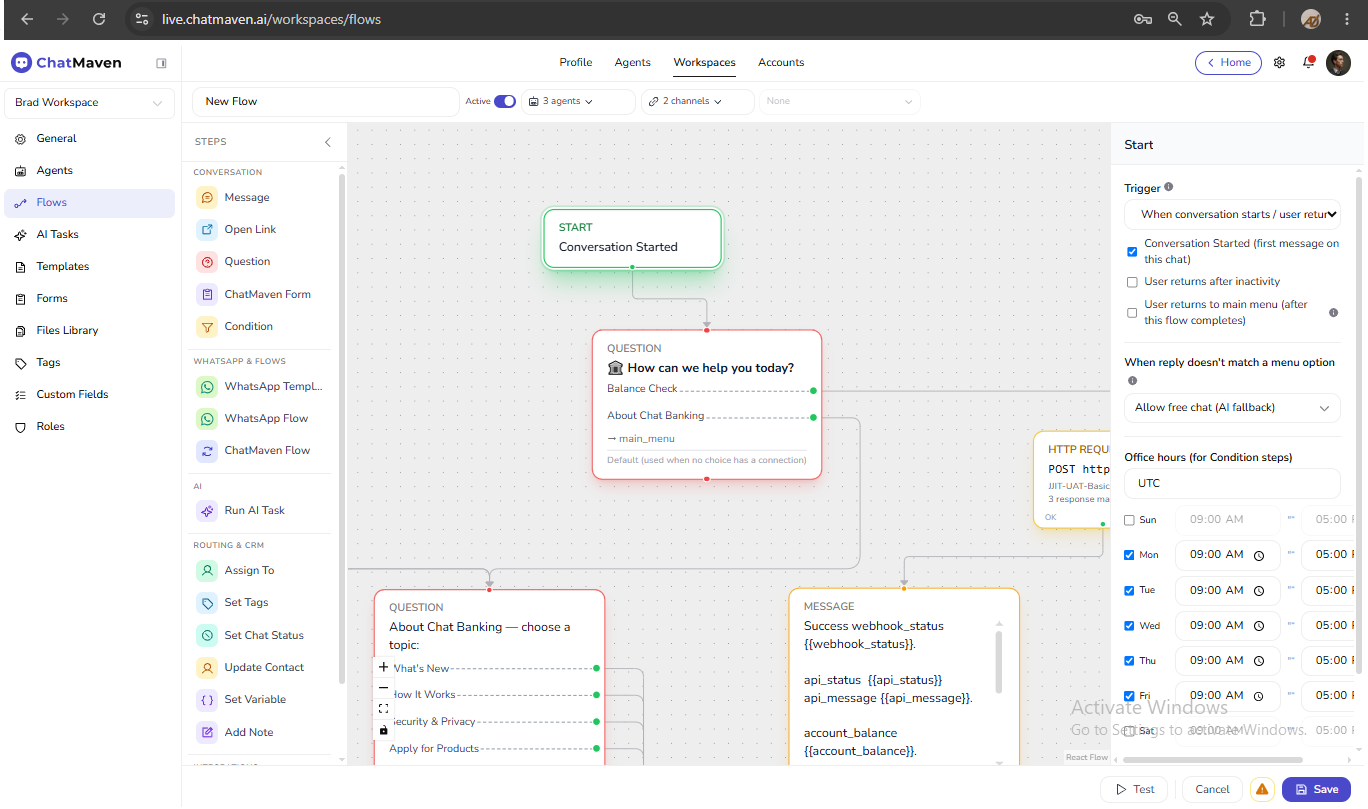
List summary example: Conversation Started
Configuration options:
- Conversation Started (first message on this chat) — runs when the contact opens a new chat.
- User returns after inactivity — optional; re-enters the flow when the contact comes back after idle time.
- User returns to main menu (after this flow completes) — optional; re-enters when the contact returns to the main menu.
Typical uses:
- Welcome message
- Away or out-of-office reply
- Round-robin or assign-to-agent on first message
Tips:
- Combine with Active and channel filters so web chat and WhatsApp can use different flows.
- If many flows use Conversation Started, narrow scope per agent or channel.
Conversation Condition Match
The flow runs when an incoming conversation matches rules you define—for example a keyword in the visitor's message.
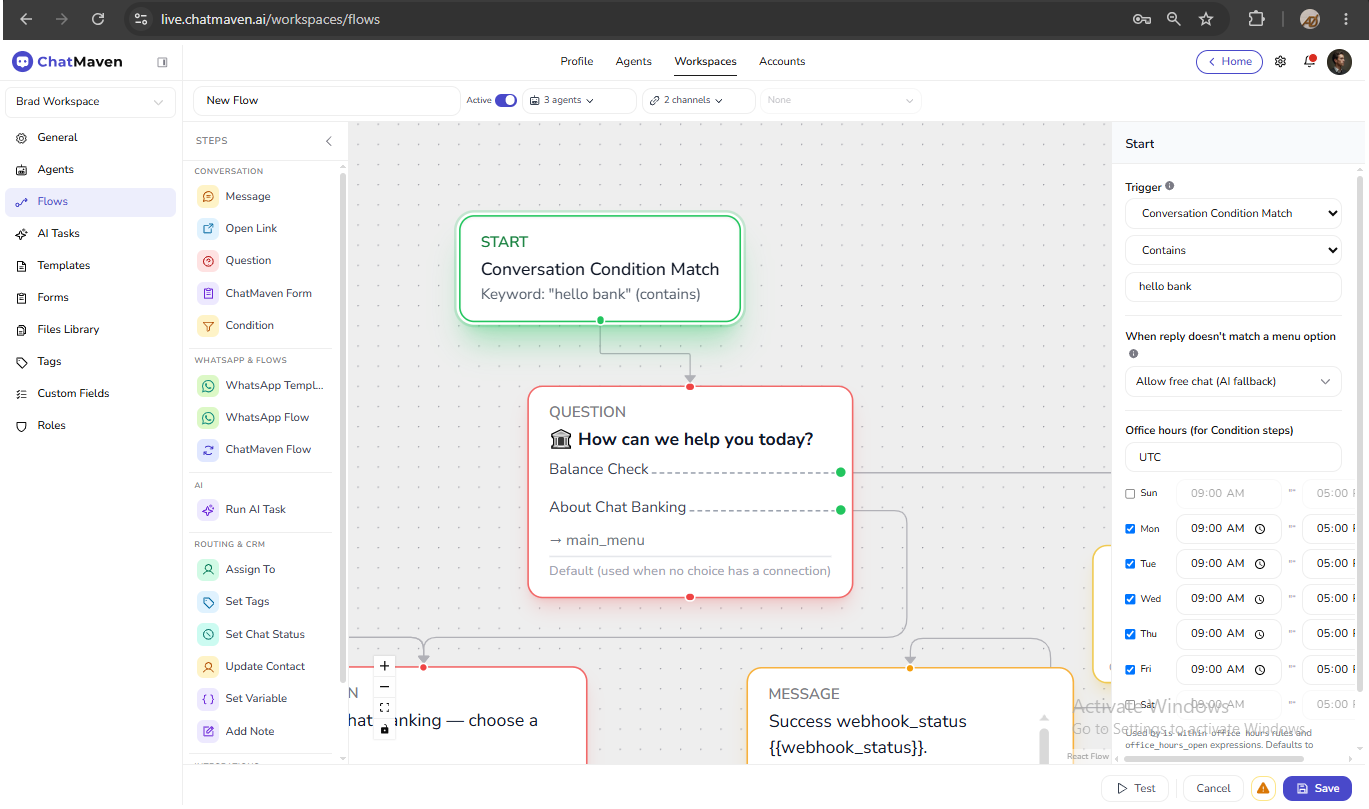
List summary example: Conversation Condition Match when message contains 'help'
On the canvas the START node may show a short rule line, such as:
Keyword: "help" (contains)
Configuration:
- Match type — for example Contains or Exact.
- Keyword — the word or phrase that starts the flow.
Typical uses:
- Keyword routing (
help,sales,balance) - Separate flows per campaign or entry phrase
- Support menus triggered by a specific word
Tips:
- Use clear, distinct keywords when multiple condition-match flows are Active.
- Test with Test in the builder using the same channel and agent scope as production.
- Document keywords for your team so flows are not duplicated accidentally.
Conversation Condition Match is the trigger on START—it decides whether the flow enters.
The Condition step runs later in the journey and branches on answers, tags, or contact data.
Menu fallback and office hours
On the START panel you can also configure:
| Setting | Purpose |
|---|---|
| When reply doesn't match a menu option | What happens when a contact types free text instead of choosing a menu option (for example Allow free chat (AI fallback)). |
| Office hours (for Condition steps) | Timezone and weekly schedule used by is within office hours rules in Condition steps. Defaults to Mon–Fri 9:00–17:00 UTC when unset. |
Trigger and list display
The Flow column on My flows shows the flow name and a trigger summary.
| Trigger | What you might see |
|---|---|
| Conversation Started | Conversation Started |
| Conversation Condition Match | Conversation Condition Match when message contains '…' |
Scoping triggers
A trigger only fires when the conversation also matches flow scope:
| Scope | Effect |
|---|---|
| Active | Inactive flows never start. |
| Agent | Only selected agents (or all if none selected). |
| Channels | All channels if none checked; otherwise only checked channels. |
| WhatsApp integration | Specific WhatsApp number when WhatsApp is in scope. |
Configure scope in the builder header. See Flows overview — Scope the flow.
Validation and save
- Connect at least one step after START before you rely on the flow in production.
- Use Flow validation notes next to Save for warnings about variables or configuration.
- Click Save at the bottom of the builder after changing the trigger.
FAQ
Can one contact trigger multiple flows?
Yes, if multiple Active flows match the same event and scope. Use distinct keywords or scopes to avoid overlap.
Can I change the trigger on a live flow?
Open the flow, click START, change the trigger, and Save. Test after changes; contacts already in a journey may follow rules in effect when they entered.
Does Conversation Condition Match use regex?
The product exposes match types such as contains and exact for keywords. Configure the exact options in the START panel for your workspace.