Preferences
Preferences under Accounts control how sessions behave for users on this account: idle timeouts, maximum session length, optional “stay signed in” behavior, and quick presets. Settings apply to whichever account is selected in the Accounts sidebar dropdown.
In the hosted product, open this screen at https://live.chatmaven.ai/accounts/preferences (URL path /accounts/preferences).
Open Preferences
- Sign in to ChatMaven.
- In the top navigation, click Accounts (alongside Profile, Agents, and Workspaces).
- In the Accounts left sidebar, click Preferences (shown with a small clock-style icon next to the label).
Confirm the account dropdown at the top of the sidebar shows the account you intend to configure; session rules apply to that account only.
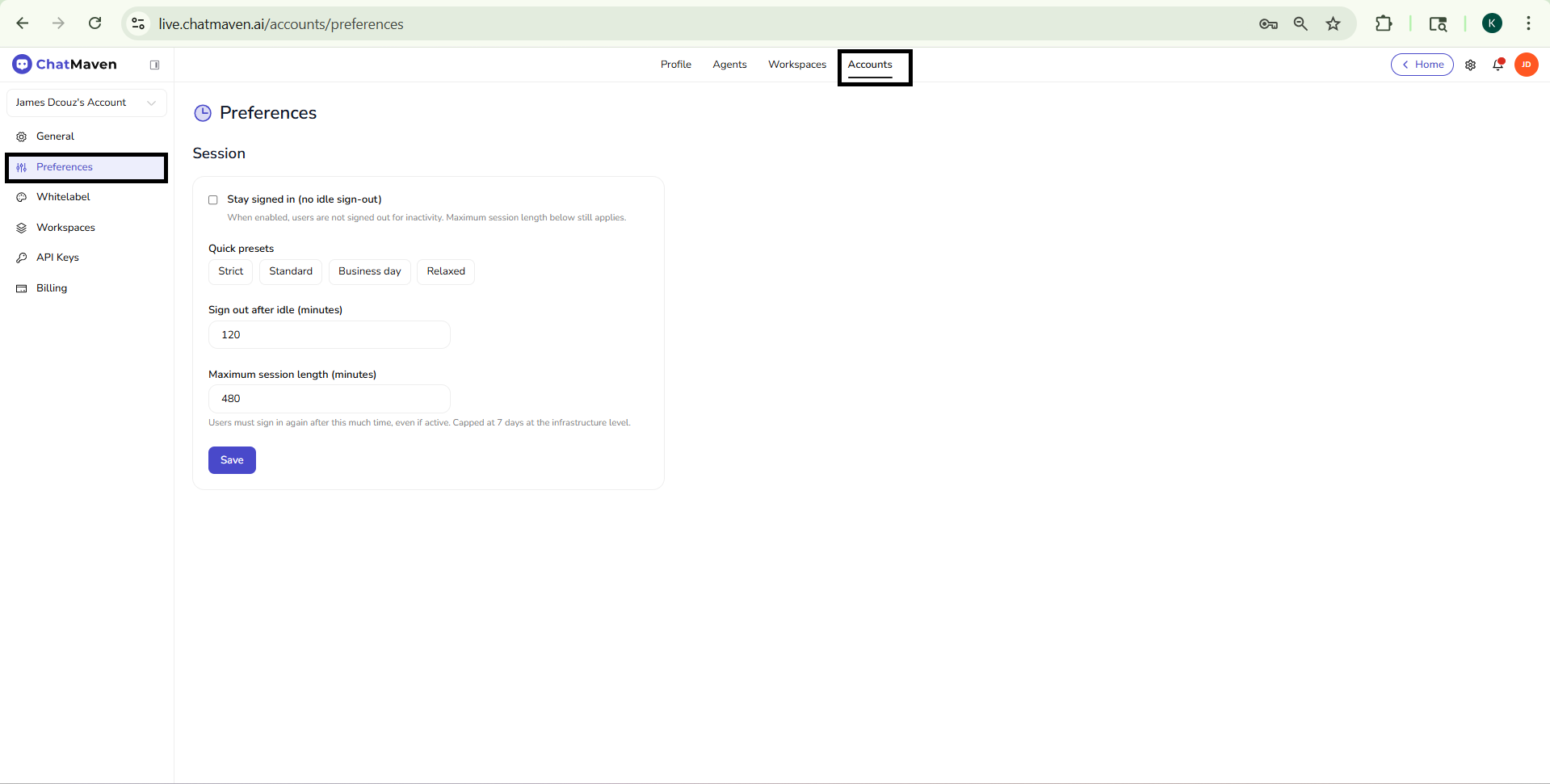
Session
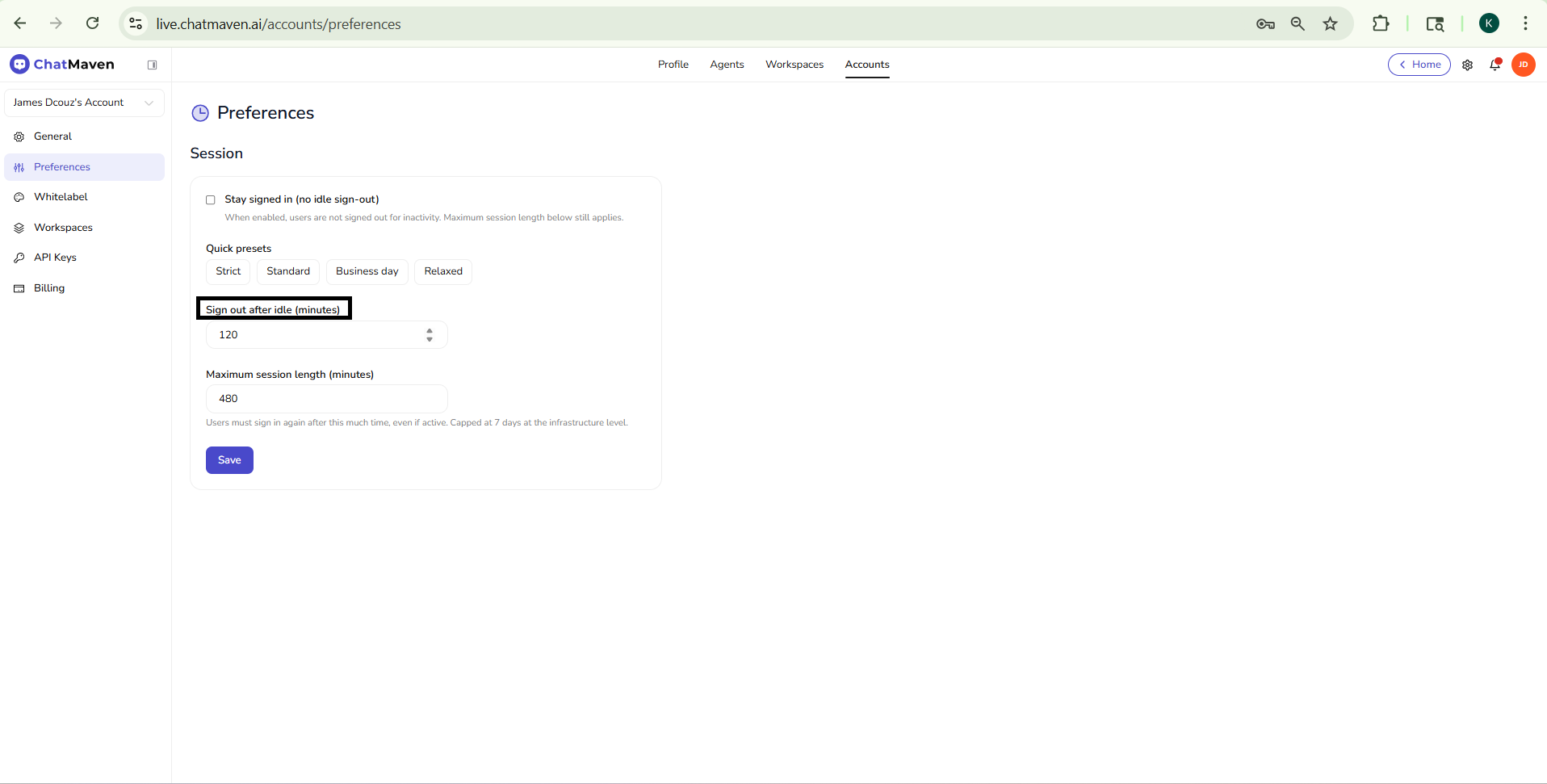
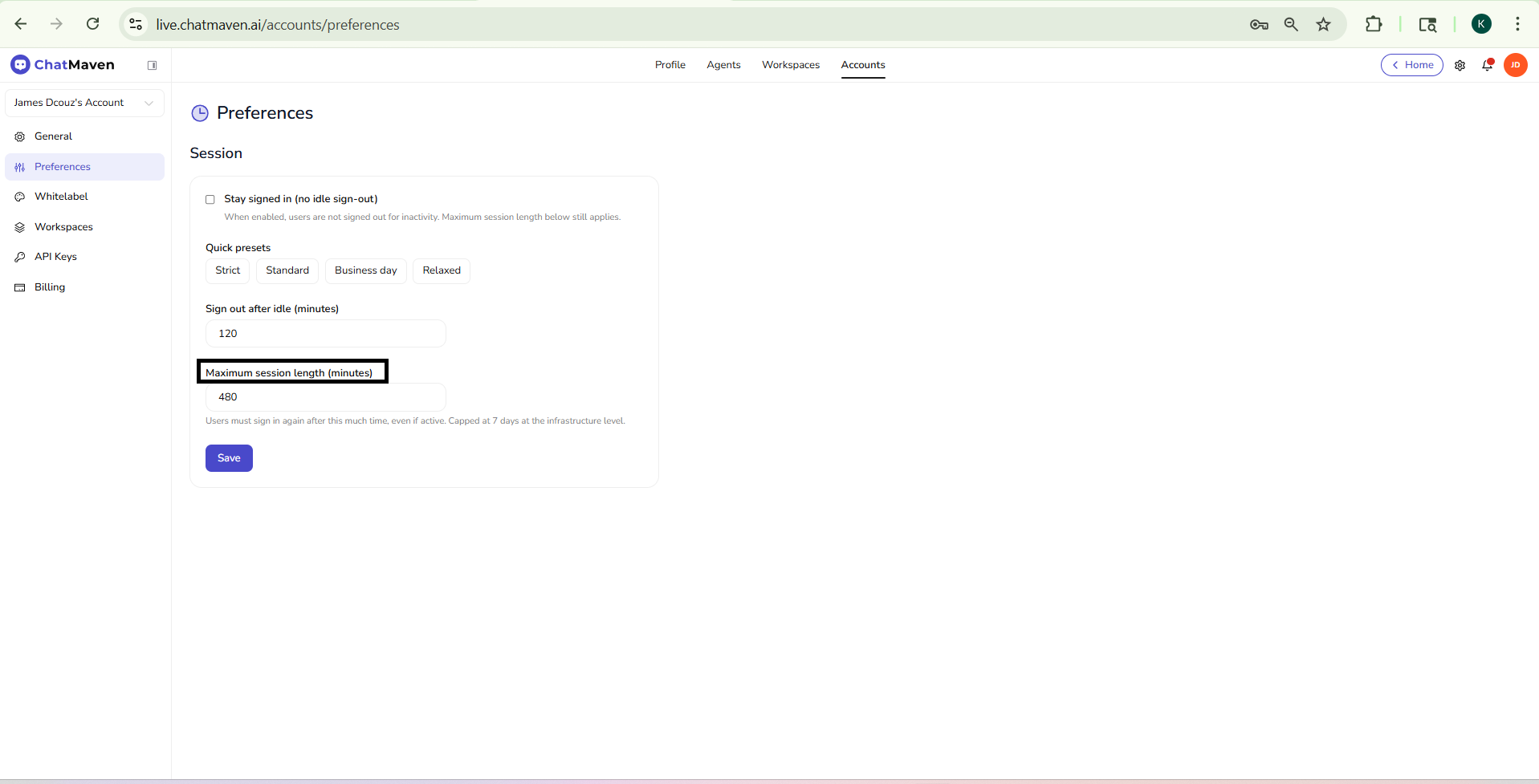
The main content area is titled Preferences. All options on this page sit in a single Session card.
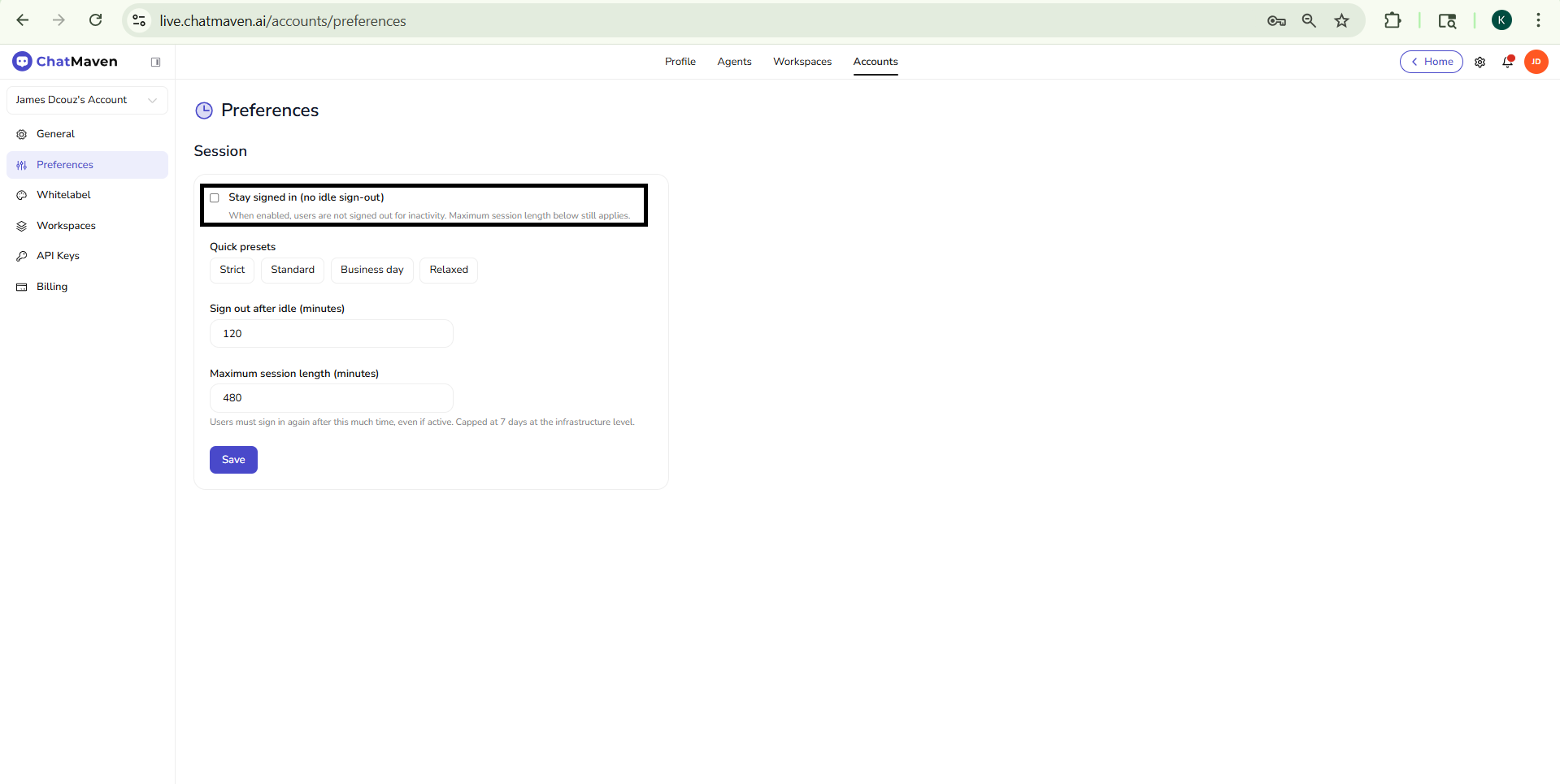
Stay signed in (no idle sign-out)
- Checkbox: Stay signed in (no idle sign-out).
- When enabled, users are not signed out for inactivity; idle timeout no longer ends their session.
- Product helper text: When enabled, users are not signed out for inactivity. Maximum session length below still applies.
Even with this enabled, Maximum session length still forces users to sign in again after the configured duration.
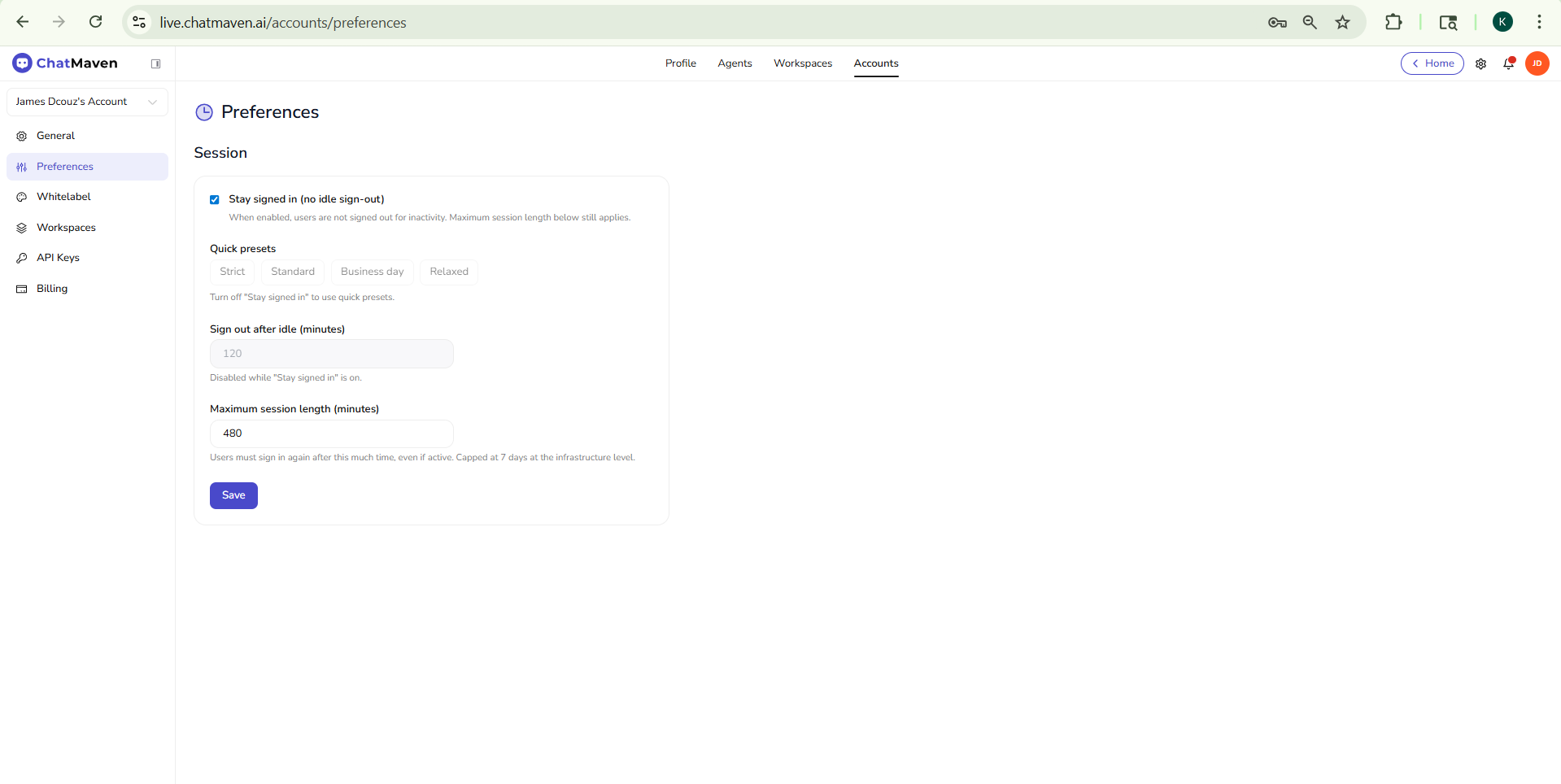
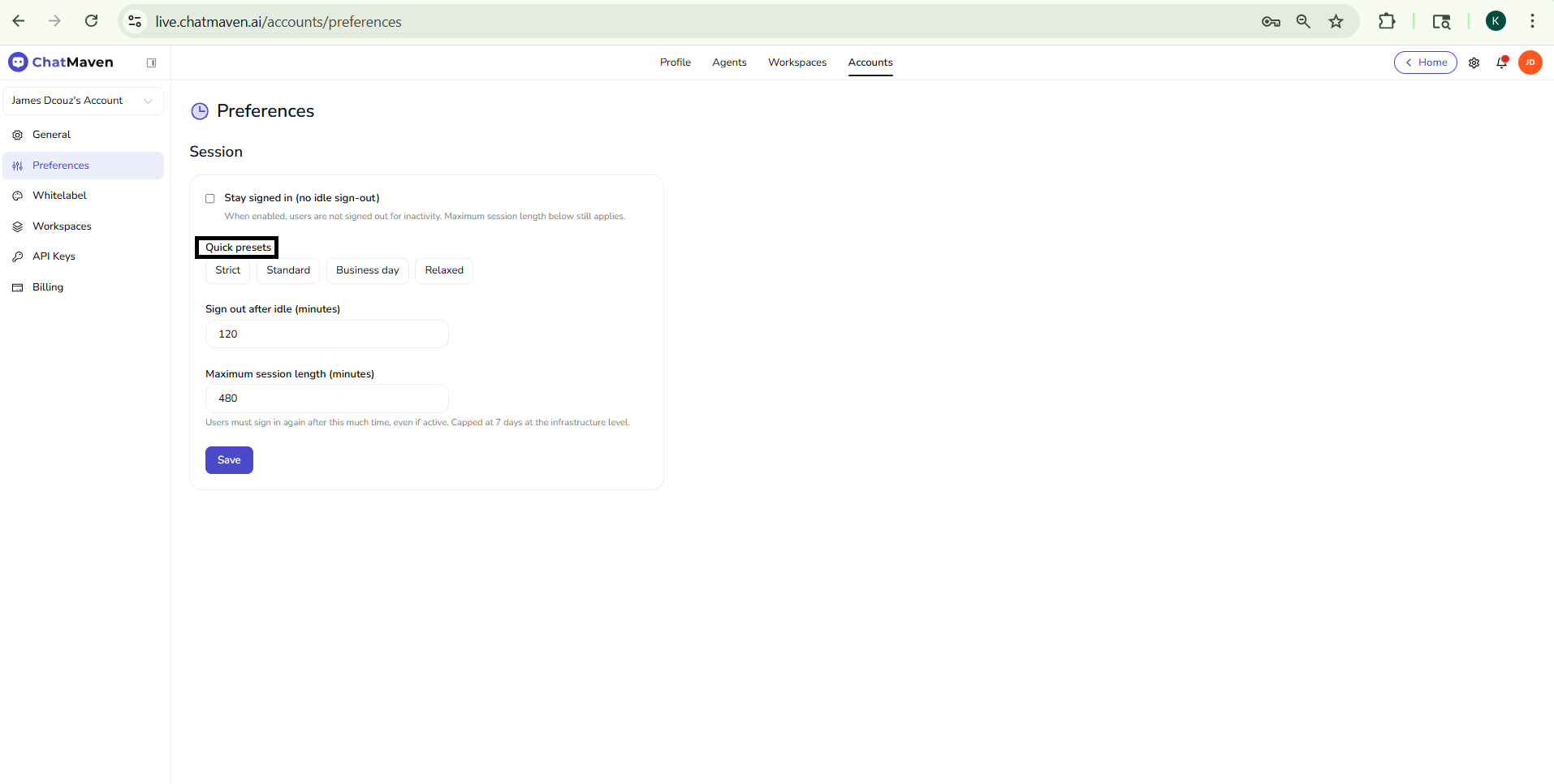
Quick presets
Four preset chips—Strict, Standard, Business day, and Relaxed—fill Sign out after idle and Maximum session length with bundled values in one click. After you choose one, read the updated numbers and click Save only if they match your security policy.
Sign out after idle (minutes)
- Numeric field: Sign out after idle (minutes).
- Defines how many minutes of no activity pass before the user is signed out, unless Stay signed in (no idle sign-out) is enabled.
- Example value shown in the product: 120 (two hours of idle time).
Maximum session length (minutes)
- Numeric field: Maximum session length (minutes).
- Hard cap on how long a session may last even if the user keeps working; after this time, they must sign in again.
- Product helper text notes that this is capped at seven days at the infrastructure level, regardless of a higher number entered.
- Example value shown in the product: 480 (eight hours).
Save
Click Save at the bottom of the Session section (primary action on the form) to persist changes. If you leave the page without saving, your edits are discarded.
FAQ and troubleshooting
Session timeout logs me out too often.
Ask an admin to adjust session or timeout preferences if your org allows it. Very short timeouts improve security on shared machines; longer ones help deep work.
Changes do not apply to all users.
Accounts → Preferences are typically organization-wide. Personal notification behavior is under Profile → Notification settings.
I cannot edit a preference.
Insufficient permissions or a locked plan feature can grey out controls. Contact an account owner.
See also
- Getting Started with Accounts — Account name, navigation, and Danger Zone on General.
- Whitelabel — Branding (company name, logo, primary color).