Assigning and Closing a Conversation
This guide explains how to assign a conversation to a teammate (or yourself), use Takeover when another person already owns the thread, unassign it, and close it by changing conversation status. Assignment, status, and favorites sit in the conversation header at the top of the open thread; the Takeover banner appears above the composer when it applies.
Assigning a conversation
-
Open a conversation from the list.
-
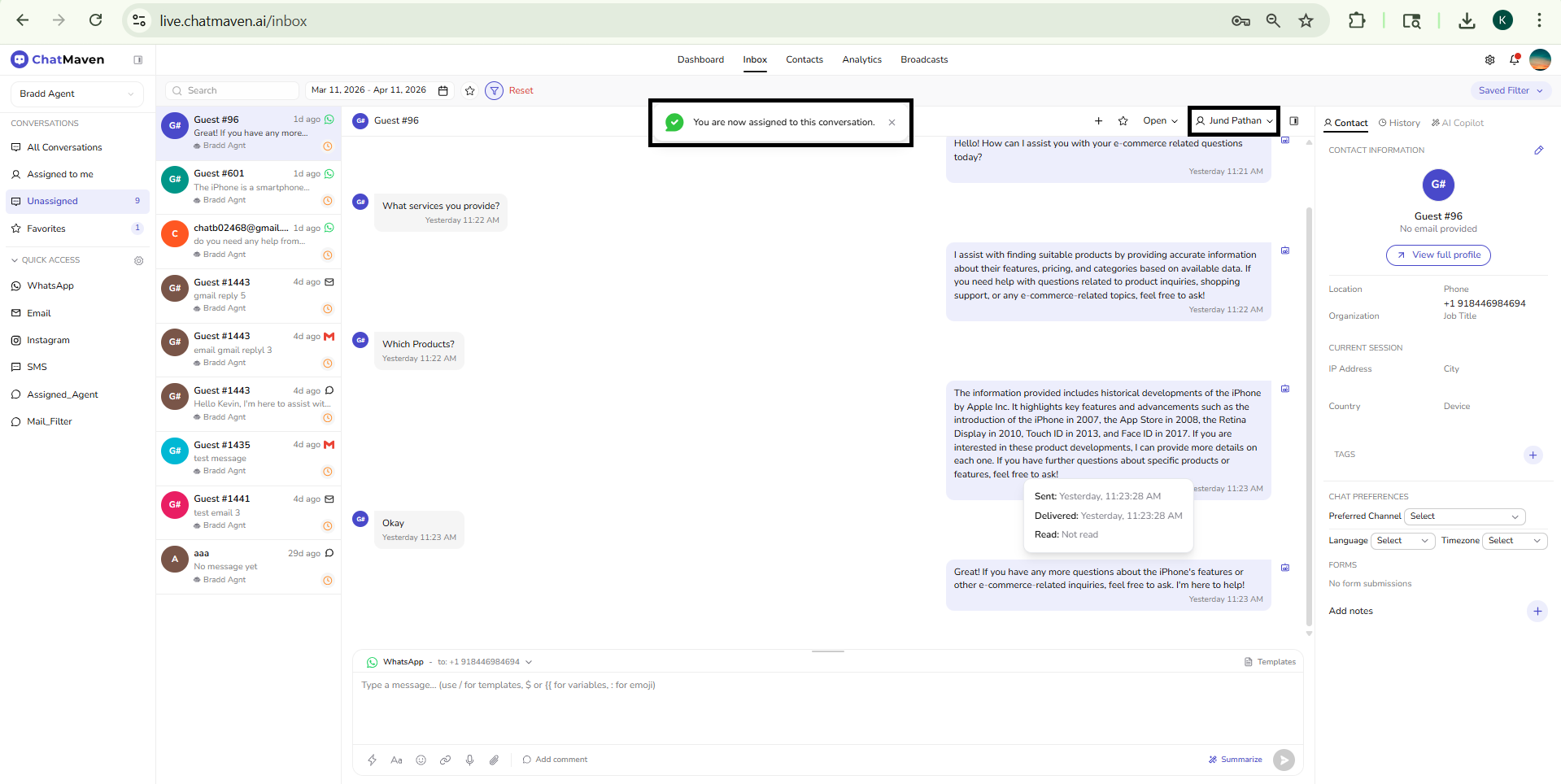
In the header, click the assignment control (person icon). It shows Unassigned or the current assignee’s name.
-
A panel titled Assign conversation to: opens. It includes:
- A Search members… field to filter the list.
- Account owner and team members with initials avatars—click a name to assign. A checkmark can show who the conversation is currently assigned to while this panel is open.
- The AI agent for this chat (if any), labeled Agent. You cannot assign the conversation to the bot as a person; selecting that row shows a message to pick a team member instead.
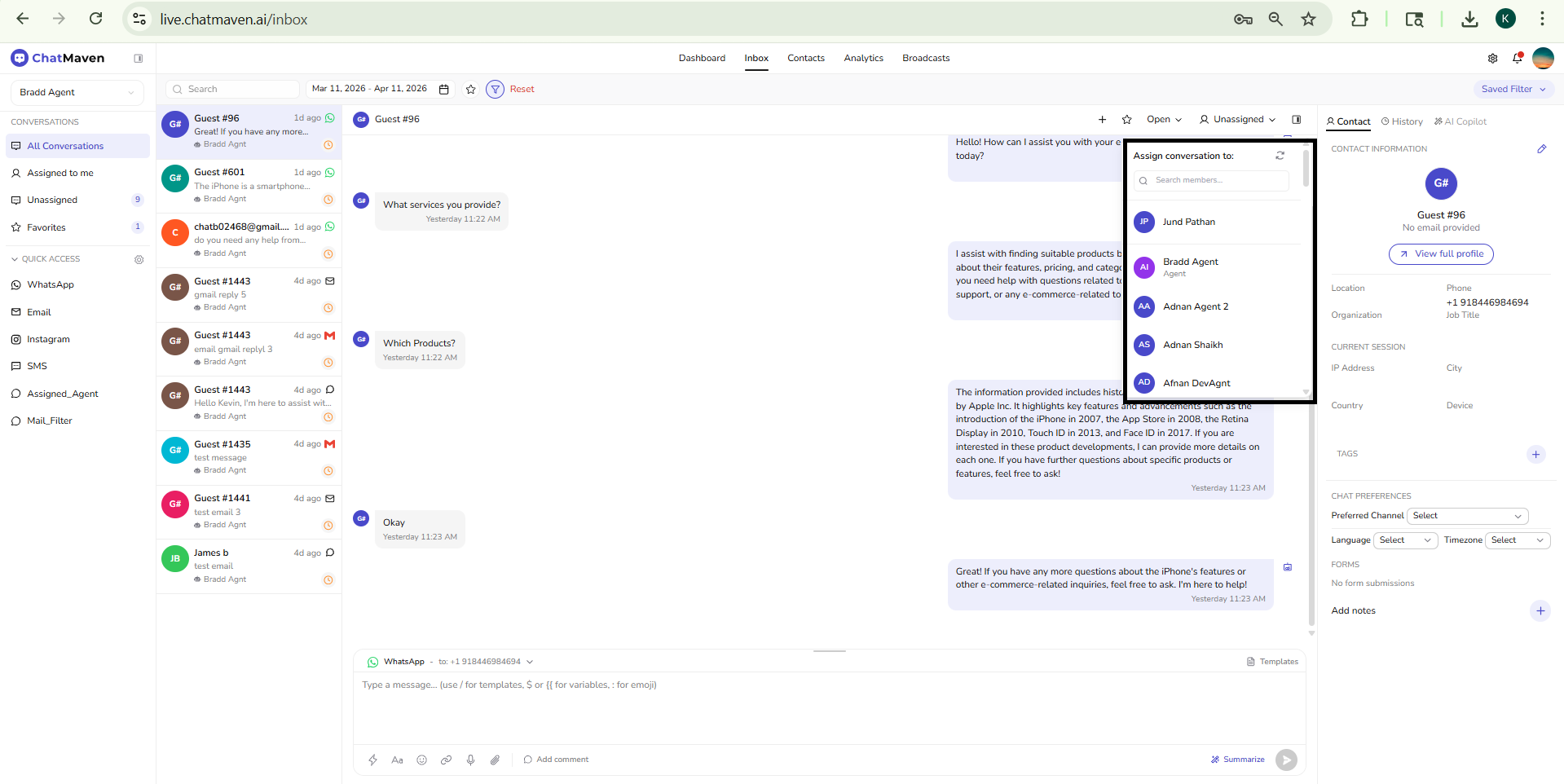
Assigning to yourself
If you choose your own account in "Assign conversation to:", assignment completes immediately. The automated agent stops replying to that conversation so you can reply as the human owner.
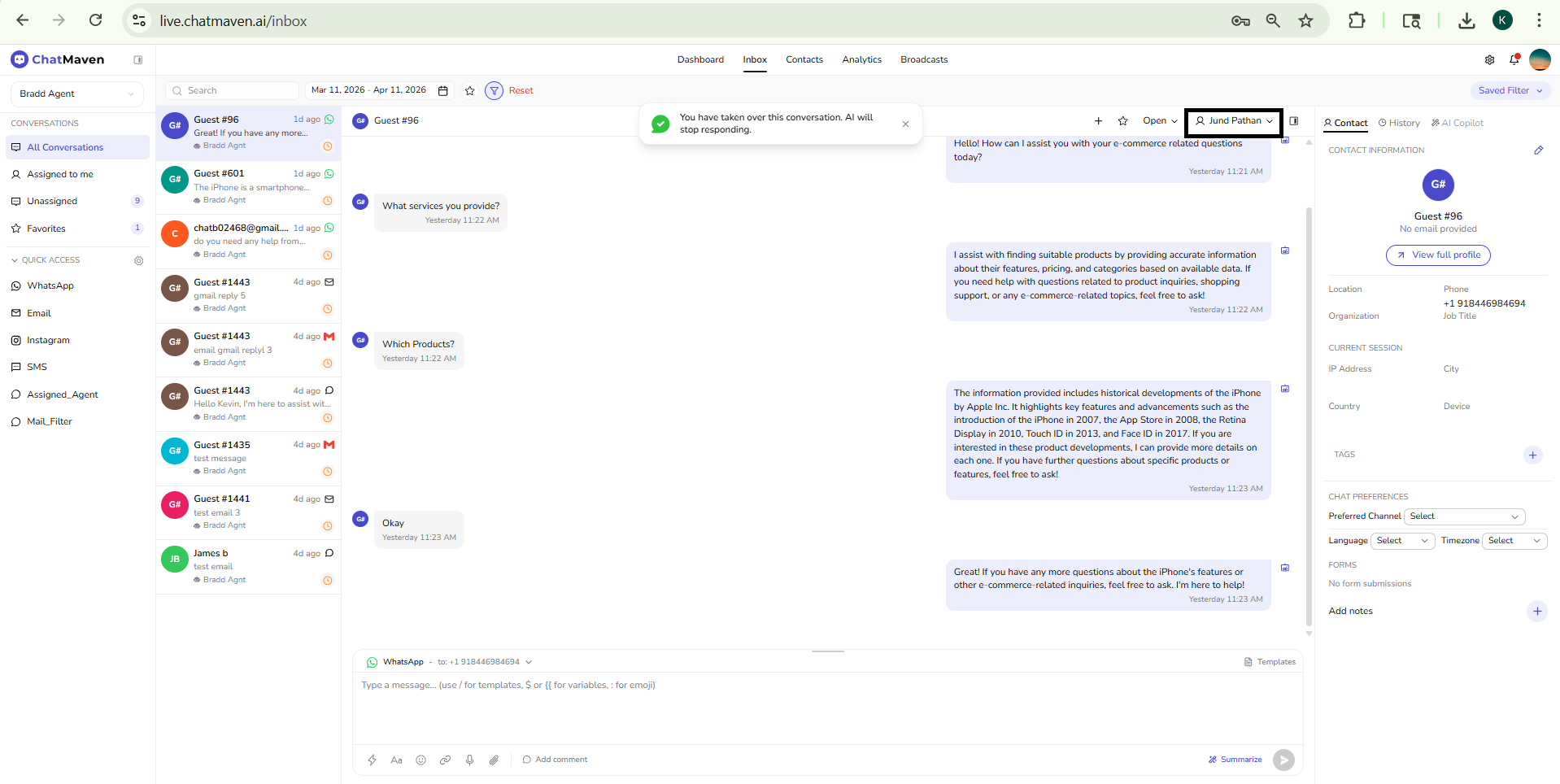
Assigning to someone else
If you choose another team member in "Assign conversation to:", that person becomes the assignee. They will see the conversation under Assigned to me (and in All Conversations, depending on filters).
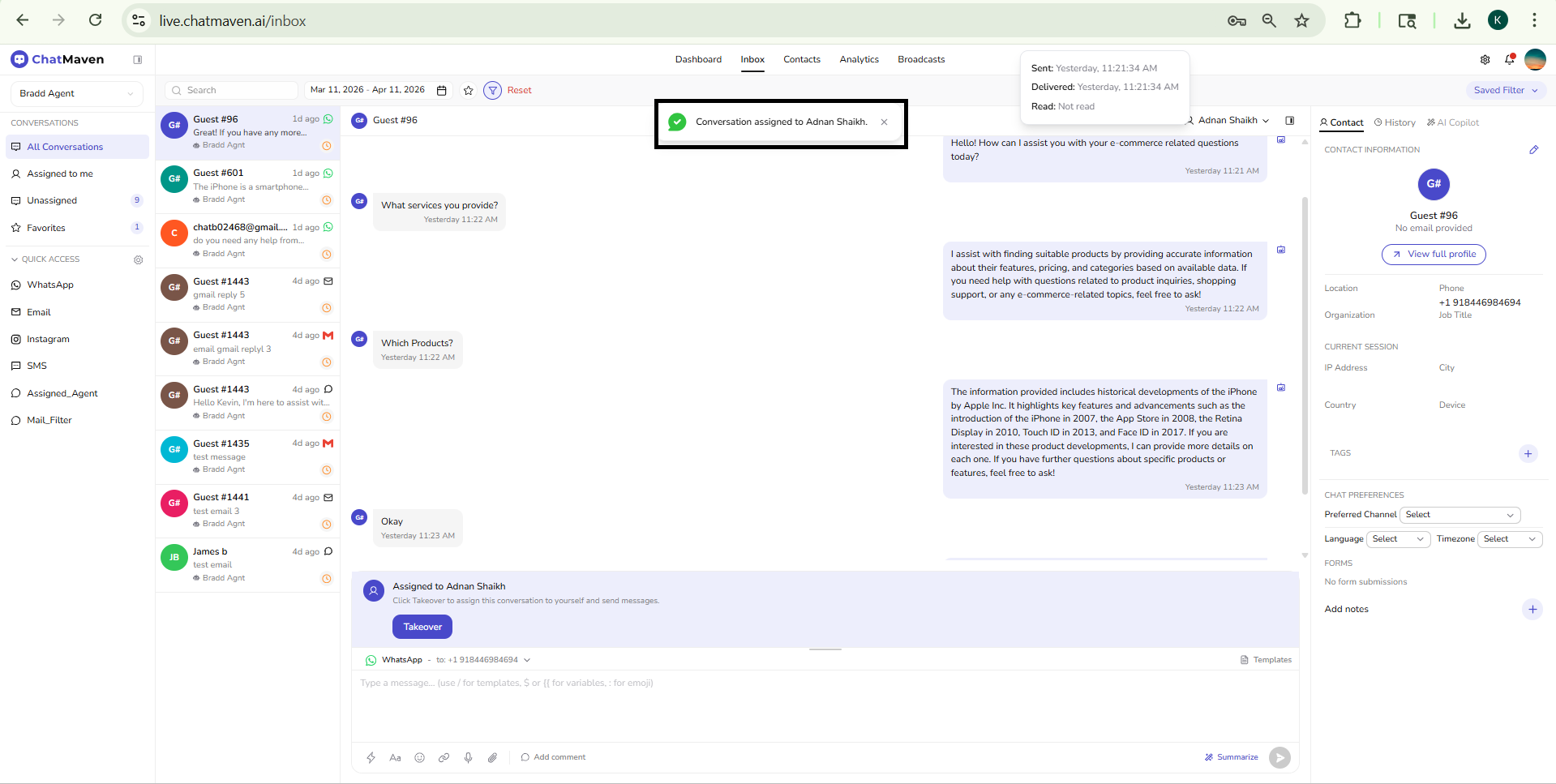
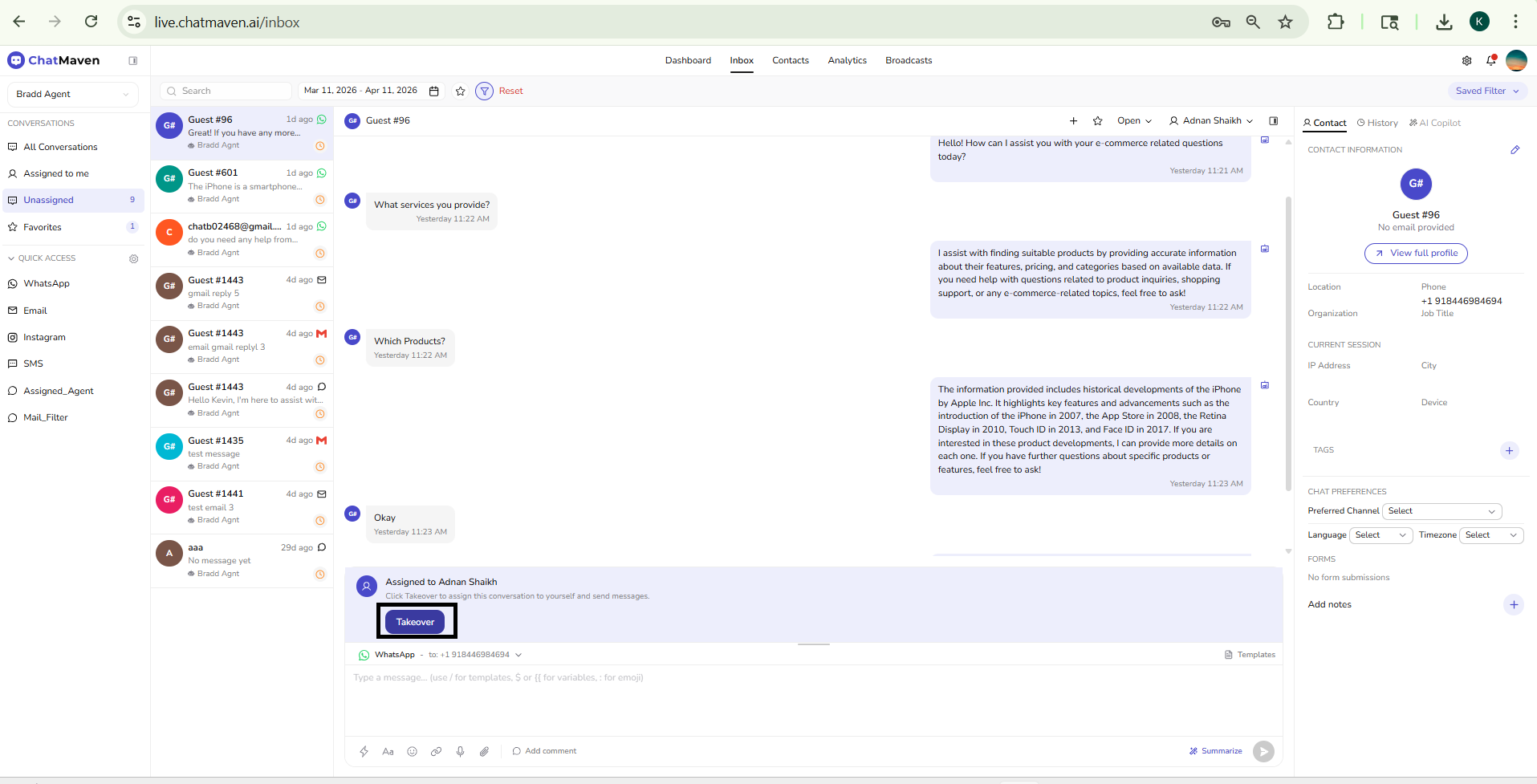
Takeover (claim a thread from another teammate)
If you open a conversation that is already assigned to someone else, you may see a banner above the composer similar to:
- Assigned to [Teammate]. Click Takeover to assign this conversation to yourself and send messages.
Click Takeover to move assignment to you so you can send messages. Until you do, the AI may still be able to respond for that thread (depending on your workspace rules).
After a successful takeover, a confirmation banner appears—for example You have taken over this conversation. AI will stop responding.—and the assignment control in the header shows your name. You can dismiss earlier prompts without taking over if you only needed to read the thread.
Unassigning
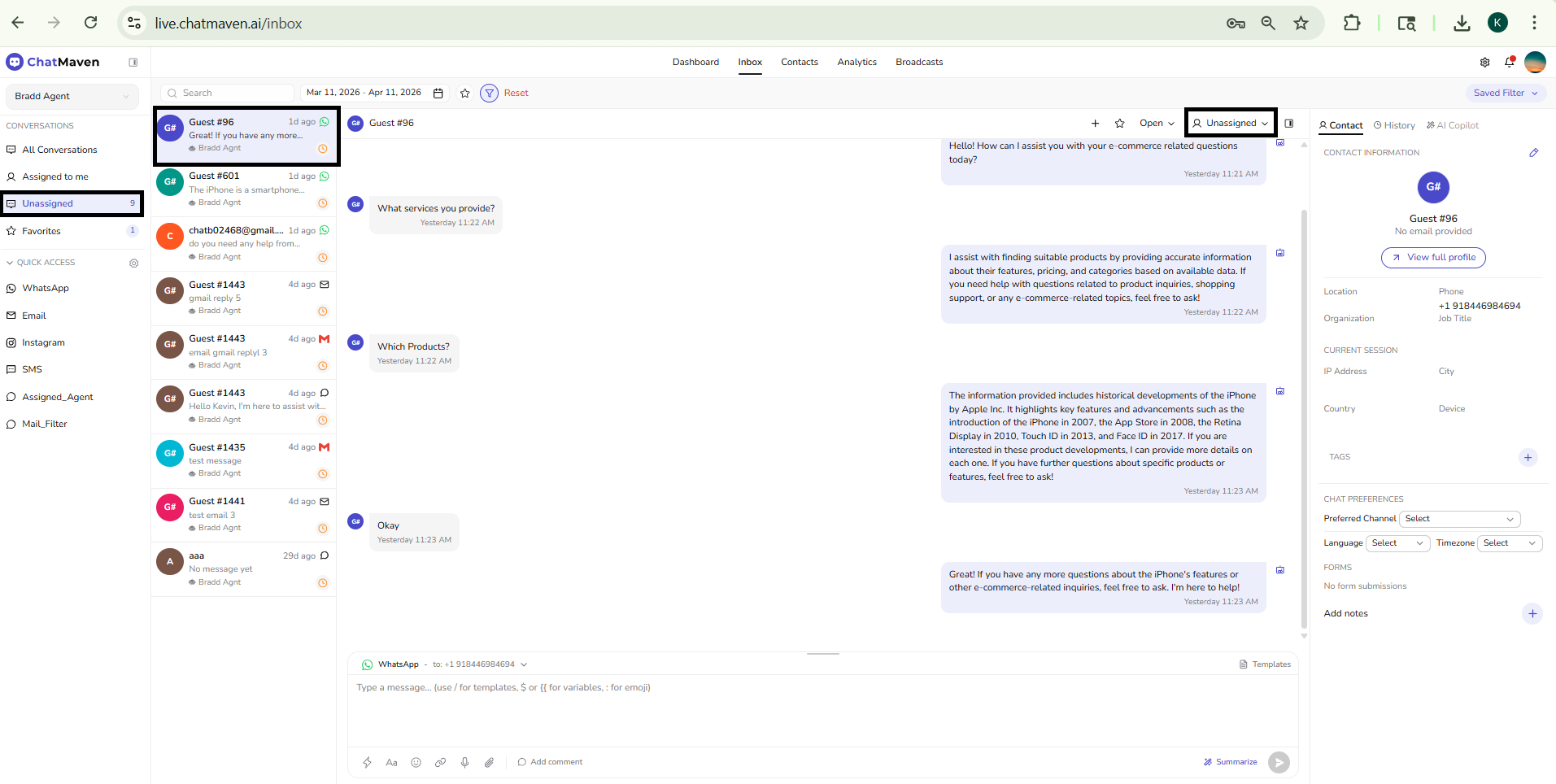
With someone already assigned, open the same assignment menu again and choose Unassign. The conversation returns to an unassigned state (and will appear under Unassigned in the side panel when that view is selected).
Conversation status: Open, Unassigned, and Closed
Next to the assignment control, the status control shows the conversation’s lifecycle. The label is Open, Closed, or Unassigned (when the session has no clear open/closed state yet).
Open the menu to choose:
| Option | What it does |
|---|---|
| Unassigned | Clears the high-level session status when it is still undecided (shown as “Unassigned” in the menu). |
| Open | Marks the conversation as active/open. |
| Closed | Marks the conversation as closed. The thread usually leaves the current active list so you can focus on open work (depending on filters). |
ChatMaven uses this status menu instead of a separate single-purpose “Close” button: pick Closed to finish the conversation from a workflow perspective.
There is no separate mandatory “closing note” dialog tied to closing. For internal handoff or reporting, use Internal notes on the Contact tab, or copy or draft text using Summarize in the composer or the AI Copilot tab if your workspace uses those features.
After a conversation is closed
If you try to send a message while the session is closed, you may be prompted to either Open and reply here (reopen the same session) or Start new conversation (open a new session with the contact), depending on what the server allows for that channel.
FAQ and troubleshooting
I see “Unassigned” in two places.
The assignment control shows whether a person is assigned. The status menu can also show Unassigned when the session status itself is unset. They are different dimensions: who owns the work vs. whether the chat is open or closed.
I can’t click a bot in the assign list.
Assignment is for human team members. The AI agent row is informational; choose yourself or a teammate.
The conversation disappeared after I set Closed.
That is expected when your filters only show open or active threads. Adjust the side panel (e.g. All Conversations) or date range if you need to find closed chats again.
Can I send without assigning?
Yes. Assignment is for ownership and routing; it does not block sending by itself.
I do not see Takeover.
Takeover appears when the conversation is assigned to another teammate and you are viewing it—use it to move ownership to yourself. If you are already the assignee, or the thread is Unassigned, you will use Assign conversation to: instead.
Takeover vs picking myself in the assign menu
Both end with you as the assignee, and the AI stops for that conversation. "Assign conversation to:" → your name is the direct path when you are choosing from t he list. Takeover is the shortcut when someone else already owns the thread and you need to claim it from the banner.
See also
- Getting Started with Inbox — Layout and navigation.
- Managing Conversations in Inbox — List, thread, and composer.
- AI Copilot in the Inbox — Summaries and suggested replies.