Import Contacts
Use contact import to add many contacts at once instead of creating records one by one. This is useful when migrating an existing database, running outreach campaigns, or syncing leads from another system.
Before You Start
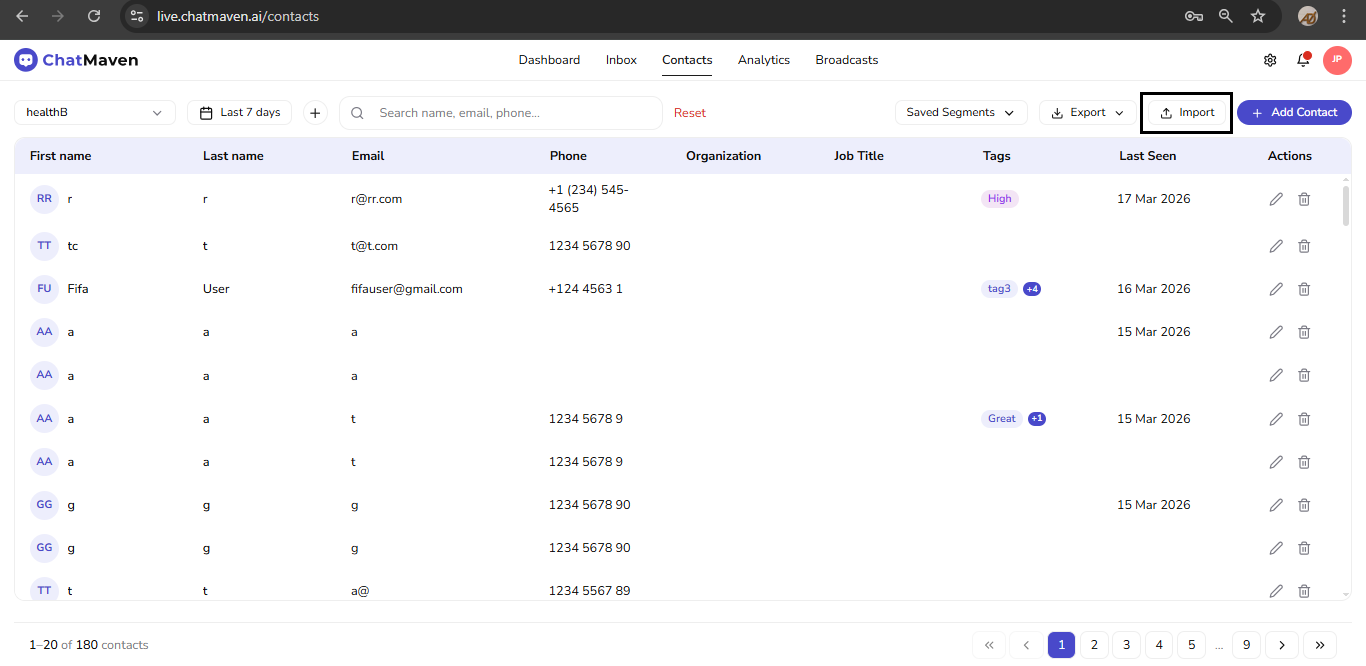
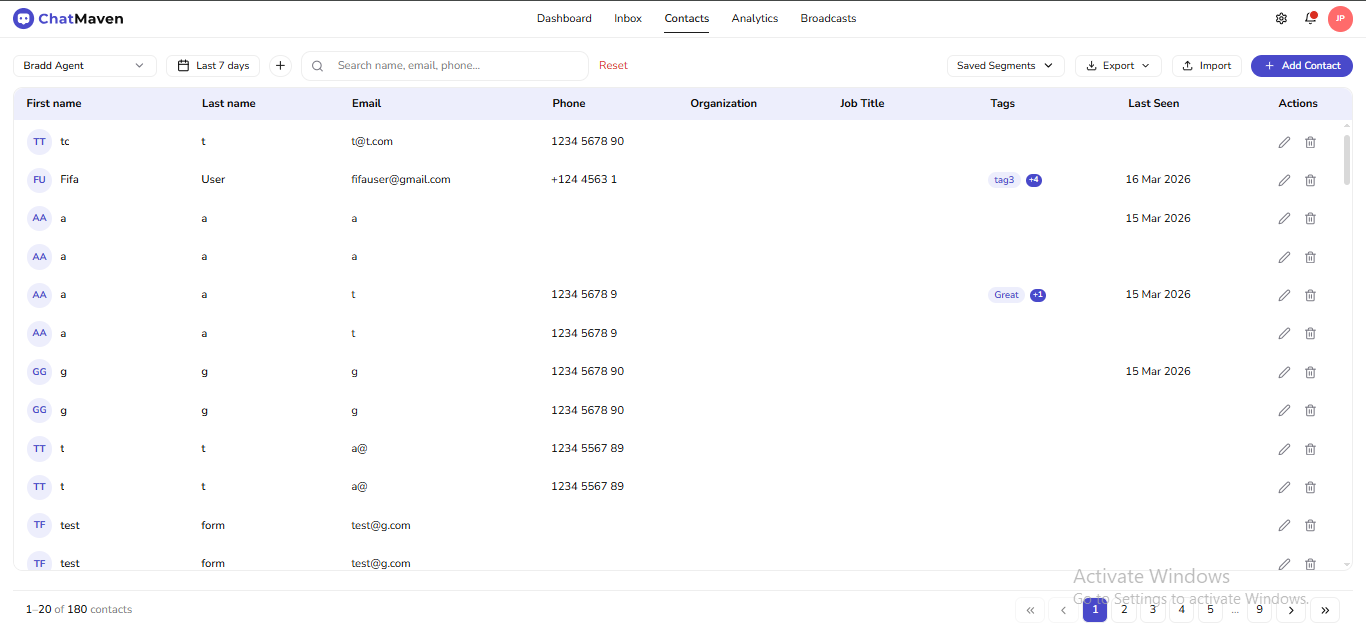
From the ChatMaven Contacts screen, click Import to open the import modal. Import sits in the top toolbar next to Export and + Add Contact.
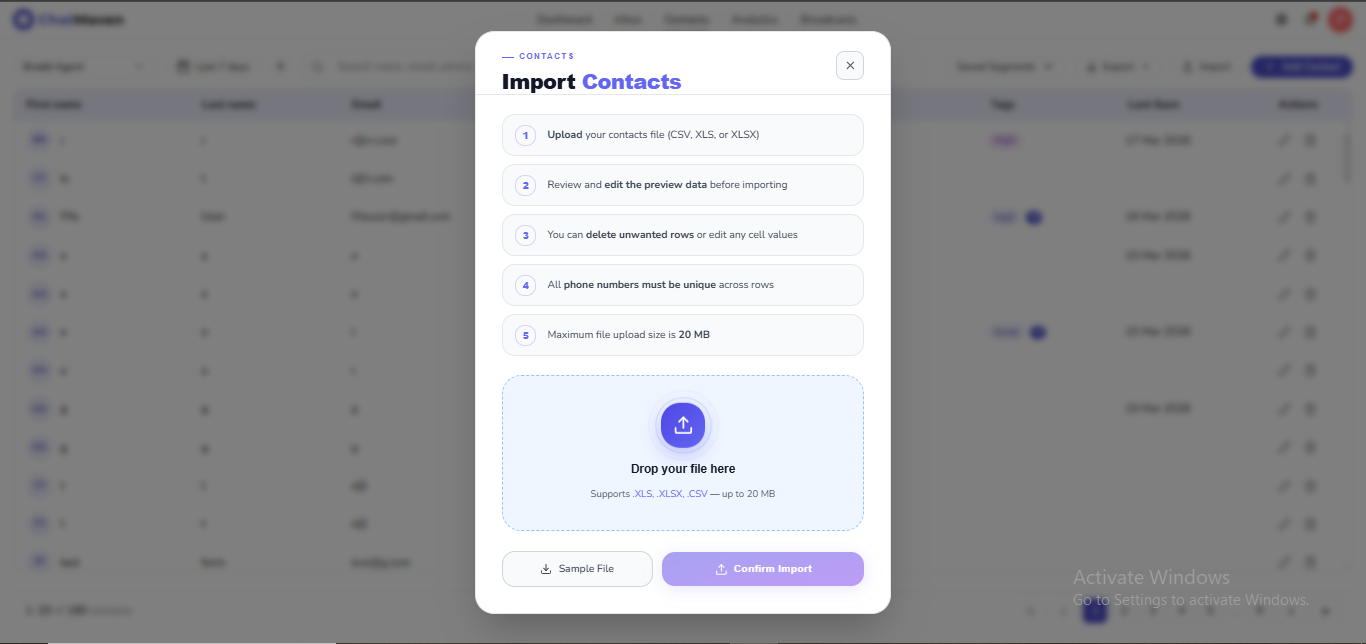
In the current flow, the importer supports:
- File types:
CSV,XLS, andXLSX - Maximum file size: 20 MB
- Step guidance inside the modal before upload
- A Sample File shortcut
- A Confirm Import button that stays disabled until a valid file is selected
For reliable matching and deduplication, keep phone numbers unique and in a consistent format across your sheet.
Recommended File Structure
Prepare columns that match your contact fields, such as:
- First name
- Last name
- Phone
- Organization
- Job title
- Tags
Keep header names clear and avoid merged cells or hidden formula columns.
How to Import Contacts
-
Open Contacts.
-
Click Import in the top toolbar (the control highlighted in the second screenshot under Before You Start).
-
Drag and drop your file, or browse to upload it.
-
Confirm the file type and size are accepted by the uploader.
-
Continue with Confirm Import to start processing.
The modal matches the layout shown above (drop area, numbered steps, and footer buttons).
Validate Data Before Confirming
Check these items before confirming:
- Phone numbers are valid and not duplicated across rows
- Email addresses are formatted correctly
- Required identifying fields are present for your import goal
- No test or placeholder records remain
Sample File
Use the Sample File button in the modal to download a template first, then fill your contact data using the same structure. Those controls appear in the modal footer shown above.
Troubleshooting
Upload is rejected
Verify that:
- The file extension is supported (
.csv,.xls,.xlsx) - File size is below 20 MB
- The file is not password-protected
Some rows do not import correctly
Open your source file and check for:
- Duplicate phone values
- Empty identifier fields
- Invalid email or phone formats
After corrections, re-upload the cleaned file.
Best Practices
- Import in smaller batches when working with very large lists.
- Run a quick export after import to verify key fields.
- Tag imported contacts by campaign/source for easier segmentation later.
Next Steps
FAQ and troubleshooting
Import failed or skipped rows.
Open the error report for column mismatches, invalid emails, or duplicate keys. Fix the CSV and re-import.
Encoding or special characters broke.
Save CSV as UTF-8 and avoid Excel’s default locale quirks; use quotes around fields with commas.
Large file performance.
Split into batches under the documented row limit, or ask support for assisted imports on enterprise plans.