Creating WhatsApp message templates
This guide explains how to create and submit a WhatsApp message template in ChatMaven, what each field in the template list means, how the main building blocks (header, body, footer, buttons) fit together, how to refresh approval status after you submit, and how to edit a template and put it through Meta review again. For deleting templates and broader troubleshooting, see WhatsApp — Templates.
Connect WhatsApp and open your agent’s WhatsApp area before you create templates.
Why templates need to be created in advance
WhatsApp only allows pre-approved message templates for most business-initiated messages outside the 24-hour customer service window. You design the template in ChatMaven, submit it to Meta for review, then use it once it shows as approved. Templates are billed according to WhatsApp’s pricing for conversations and categories; they must comply with WhatsApp Business and Commerce policies.
What each column means in the template list
After you open Agents → your agent → WhatsApp → Templates, the table gives you a quick read on every template:
| Field | What it tells you |
|---|---|
| Status | Where the template is in Meta’s lifecycle (for example approved, pending review, or rejected). |
| Name | The internal name you chose (lowercase letters, numbers, underscores only). |
| Category | Whether Meta treats the template as Utility, Authentication, or Marketing. |
| Quality | Meta’s quality signal for the template when available. |
| Language | The language the template was submitted in. |
| Label | Optional label you or your team uses to organize templates (when supported). |
| Actions | Shortcuts such as edit, delete, or other items in the row menu. |
Use filters and search to find a template quickly as the list grows.
Rules that improve approval odds
Content Meta tends to reject
Avoid content that looks like threats, illegal services, unsolicited data collection, or gamified contests unless they clearly meet WhatsApp’s policies. Keep tone professional and aligned with the template category you select.
Naming and text formatting
- Template name: Only lowercase letters, numbers, and underscores — no spaces or symbols.
- Body text: Up to 1,024 characters total. Do not use tab characters or runs of more than four spaces in a row.
- Variables: Use placeholders in double curly braces. In ChatMaven, + Add variable inserts WhatsApp-compatible names such as
{{name}},{{order_id}},{{date}}, and{{contact_name}}(exact options depend on the editor). When you send the message, each placeholder is filled with real values. Meta’s APIs also use numbered variables in some contexts; follow what the editor shows for your template.
Picking the right category (Utility, Authentication, or Marketing) reduces the chance Meta flags a mismatch between your wording and the category. See Meta’s template guidelines for detail.
Building blocks you can use
When you compose a template, you combine optional and required parts:
| Part | Role |
|---|---|
| Body | Required for most templates. This is the main message text. You can use simple formatting where the editor allows it. |
| Header | Optional. Can be plain text, or media such as image (JPEG/PNG), video (MP4), document (PDF and other supported types), or location, depending on what Meta allows for your category. |
| Footer | Optional short line of text, often used for disclaimers or brand lines. |
| Buttons | Optional interactive actions. What you can add depends on the category — for example quick replies, call-to-action links or phone numbers, and (for Marketing) coupon-style actions where supported. |
Quick reply labels and similar short strings often have tight character limits (commonly around 20 characters per label). Stick to the limits shown in the editor so submission does not fail.
Create and submit a template in ChatMaven
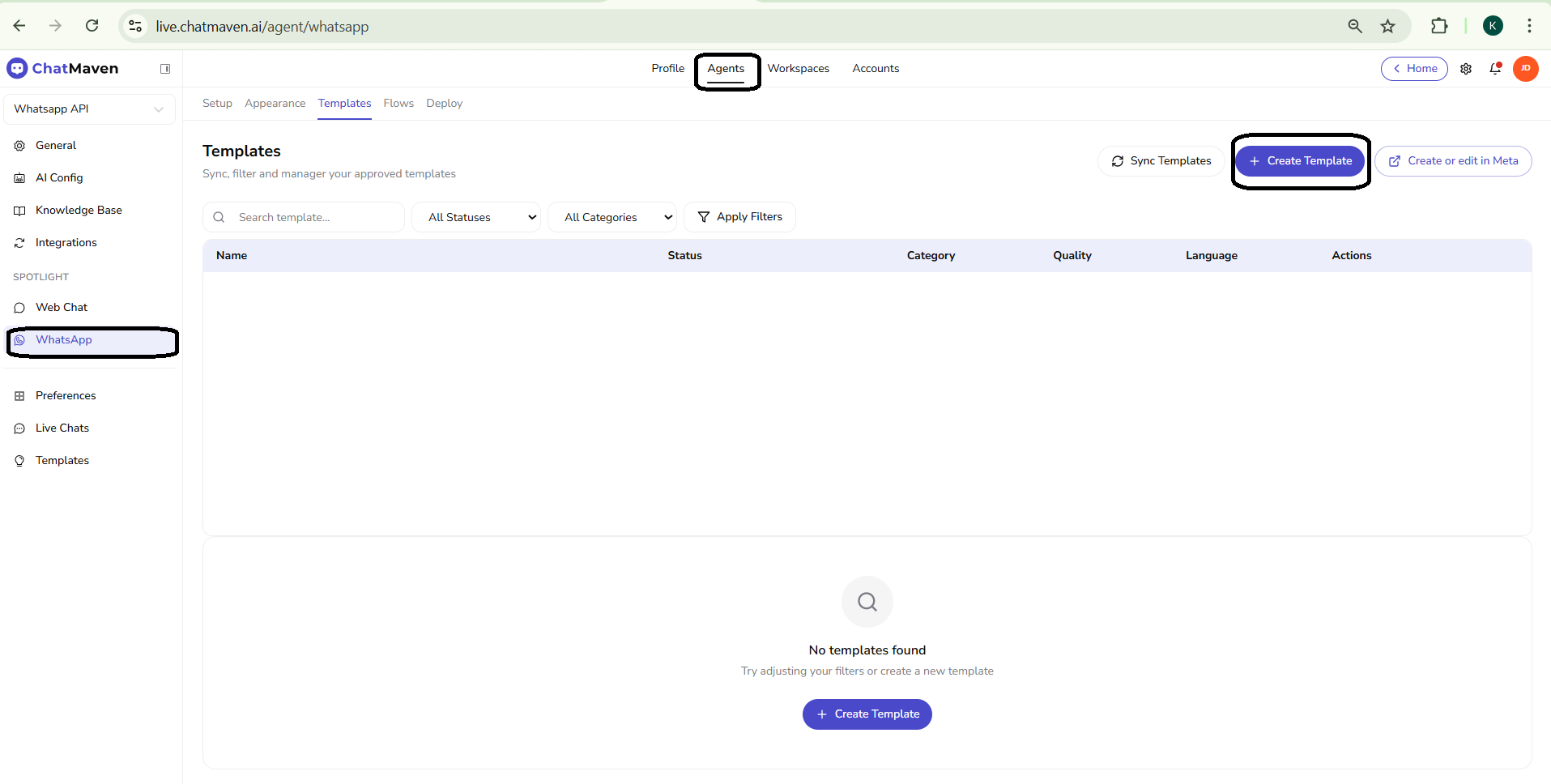
1. Open the Templates screen
- Go to Agents and open the agent that uses WhatsApp.
- Under SPOTLIGHT, choose WhatsApp.
- Select the Templates tab.
2. Open Create Message Template
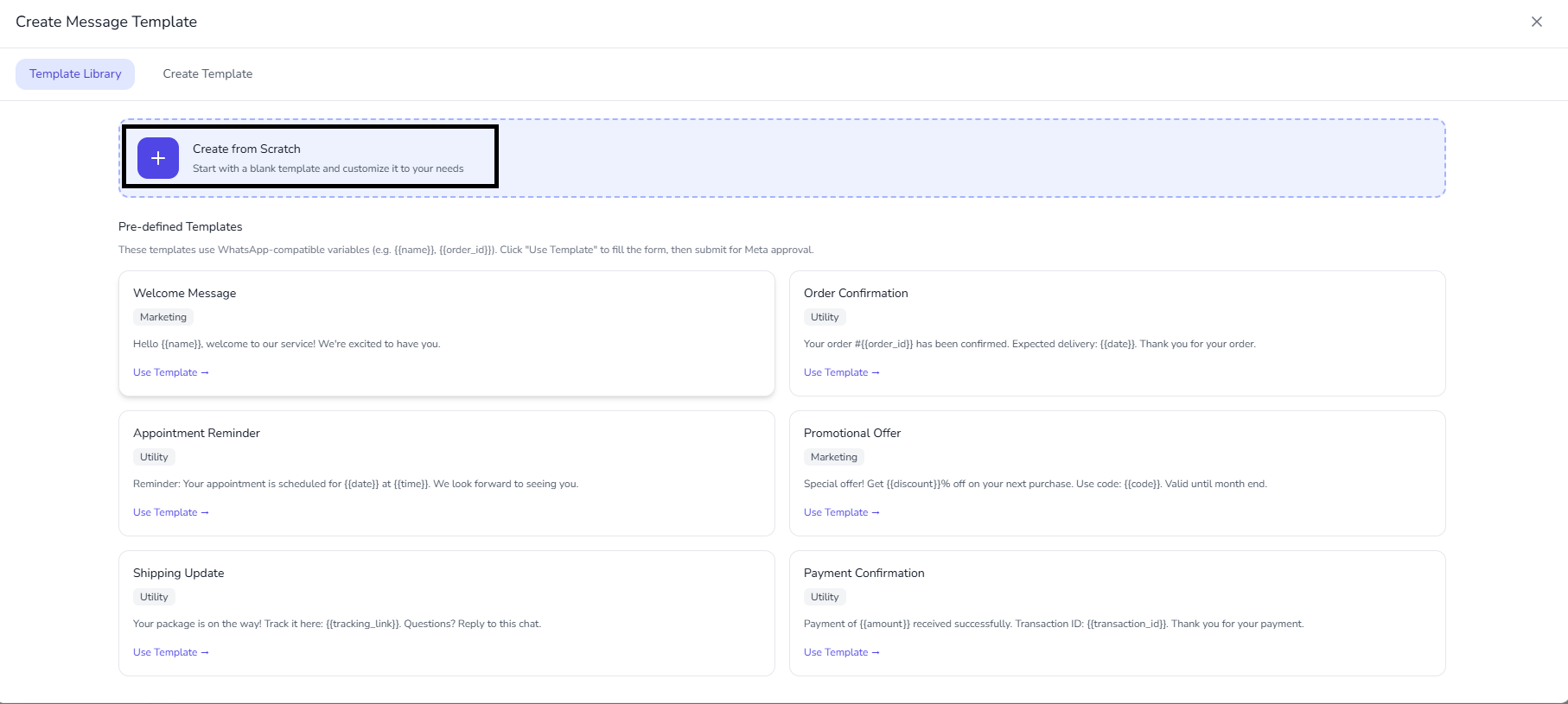
Click + Create Template (or use Create or edit in Meta if your workflow uses Meta’s console instead). The Create Message Template dialog opens with two tabs: Template Library and Create Template.
3. Choose how you want to start
Template Library tab
- Create from Scratch — Use the large dashed card with the plus (+) icon. This starts a blank template and takes you into the builder so you define name, category, language, and all components yourself.
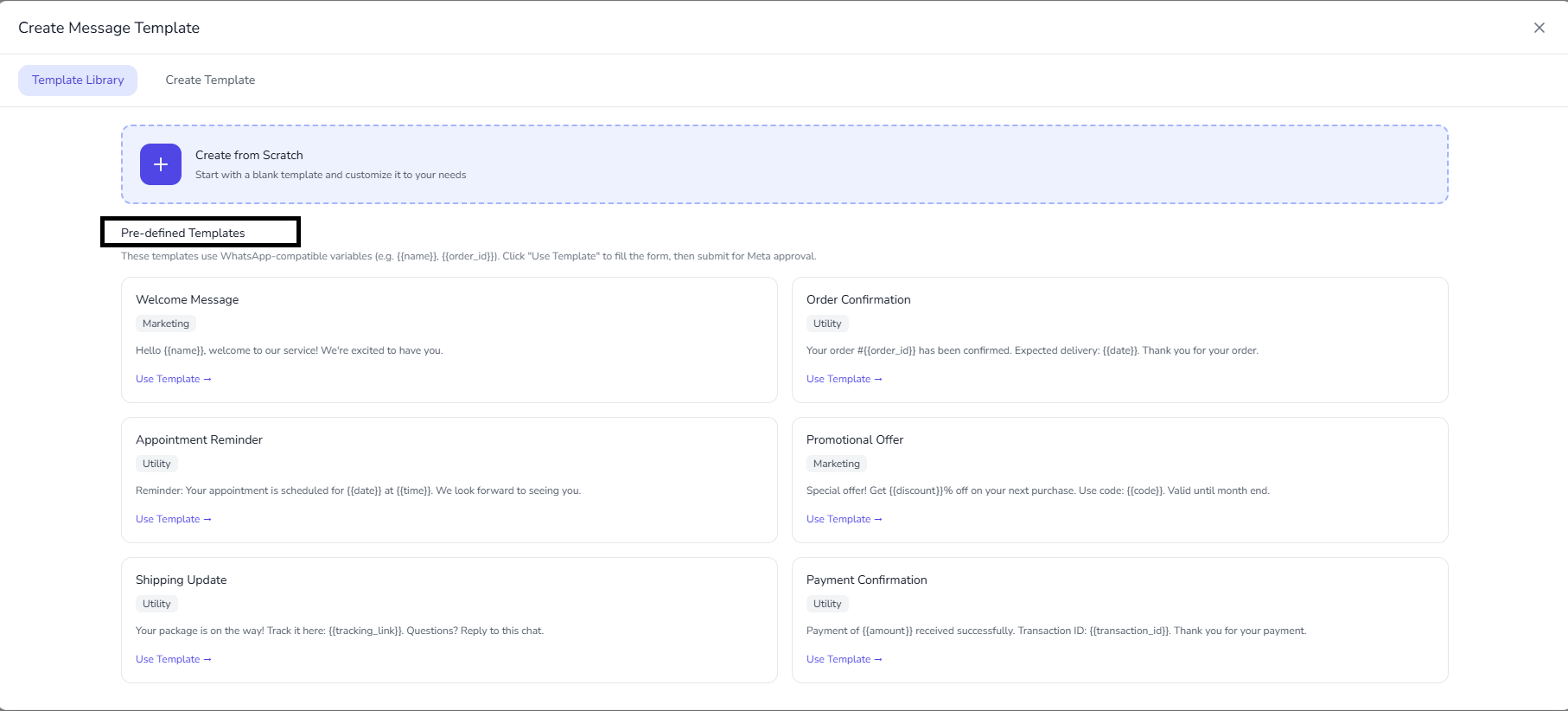
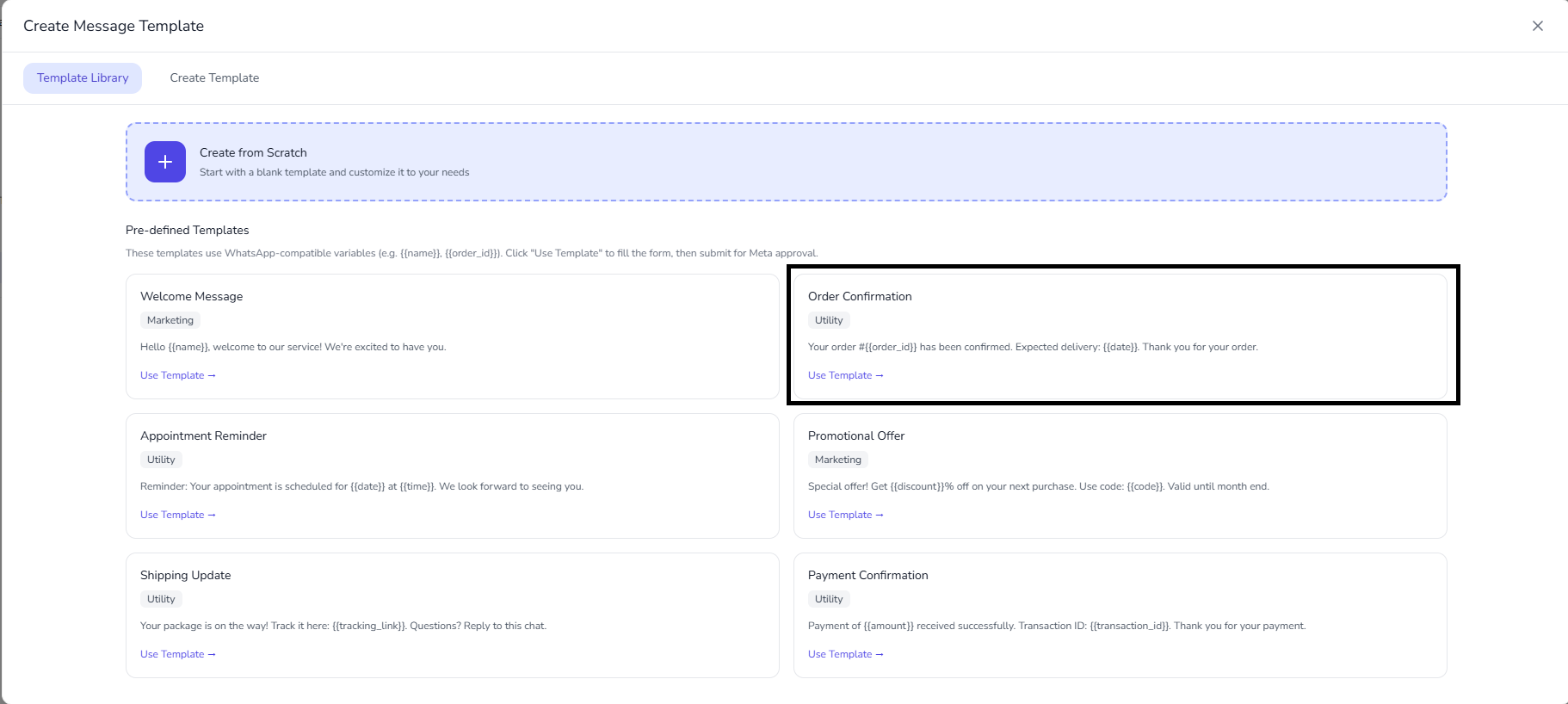
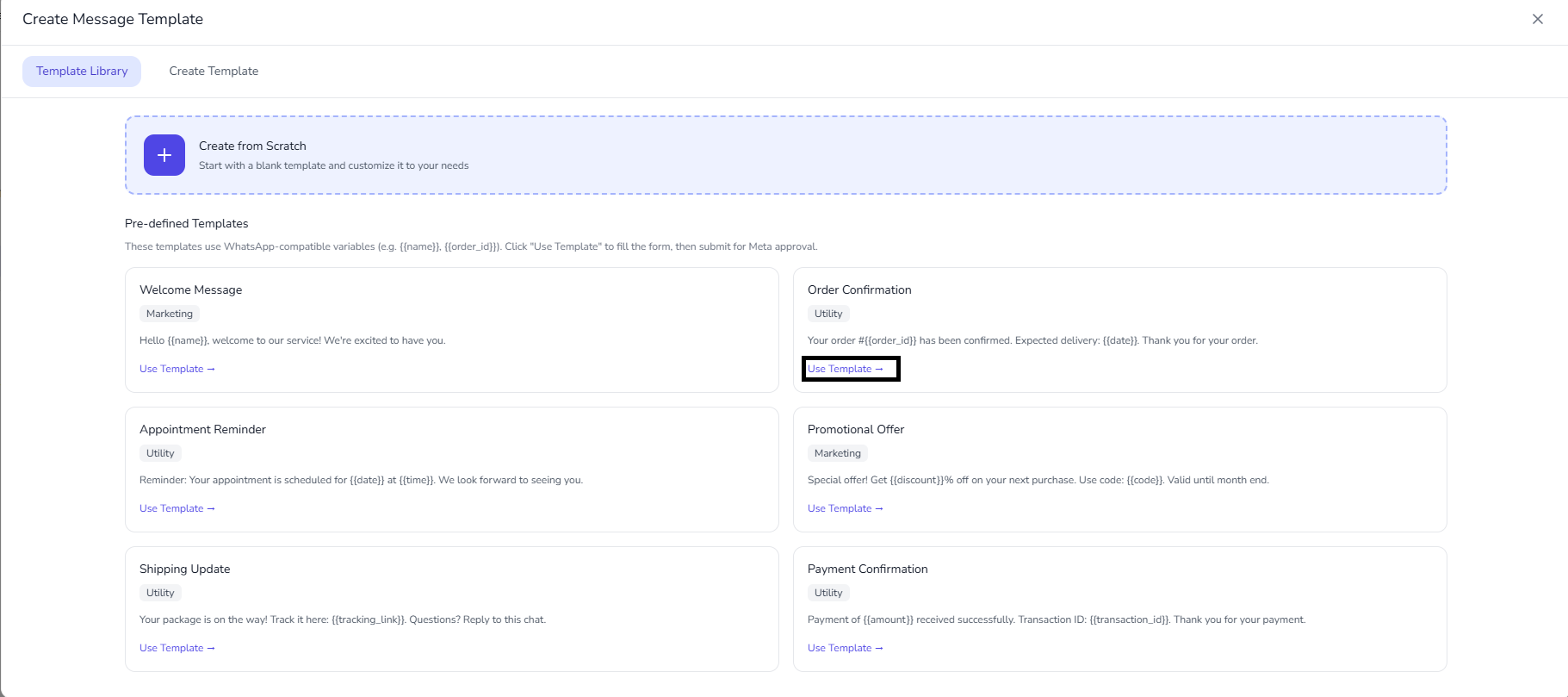
- Pre-defined Templates — Browse ready-made starters (for example welcome, order confirmation, appointment reminder, shipping update). Each card shows a Marketing or Utility tag, sample text with placeholders such as
{{name}}or{{order_id}}, and Use Template. Click Use Template to load that content into the form; then set a Template name, adjust wording if needed, and submit for Meta approval.
4. Create from Pre-defined Template Library (recommended for faster setup)
- In Template Library, review the Pre-defined Templates list.
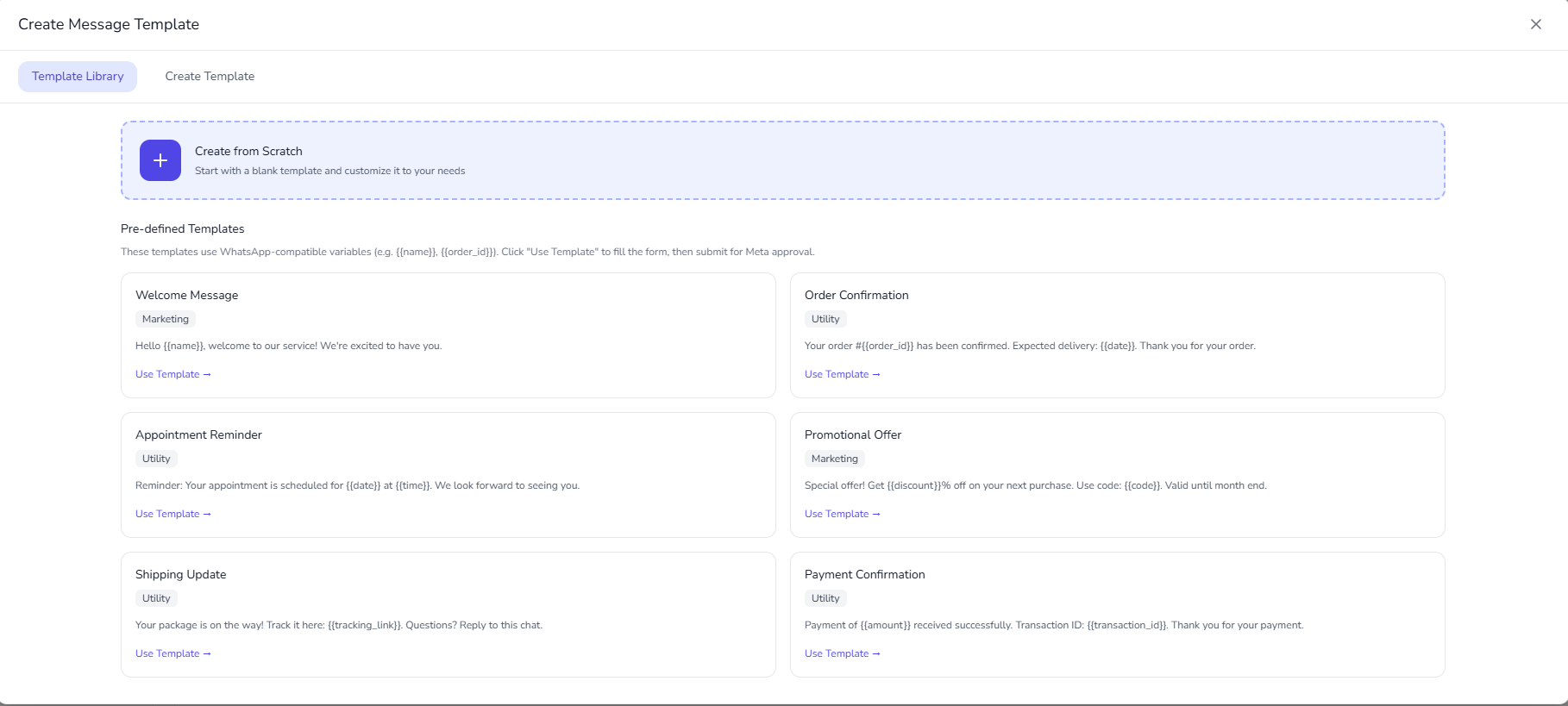
- Pick the card that best matches your use case (for example Order Confirmation for utility updates).
- Click Use Template on that card.
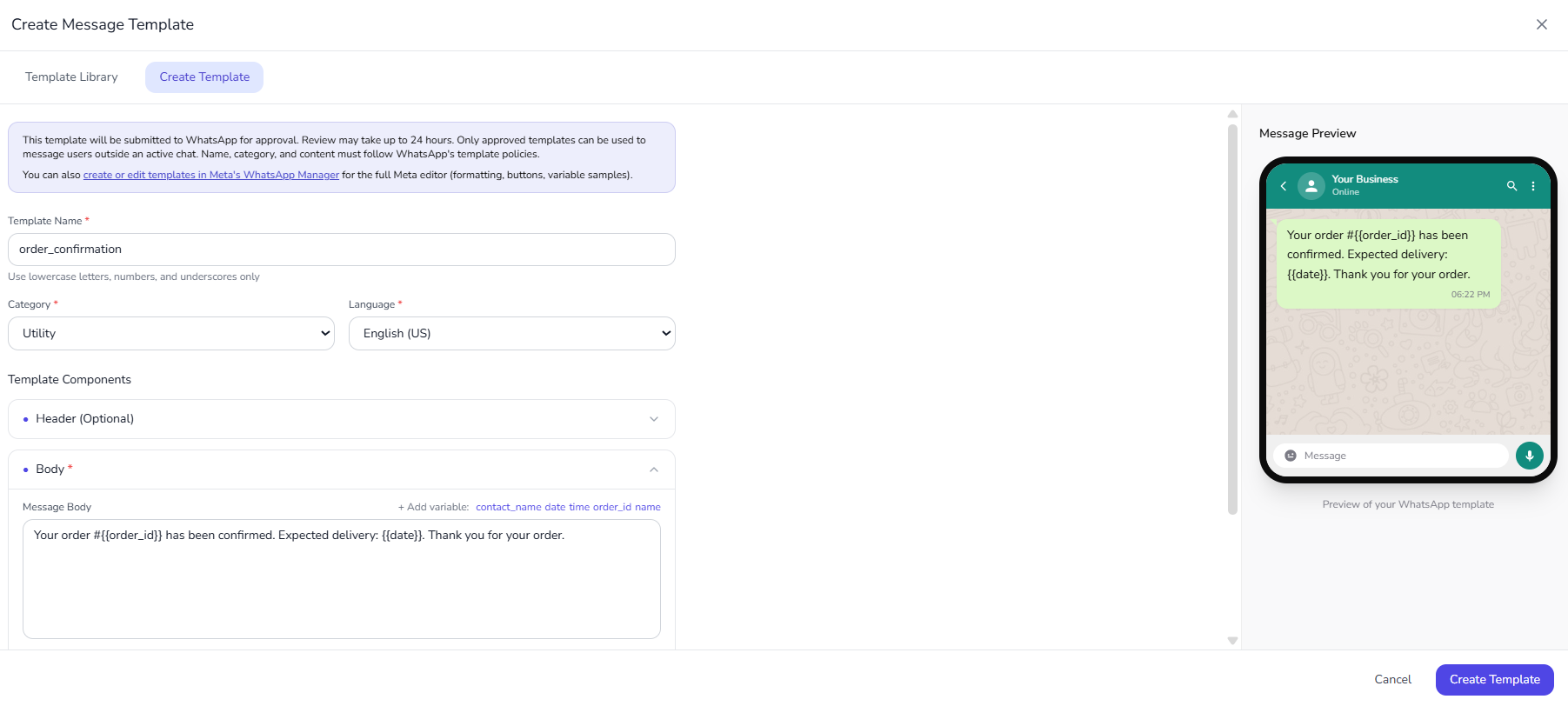
- ChatMaven opens the Create Template tab with the selected content pre-filled.
- Update required fields:
- Template name (lowercase, numbers, underscores only)
- Category and Language
- Body placeholders (for example
{{order_id}},{{date}}) - Template components
- Header (Optional): add a short title or media only when needed.
- Body (Required): keep the main message clear and policy-aligned.
- Footer (Optional): add a short supporting line if required.
- Buttons (Optional): add quick reply or CTA actions where relevant.
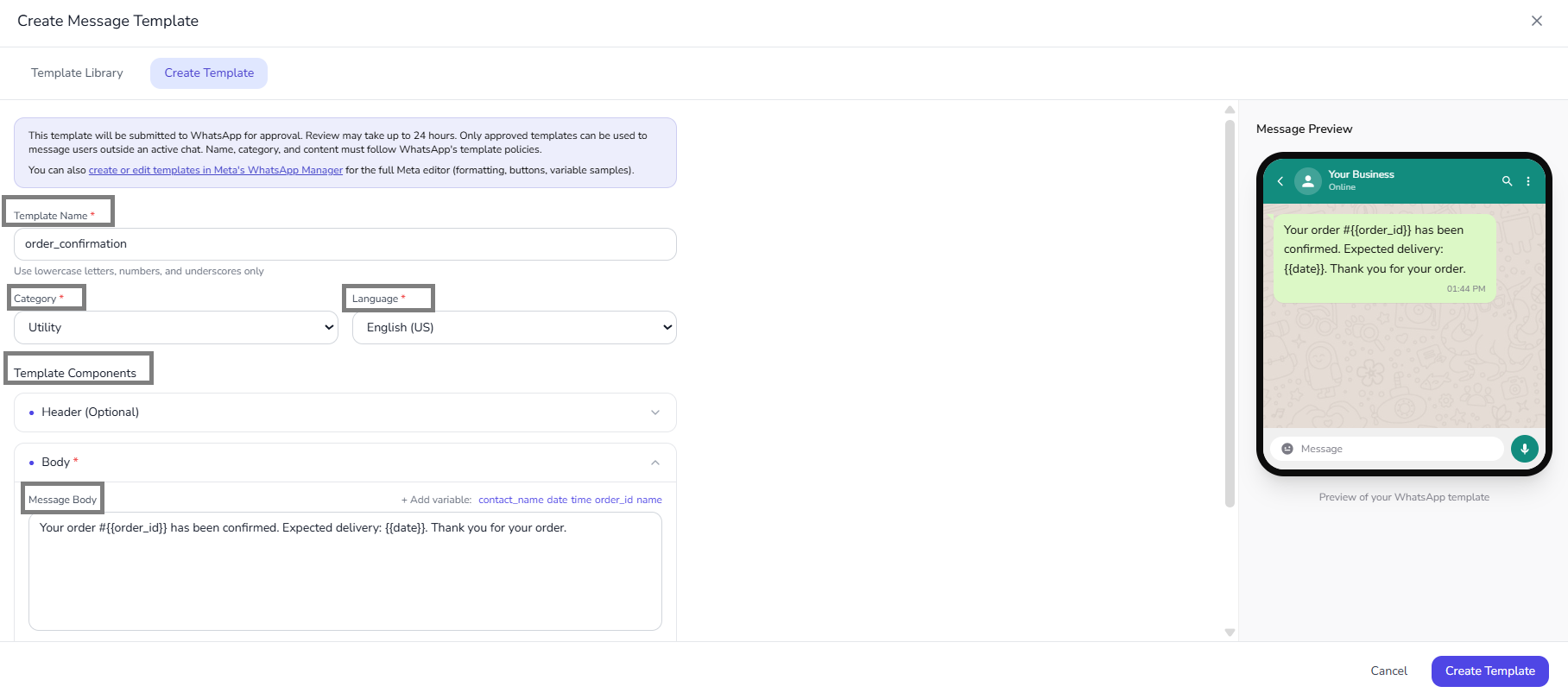
- Review the phone preview on the right and click Create Template.
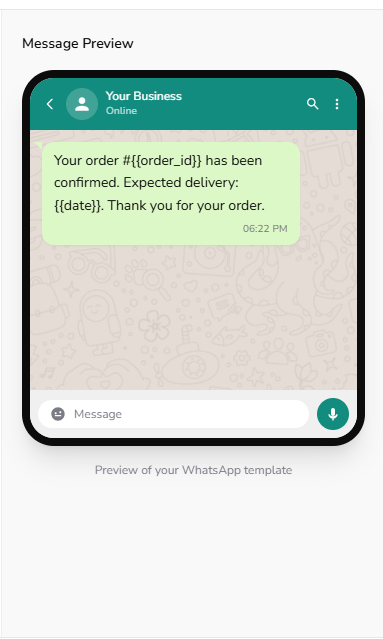
- Use Sync Templates later to confirm when Meta changes status to Approved.
Create Template tab (blank builder or after Create from Scratch / Use Template)
-
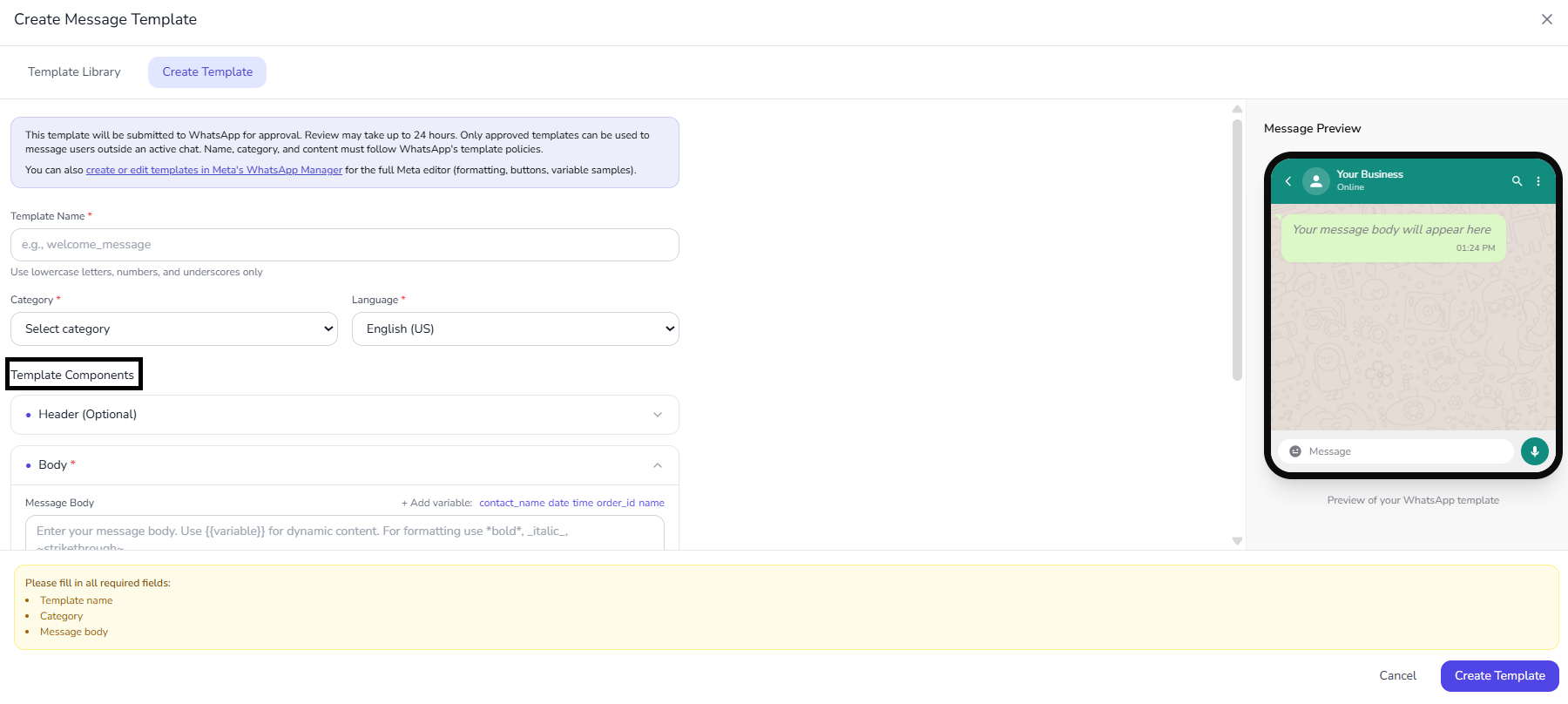
Read the notice at the top: templates are submitted to WhatsApp for approval (often within about 24 hours), must follow WhatsApp’s policies, and you can open WhatsApp Manager from the link when you need Meta’s full editor.
-
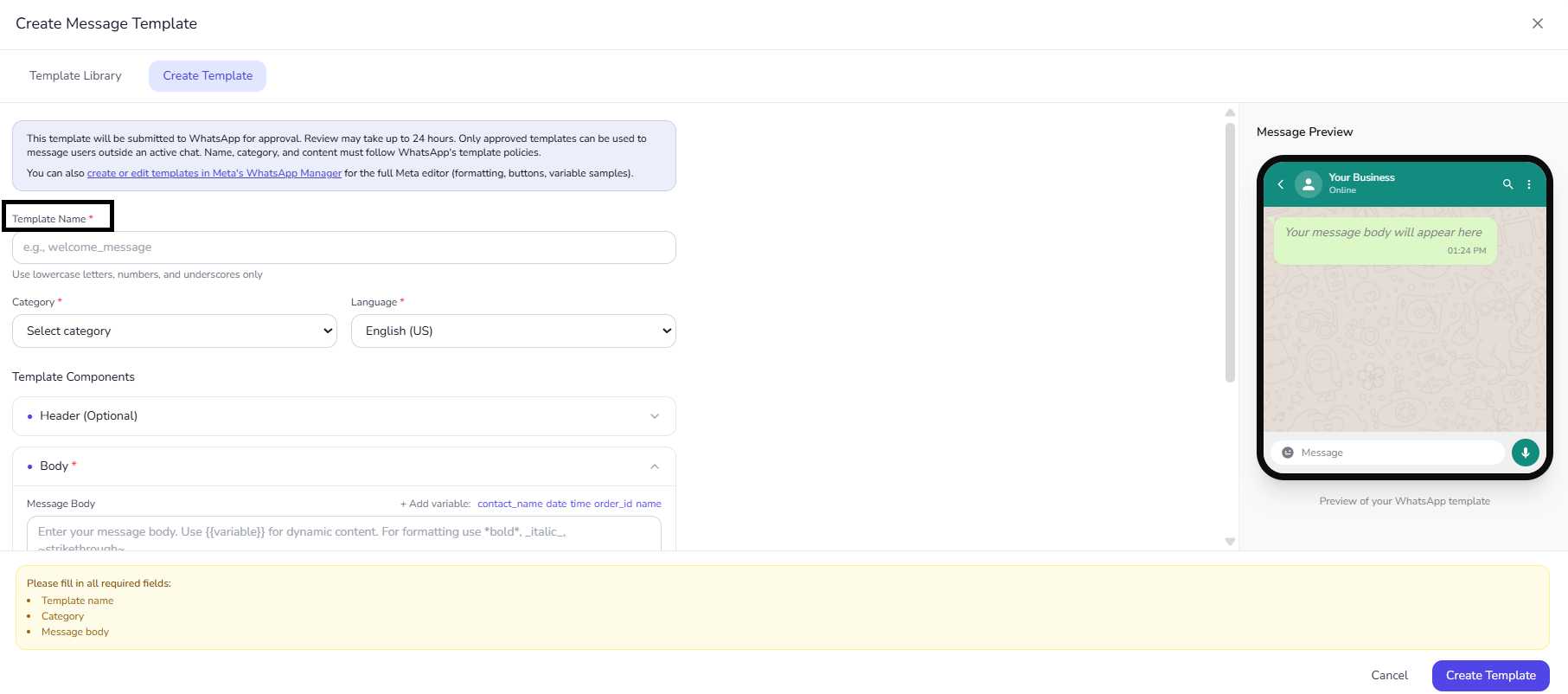
Template name — Lowercase letters, numbers, and underscores only (example:
welcome_message). The UI reminds you: Use lowercase letters, numbers, and underscores only.
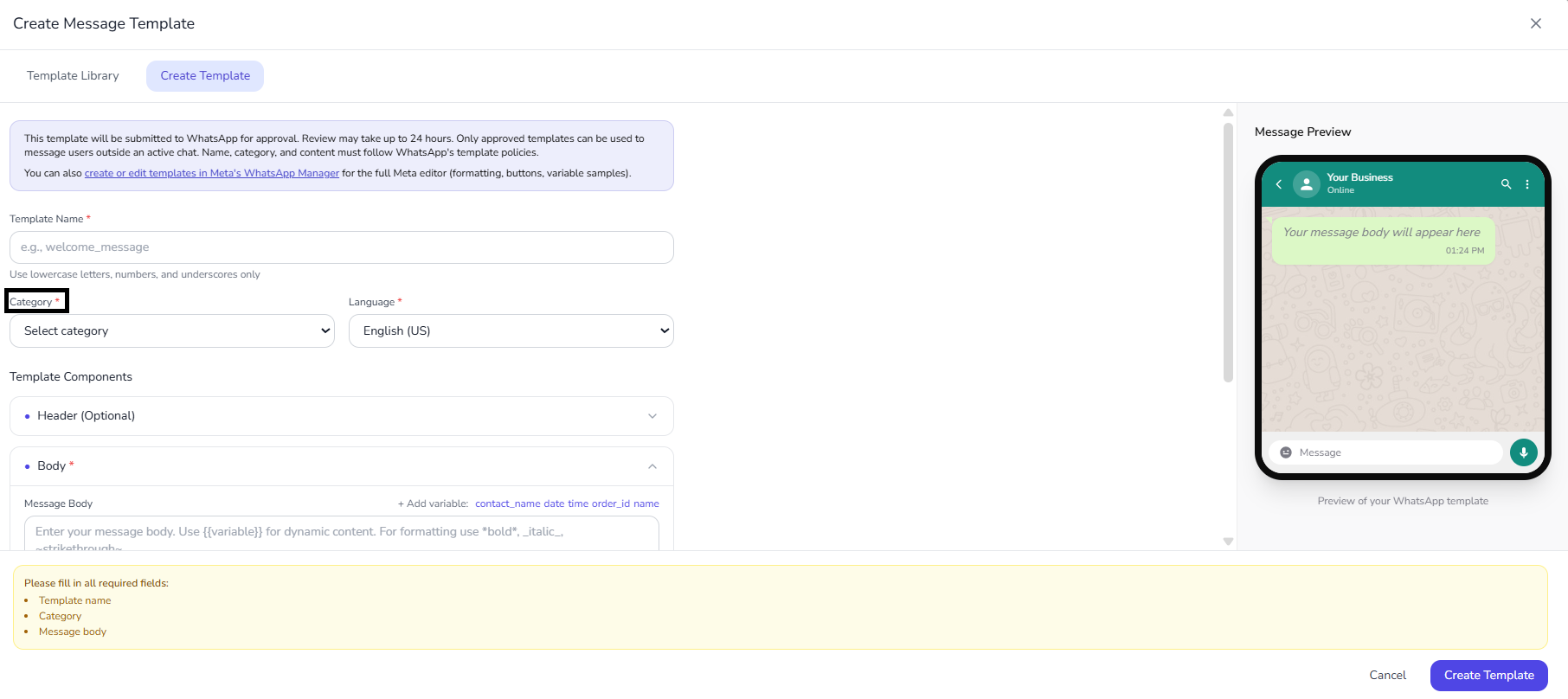
- Category — Choose Utility, Authentication, or Marketing so it matches the real purpose of the message (required).
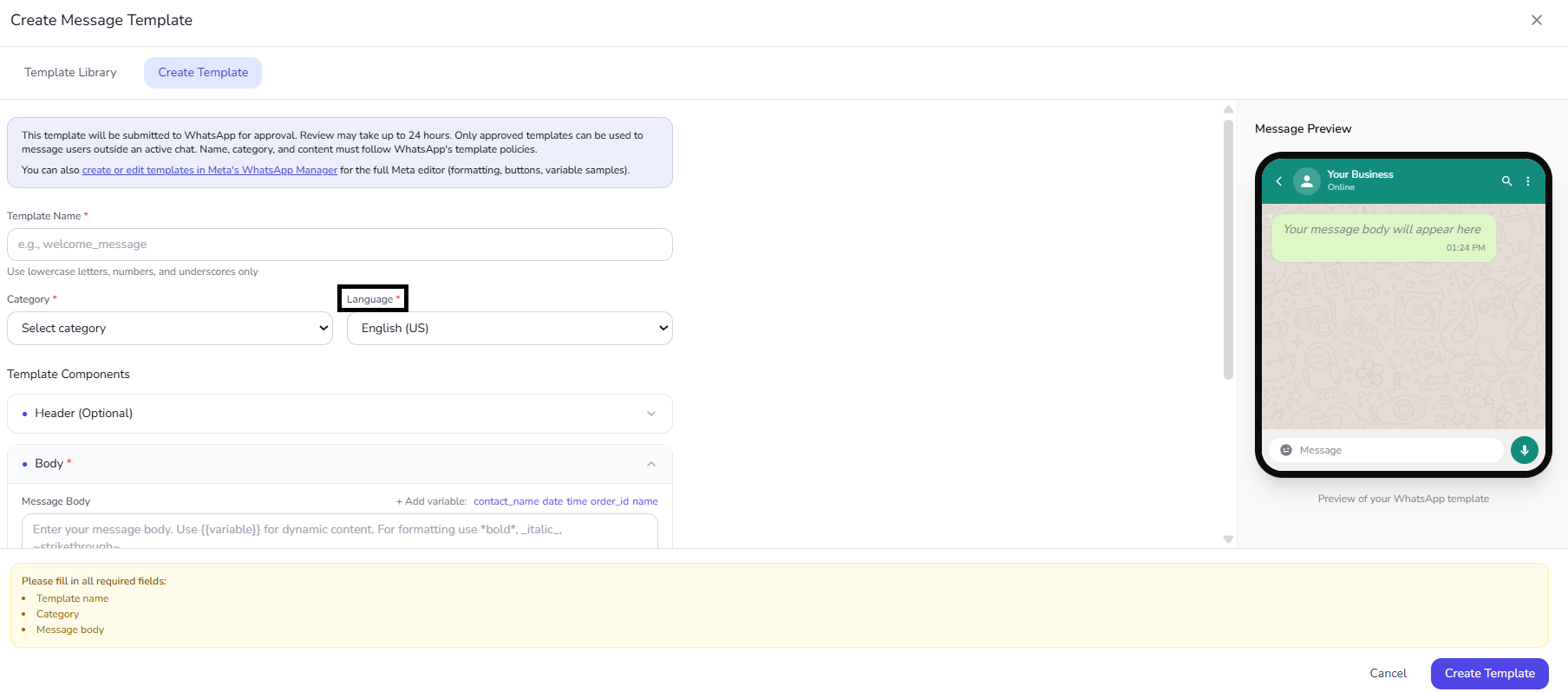
- Language — Select the language the body is written in (for example English (US)) (required).
-
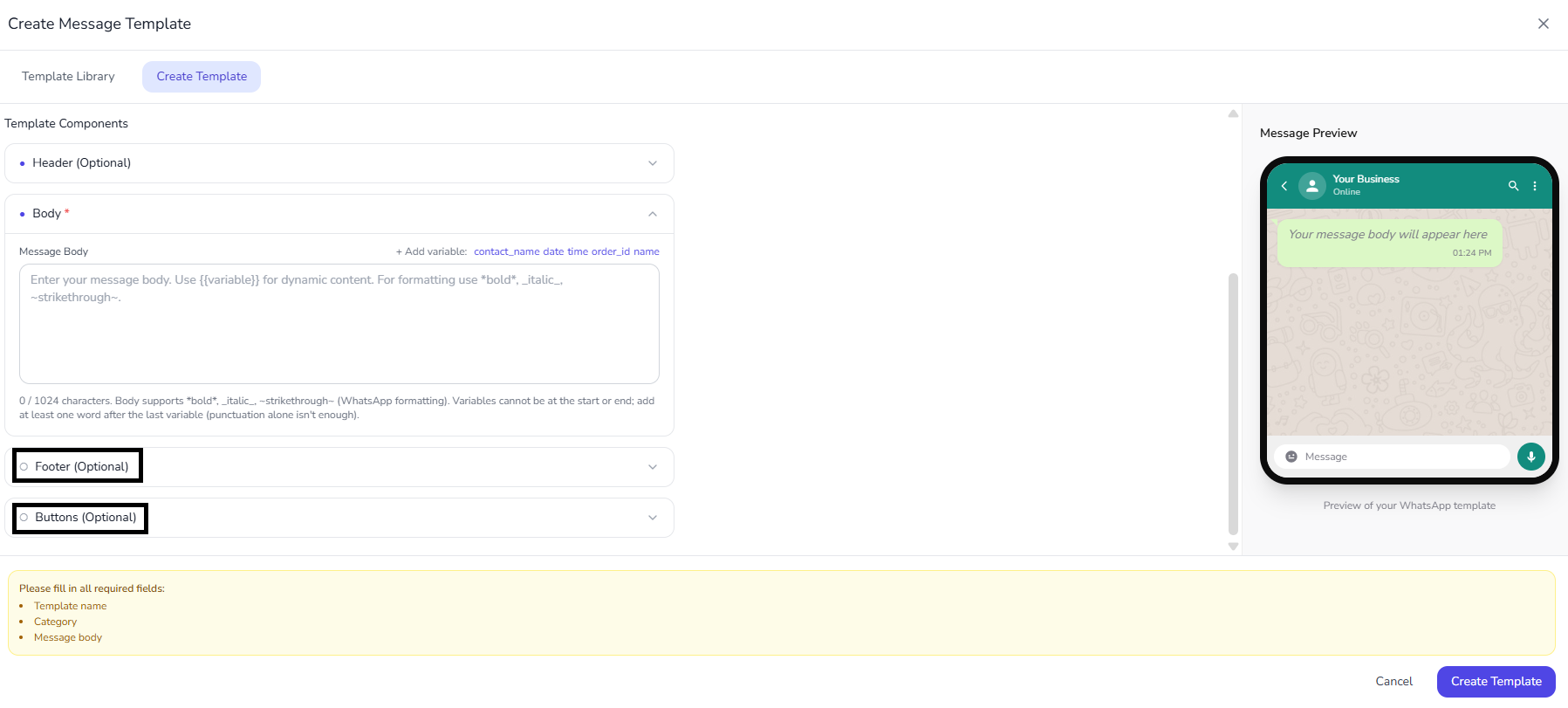
Template components — Use the expandable sections:
- Header (Optional) — Add only if you need a title or media.
- Body (Required) — Enter the Message body. Use + Add variable and the shortcut links (for example
contact_name,date,time,order_id,name) to insert{{…}}placeholders in the text. The editor shows a character count (for example 0 / 1024). Where supported, body text can use WhatsApp-style markers:*bold*,_italic_,~strikethrough~. If the editor shows extra rules, follow them—for example variables may not be the first or last thing in the body, and there must be at least one word after the last variable (punctuation alone is not enough).
- Footer (Optional) and Buttons (Optional) — Add if they help the user act or reply.
-
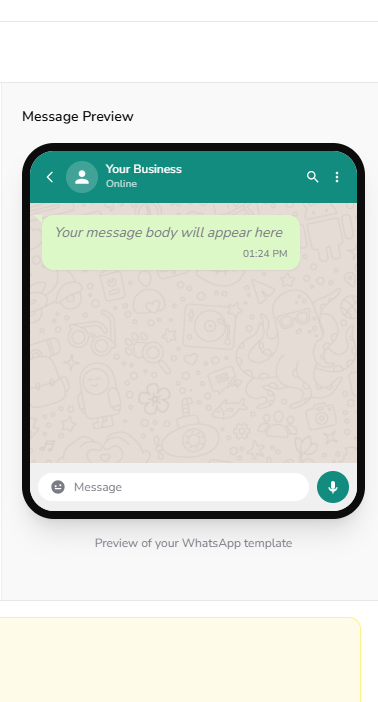
Preview — The phone-style Preview of your WhatsApp template on the right updates as you type.
-
If a validation message appears (for example missing Template name, Category, or Message body), fix those fields before continuing.
-
Click Create Template to send the template to Meta for review.
5. Provide samples for variables
If the body or header uses placeholders, fill sample values for each one when the form asks. Reviewers use these examples to see how the final message will look to customers.
6. Wait for Meta and sync
After you click Create Template, Meta reviews the submission. Reviews often complete within about 24 hours, but timing can vary. The list in ChatMaven does not update by itself—you pull the latest state from Meta using Sync Templates (see the next section).
Pull the latest status with Sync Templates
After you send a template for review, Meta is the source of truth for whether it is approved, still under review, or rejected. Sync Templates asks Meta for the current record and updates what you see in ChatMaven—Status, Quality when Meta exposes it, and any rejection explanation for failed reviews.
When to sync
- Right after you submit a new template, then again periodically while it shows as pending or in review.
- Whenever you want to confirm a template has moved to Approved before you use it in flows or outbound messages.
- After you change a template in Meta’s tools (if you use Create or edit in Meta) so ChatMaven matches what Meta has on file.
How to sync in ChatMaven
- Open Agents and select the agent that uses WhatsApp.
- Under SPOTLIGHT, choose WhatsApp.
- Open the Templates tab.
- Click Sync Templates and wait until the operation finishes.
When the sync completes, the table reflects the newest statuses and quality signals Meta returned. For rejected templates, read the reason shown in the product (or in Meta Business Manager) before you edit and resubmit.
What the statuses usually mean
Meta uses several labels over a template’s lifetime. The exact wording in the UI may vary slightly, but you will typically see something like the following:
| Status | What it indicates |
|---|---|
| Processing / Pending | The template is queued or waiting on Meta’s review. |
| In review | Meta is actively evaluating the submission. |
| Approved / Active | You may use the template for allowed outbound or automated sends, subject to WhatsApp rules and your account state. |
| Rejected | The template cannot be used until you fix the issues Meta described and submit again. |
| Disabled / Paused | Meta or policy feedback has limited or stopped use until the situation is resolved. |
| Appeal / Reinstated | The template is in a special review or recovery path after a dispute or reinstatement. |
| Flagged | Quality is low; Meta may return the template to a normal approved state if quality recovers over time. |
For the official definitions, see Meta’s message template statuses in their guidelines.
Editing a template
Meta does not let you silently overwrite an approved template: when you change content that requires review, you submit an updated version and wait for Meta to process it (often up to about a day, same order of magnitude as a new template). In ChatMaven you start from the same Templates screen you use for creation.
Open the editor
- Go to Agents and open the agent that uses WhatsApp.
- Under SPOTLIGHT, choose WhatsApp.
- Open the Templates tab.
- Find the row for the template you want to change and click Edit (pencil) under Actions.
Change what Meta allows, then submit
Adjust the header, body, footer, buttons, or sample values as needed. When you are finished, use Submit (or the equivalent control in the editor) so the revision goes back to Meta.
After you submit an edit, the template typically shows as In review (or similar) until Meta finishes. Use Sync Templates on this tab to refresh status and any reviewer feedback.
What you usually cannot change on an already-approved template
On templates that are already approved, Meta’s rules generally lock the template name, category, and language. You can still improve or fix message content and components where the editor allows it. If you truly need a different name, category, or language, you normally create a new template instead.
Which statuses can be edited
You can usually open Edit only when Meta’s state is one of Approved, Rejected, or Paused. Templates that are still in a strict pending or processing state may need to wait until Meta moves them before an edit is possible (exact behavior follows Meta and what ChatMaven shows in the row).
How often you can edit (Meta limits)
For approved templates, WhatsApp applies limits on how often you may submit changes within rolling time windows (often described as roughly one edit within a 24-hour period and up to about ten edits across 30 days—exact enforcement can change). Rejected or paused templates are usually easier to revise repeatedly until Meta accepts them. If ChatMaven or Meta shows a rate or eligibility error, follow that message; it overrides any summary here.
After Meta approves your edits
Once the new version is approved, use that template for sends and automations. If you had older flows or integrations that cached template text or IDs, confirm they still point at the template you expect so customers see the updated wording.
For policy and field-level rules, Meta’s message template guidelines remain the reference.
After approval
Only templates with an approved (active) status should be used for outbound template sends. If Meta rejects a template, read the reason, adjust the content or category where allowed, and submit again—see Editing a template above. For deletion and other issues, see WhatsApp — Templates.
Related links
- WhatsApp — Templates — Template list, filters, delete, troubleshooting (sync and editing are summarized there with links back here)
- WhatsApp Integration — Connection and setup
- Meta — Message template guidelines
FAQ and troubleshooting
The template stays in pending review.
Meta review times vary. Fix any quality or policy flags shown in WhatsApp Manager; ambiguous or misleading body text is a common rejection reason.
Variables show as empty when sent.
Ensure you pass all declared variables in the API or UI, in the right order. Missing parameters often render blank or fail the send entirely.
Can I edit a template after approval?
Usually you create a new template version or name; changing approved bodies may require re-review. Plan naming conventions for iterations.