Filtering and Sorting Conversations in Inbox
As conversation volume grows, Inbox controls help you narrow the list to the threads that need attention now. This guide covers ChatMaven's live filter and sorting-related controls on the Inbox page.
Filter and sort conversations
In the toolbar above the conversation list, you can combine these controls:
- Search to find conversations quickly.
- Date range (with a calendar control) to scope by activity window.
- Filter (funnel) to open the Add to Filters / advanced filter builder.
- Favorites-only toggle (star), when shown, to limit the list to starred threads only.
- Saved Filter to apply previously saved filter sets.
- Reset to clear active filters and return to a broad view.
In the left side panel, All Conversations (under CONVERSATIONS) is a view (all threads vs assigned to you, unassigned, or favorites)—not the same control as the funnel filter builder.
You can apply one control or stack several together.
Search
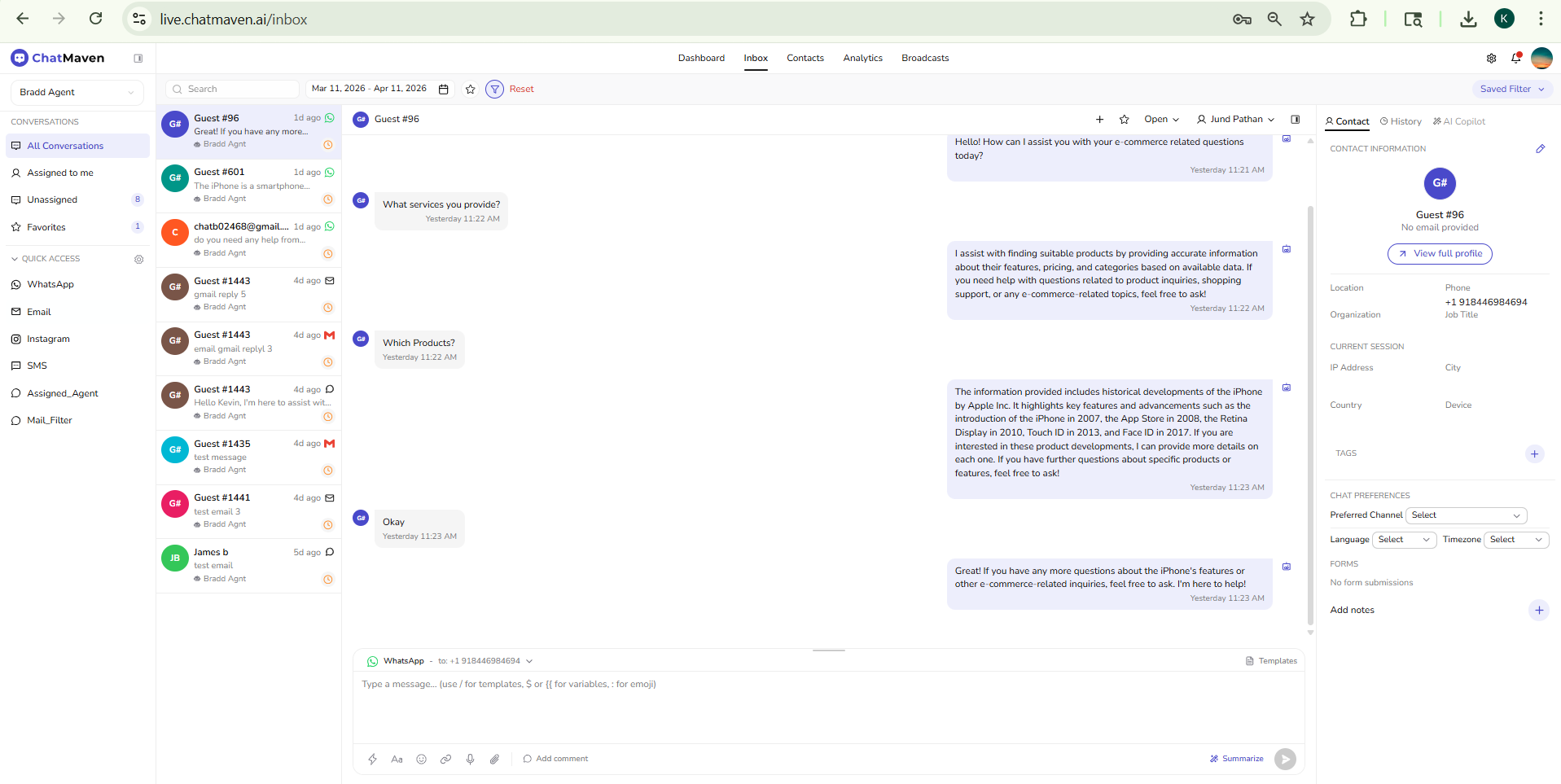
Use the Search box in the inbox header to narrow the conversation list by matching text. This is the fastest way to jump to a specific contact or known keyword.
Date range
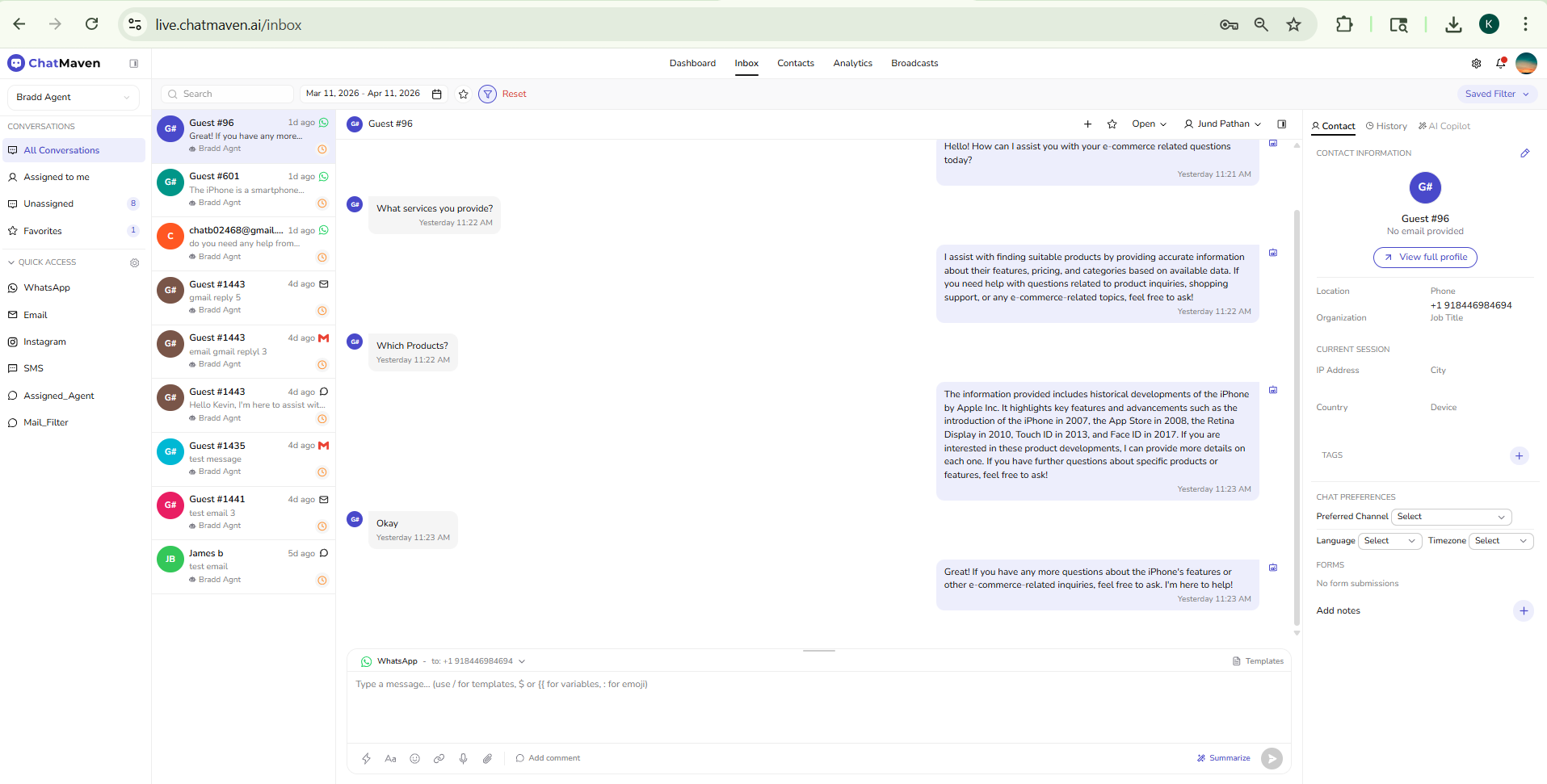
Use the date range selector (for example Mar 02, 2026 - Mar 30, 2026) to limit results to a timeframe. This is useful when reviewing recent activity, campaign windows, or month-end queues.
Favorites-only filter
The star toggle beside date range acts as a quick favorites filter:
- When off, it appears as Show favorites only.
- When active, it changes to Remove favorite filter.
This toggle is a lightweight way to focus on priority threads marked as favorites.
Advanced filters (Add to Filters)
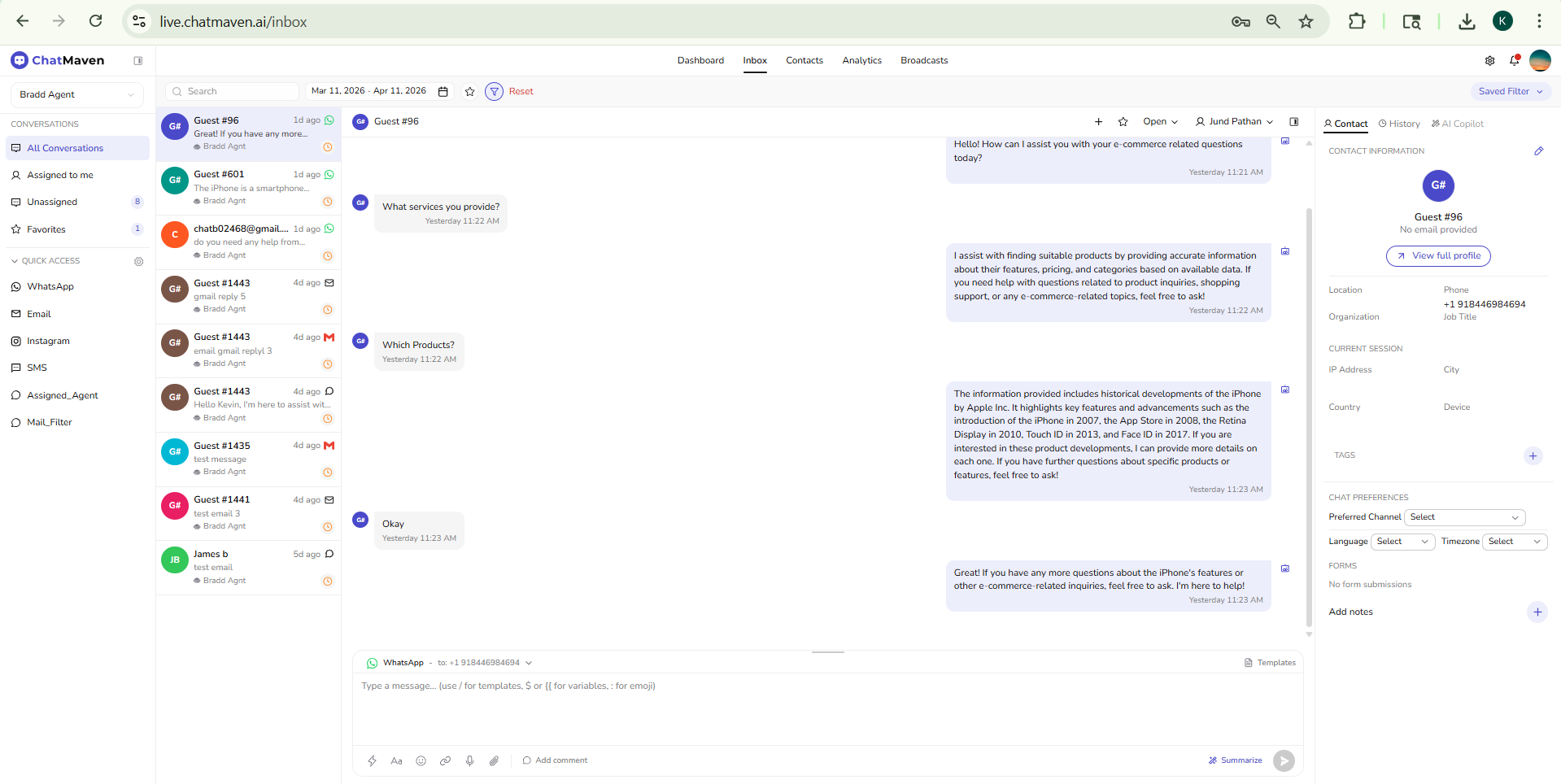
Click the filter (funnel) icon in the Inbox toolbar (next to the date range) to open the Add to Filters panel, where you can build custom filter logic:
- Enter or select a filter name in the Saved Filter field.
- Set match logic (for example the numeric matcher near the top).
- Add rules with Add Condition.
- Use Apply for immediate use, or Save to keep the filter for reuse.
This is the advanced path when search/date/favorites are not specific enough.
Saved Filter
The Saved Filter dropdown lets you reuse existing filter definitions without rebuilding them:
- Search existing filters via Search filters....
- Click a filter name to apply it.
- Existing custom filters may expose a Delete filter action in the list.
Use this for repeated workflows (for example channel, assignment, or status-focused queues).
Status and assignment (conversation header)
For the open conversation only, the header includes Open / Closed / Unassigned (status) and Unassigned or an assignee name (assignment). These do not filter the whole list; they change the selected thread. See Assigning and closing a conversation.
Reset
Use Reset to clear active filtering and return to a clean baseline view. This helps when your current filter combination is too restrictive.
FAQ and troubleshooting
Why is my list unexpectedly small?
Most cases are caused by stacked filters (date range + favorites + saved filter + search). Use Reset and then re-apply controls one by one.
I cannot find a conversation I know exists
Check these in order:
- Date range window
- Favorites-only toggle state
- Active saved filter
- Search text
Should I use Apply or Save in Add to Filters?
- Apply for one-time filtering now.
- Save when you want to reuse the same logic later from Saved Filter.