WhatsApp & flows steps
Steps under WhatsApp & flows cover WhatsApp-specific messaging and reusable ChatMaven sub-flows.
Live URL: live.chatmaven.ai/workspaces/flows
WhatsApp Template and WhatsApp Flow run on WhatsApp only—they are skipped on Web Chat. Scope the parent flow to WhatsApp in Channels, select the correct agent(s), and pick a WhatsApp integration phone number in the builder header. See Flows overview — WhatsApp integration.
There is no separate ChatMaven Template palette step. Send workspace template content via Message (template picker) or WhatsApp Template. See Templates.
WhatsApp Template
Send a WhatsApp-approved template with variables.
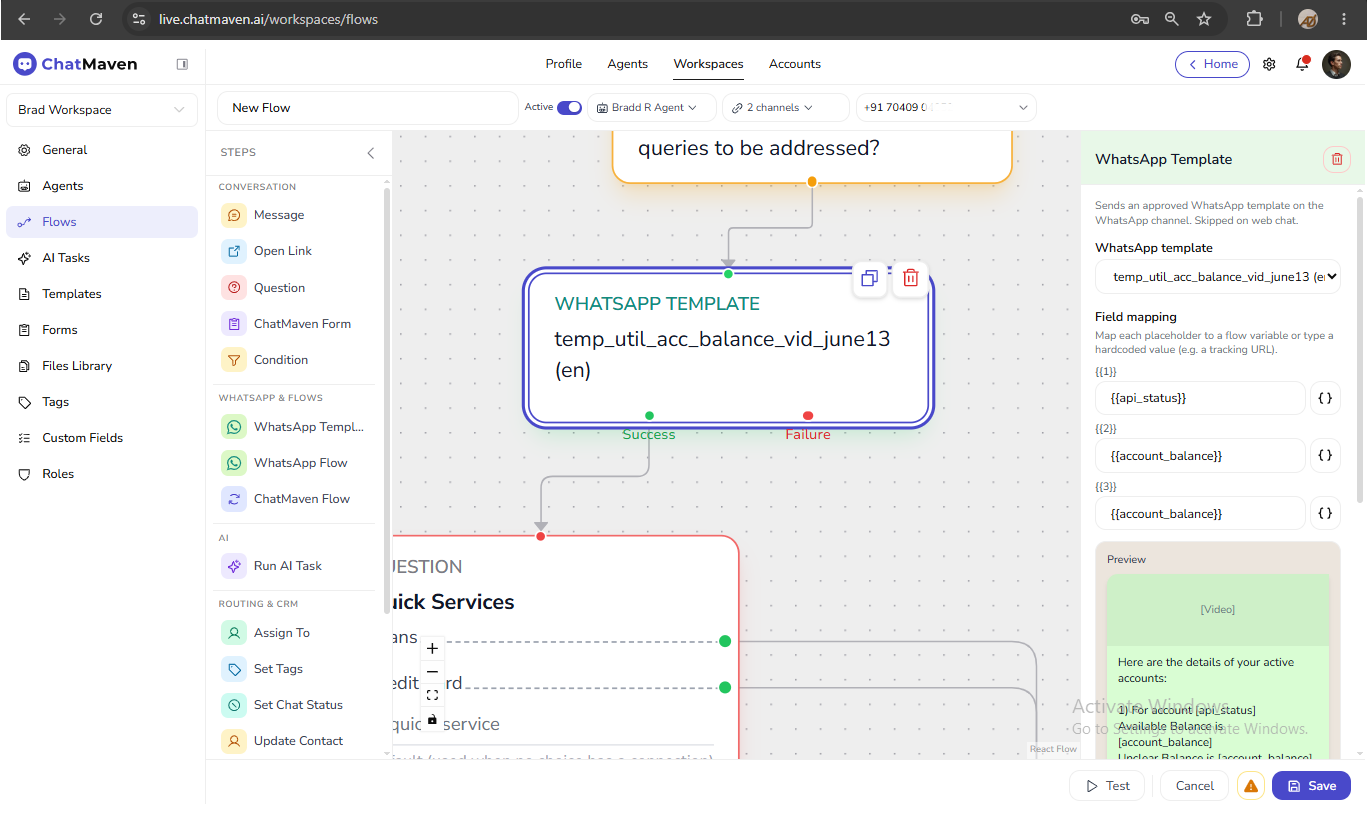
- Sync and approve templates under your agent's WhatsApp integration. See WhatsApp Templates.
- In the flow header, scope to WhatsApp and select the WhatsApp integration phone number.
- Add WhatsApp Template to the canvas.
- Select the template and language (for example
en). - Map template variables to flow variables or static text.
- Configure On send error and Delivery wait as needed.
- Save the step.
Tips:
- Templates are required for many business-initiated messages outside the customer service window.
- Match variable count and order to the approved template.
- For web chat and WhatsApp in one logical journey, use Condition to branch: Message on web chat, WhatsApp Template on WhatsApp.
WhatsApp Flow
Launch a Meta WhatsApp Flow created in WhatsApp Manager.
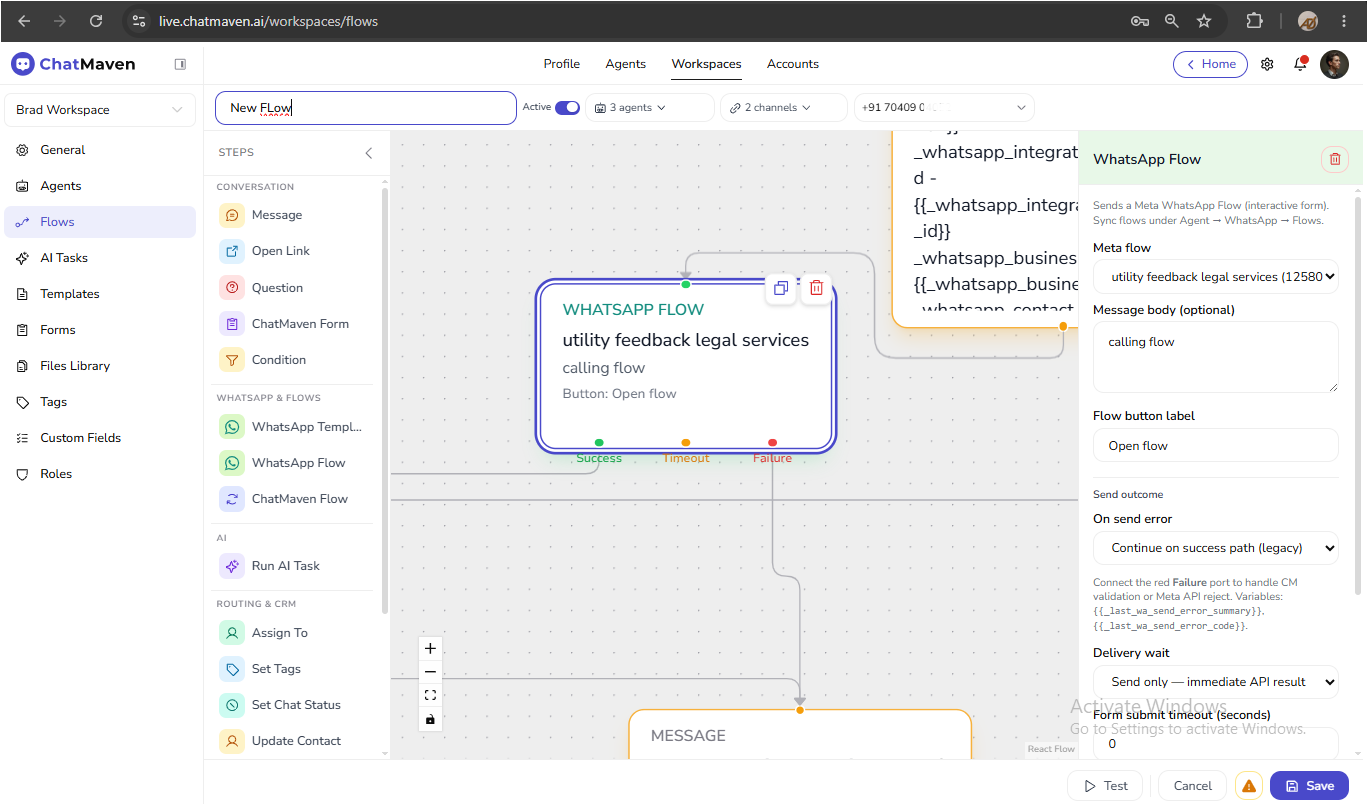
- Create and publish the flow in WhatsApp Manager. See WhatsApp Flow.
- In ChatMaven, Sync flows on the agent WhatsApp integration if needed.
- Scope the parent flow to WhatsApp and select the WhatsApp integration phone number.
- Add WhatsApp Flow to the canvas and select the synced Meta flow.
- Set Message body, Flow button label, and optional Form submit timeout.
- Wire Success, Timeout, and Failure ports on the canvas as needed.
- Save the step.
Tips:
- Test on the same WhatsApp number configured in the flow header.
- When timeout is greater than zero and the Timeout port is wired, the flow follows that branch if the contact does not submit the Meta form in time.
ChatMaven Flow (nested)
Run another ChatMaven flow in the same workspace from the current point in the journey. Works on all channels (not WhatsApp-only). Use it to reuse welcome paths, compliance snippets, or sub-menus without copying nodes.
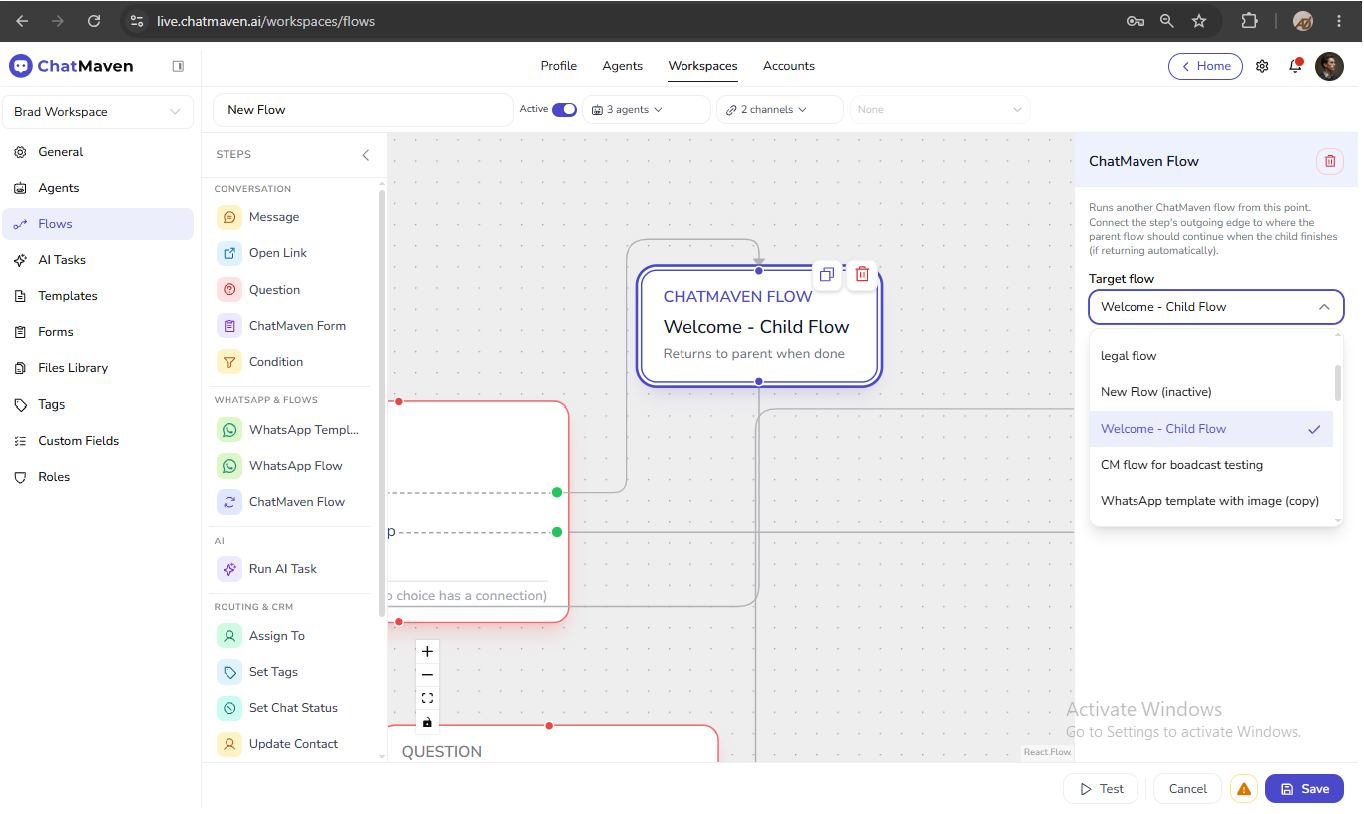
- Add ChatMaven Flow from STEPS under WhatsApp & flows.
- Click the node and set:
| Field | Options |
|---|---|
| Target flow | Another saved flow in the workspace (for example a short welcome child flow). |
| When child flow ends | Return to parent flow (continue at next step) — resume the parent after the child finishes. Leave parent paused (user taps Resume) — parent waits until an agent or contact resumes. |
| Step gap | Delay before the child starts: 250 ms, 500 ms, 1–5 seconds. |
- Connect the child step's outgoing edge to where the parent should continue when returning automatically.
- Save the step, then Save the flow.
Tips:
- Keep child flows focused (one welcome, one consent, one sub-menu).
- Avoid loops: child flow triggers or nested steps must not re-fire the parent trigger indefinitely.
- Name child flows clearly (for example
Welcome - Child Flow). - Align agent and channel scope so the child can run in the same conversation context.
ChatMaven Flow runs another ChatMaven canvas. WhatsApp Flow launches a Meta interactive form on WhatsApp only.