Google Calendar
Connect ChatMaven to Google Calendar so your agent can share your availability and booking links. Add your meeting or appointment URL once, and your chatbot can help visitors schedule with you—no back-and-forth needed.
Video Walkthrough
Watch the video below for a step-by-step guide on connecting Google Calendar to ChatMaven. You can also follow the written steps in this guide.
Open the Google Calendar integration video on Google Drive in a new tab if the player above does not load.
What you need
- A ChatMaven account
- A Google Calendar account
Connect Google Calendar in 6 steps
1. Open Google Calendar in ChatMaven
In ChatMaven, go to Agents → Integrations → Google Calendar.
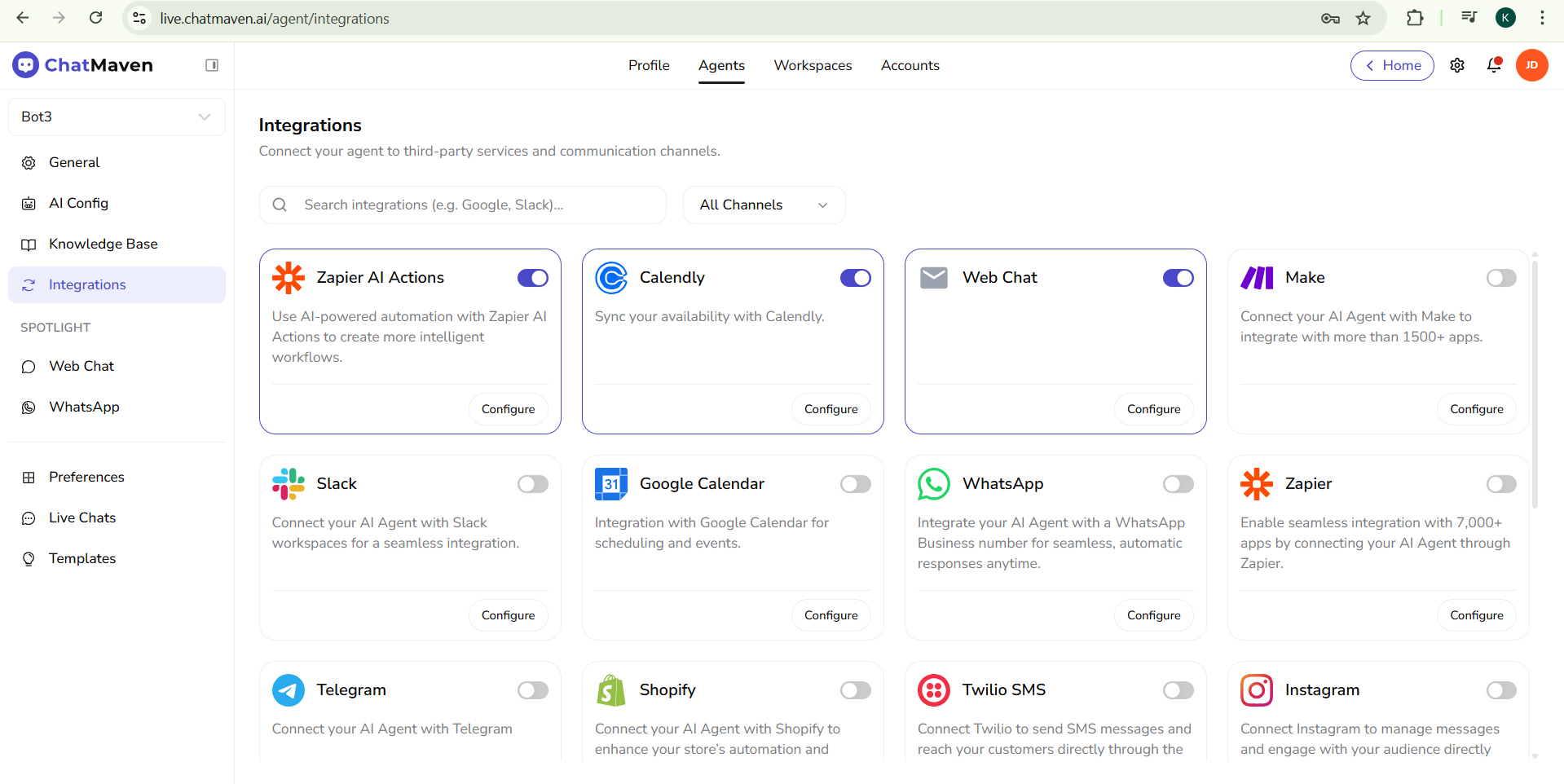
2. Find "Connect other calendar Provider"
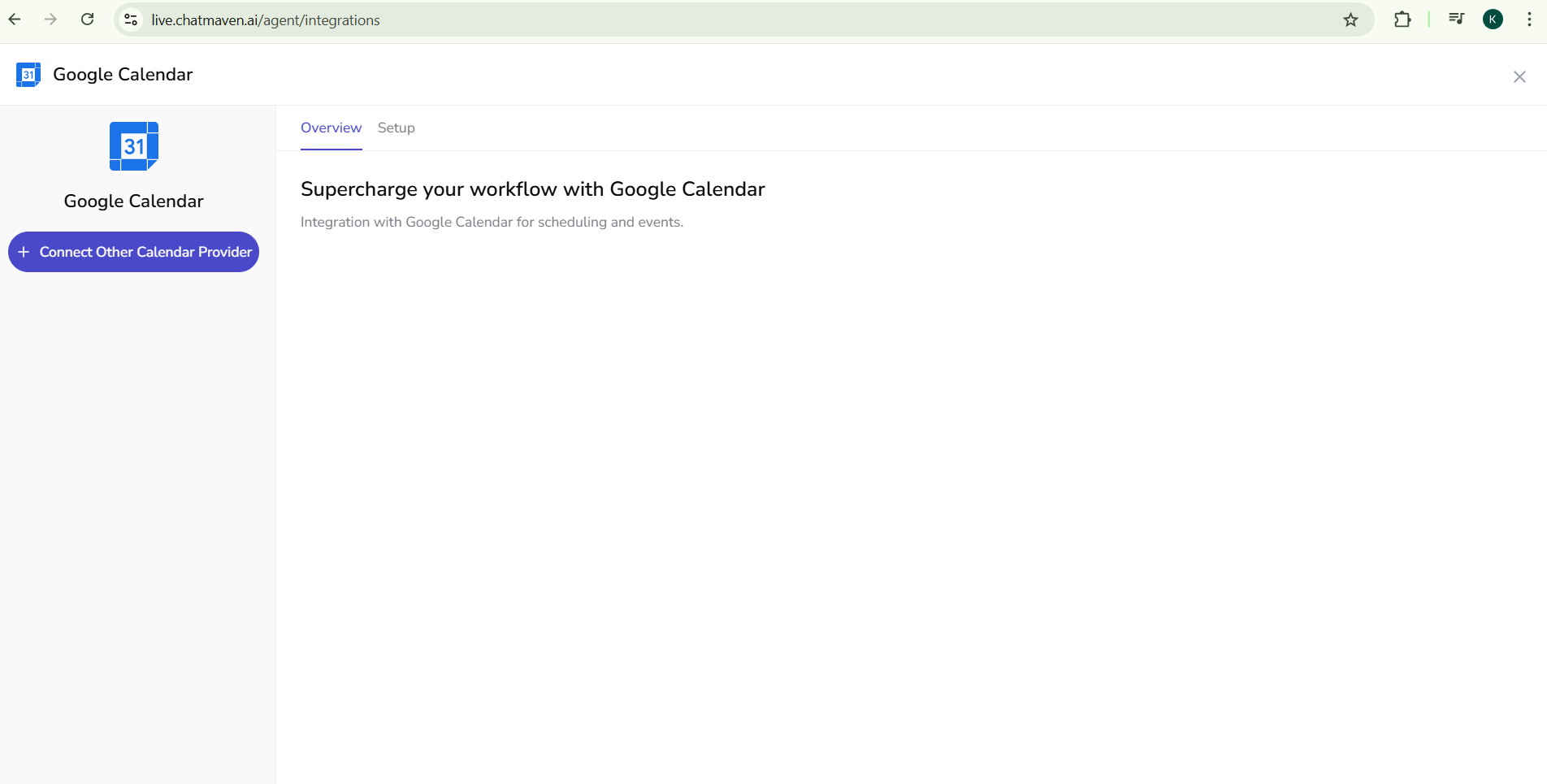 On the Google Calendar integration page, you’ll see Connect other calendar Provider. To continue, you need your Google Calendar URL (the link to a specific meeting or appointment).
3. Get your Google Calendar URL
You need a meeting or appointment URL from Google Calendar—not your main calendar page link. Follow these steps:
3.1 Open Google Calendar
Open Google Calendar.
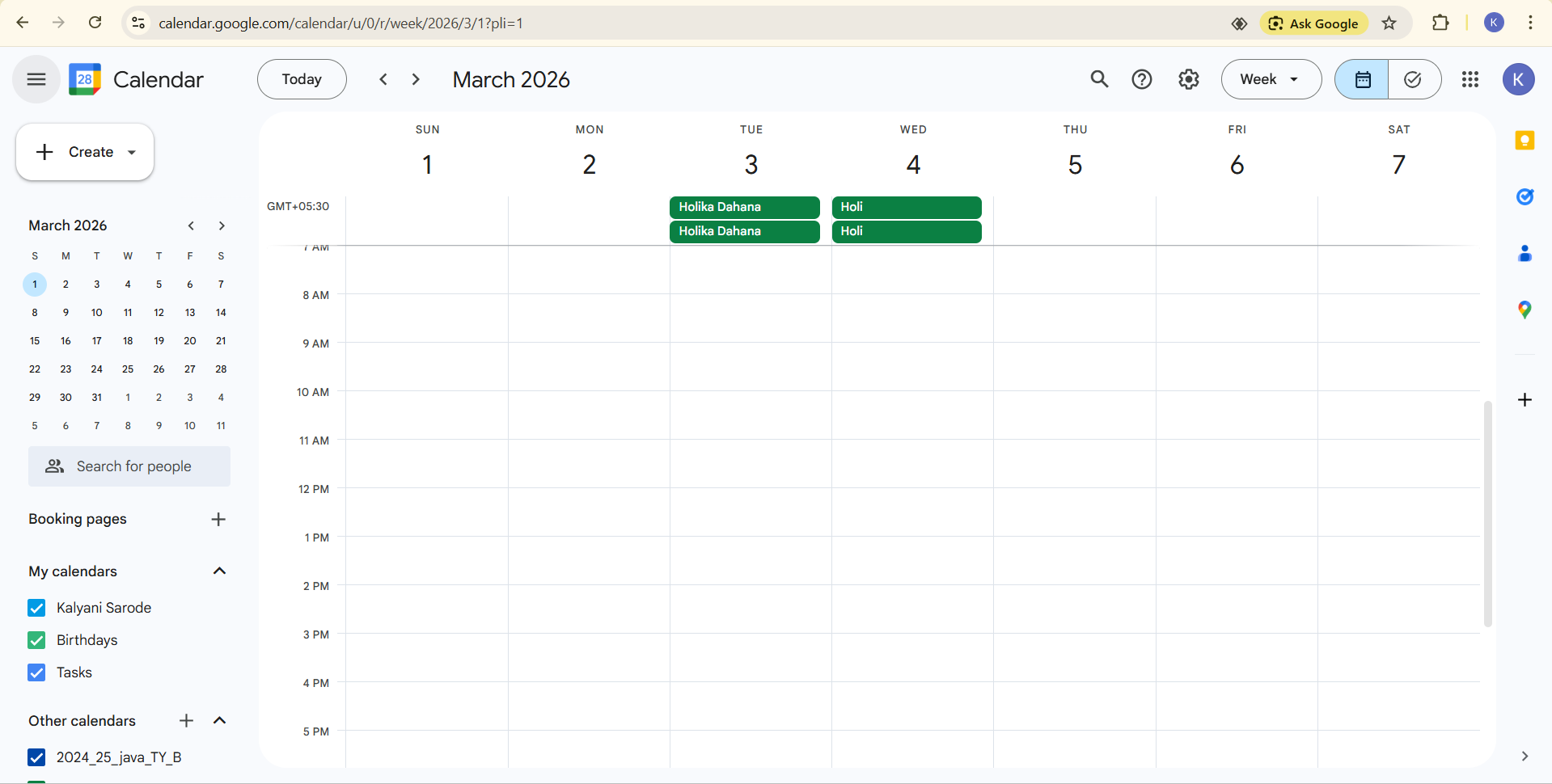
3.2 Create a new event
Create a new appointment or meeting with a specific date and time.
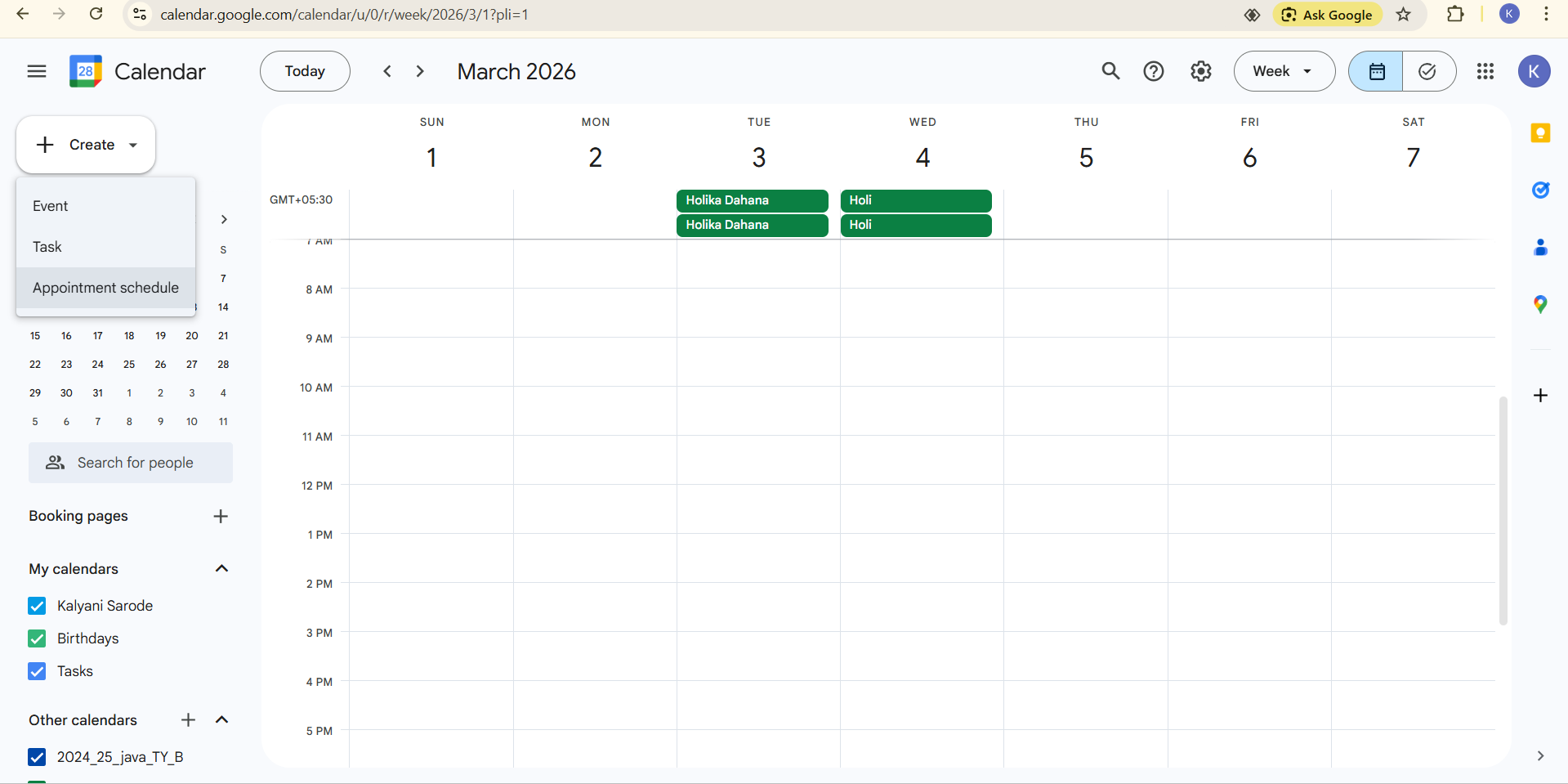
3.3 Add title, time, and details, then save
Add a title, time, and any other details for the event, then save the event.
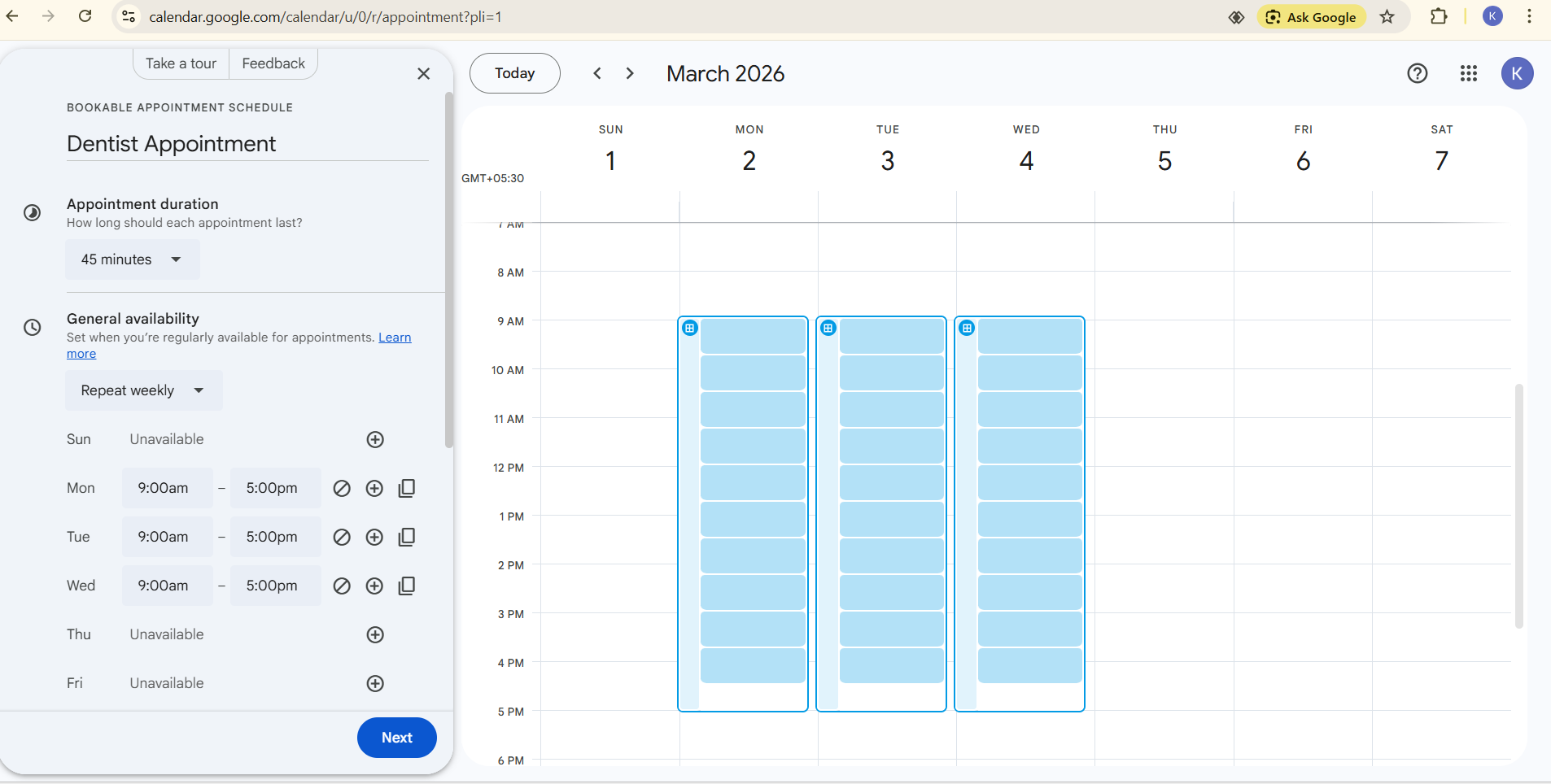
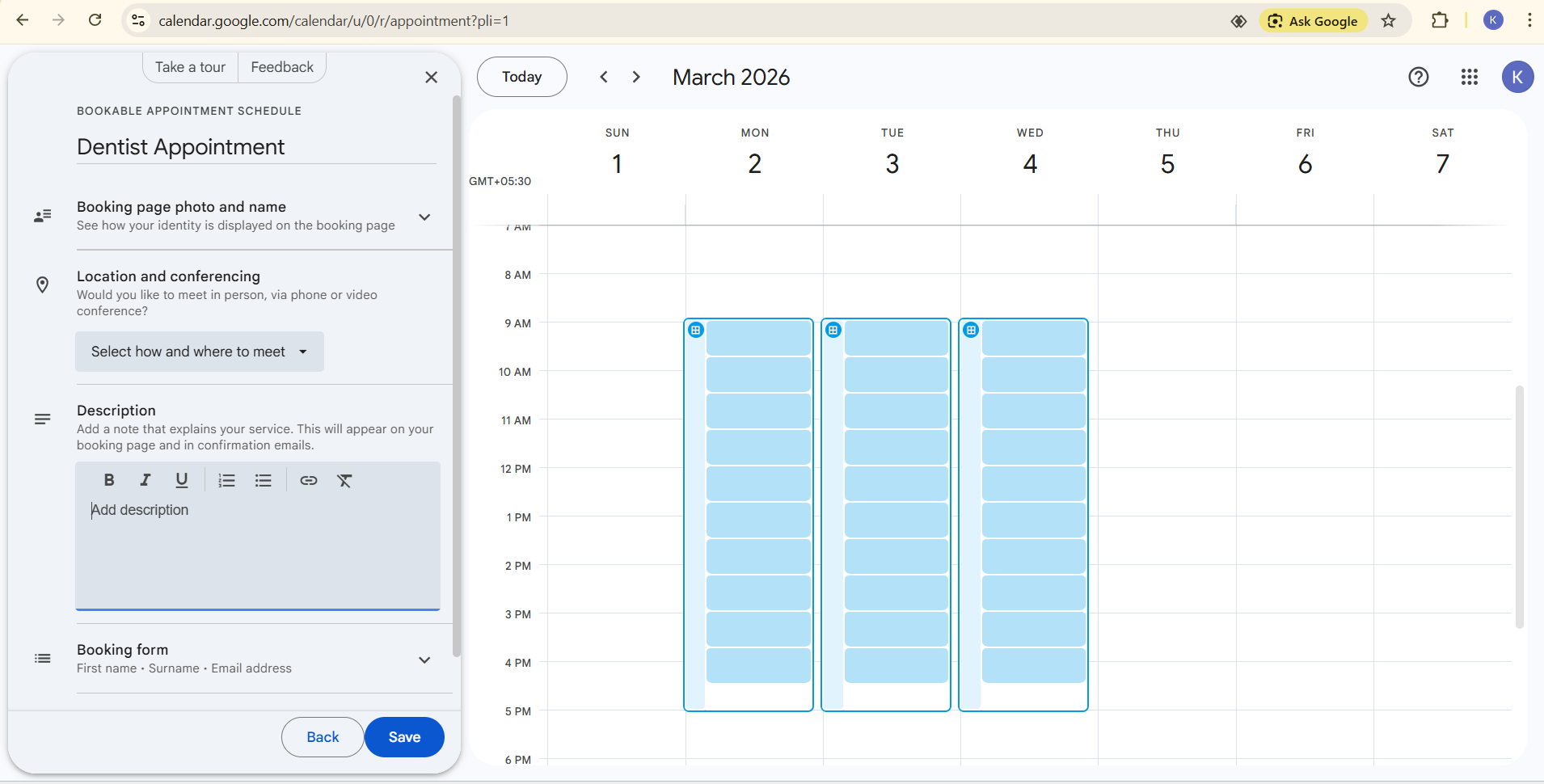
3.4 Open the saved event and find the URL
Open the saved event. Your Google Calendar meeting or appointment URL is created—you’ll see it in the event details or when you click Copy link or the share options.
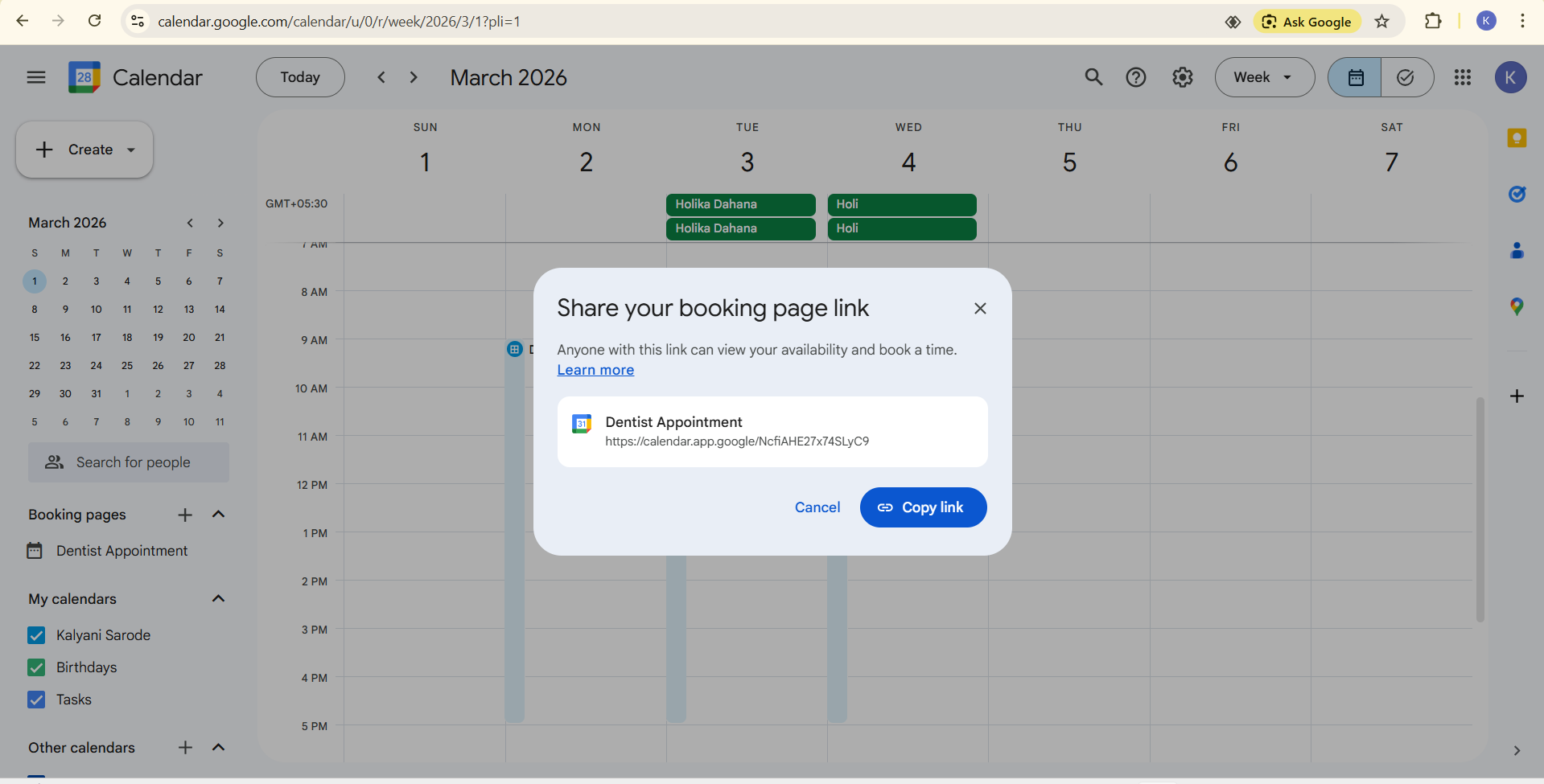
4. Copy the URL
In Google Calendar, copy the full meeting or appointment URL for that event.
5. Paste the URL in ChatMaven
- Return to ChatMaven: Agents → Integrations → Google Calendar.
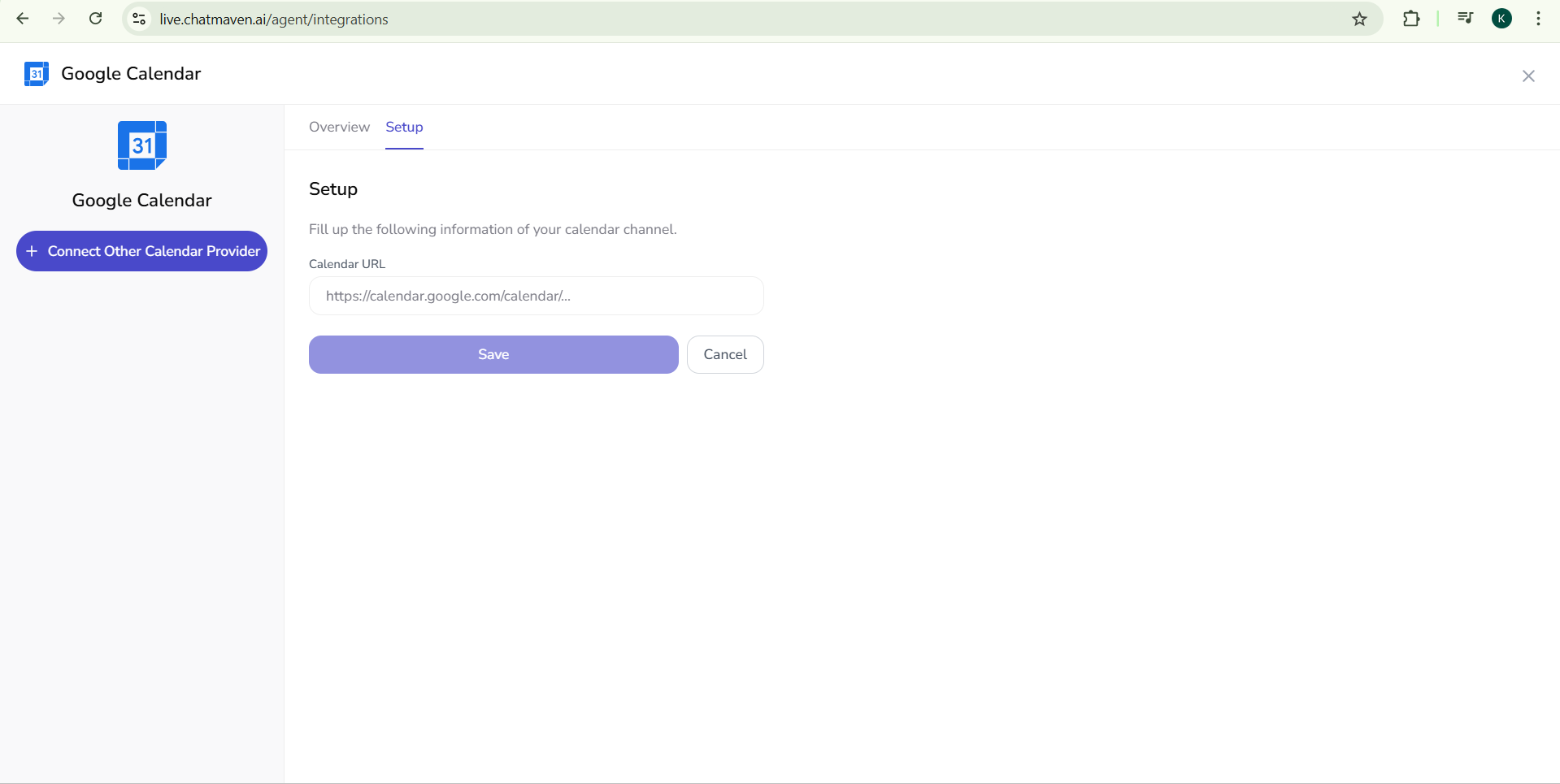 2. Paste the URL into the Google Calendar integration field (where you saw “Connect other calendar Provider”).
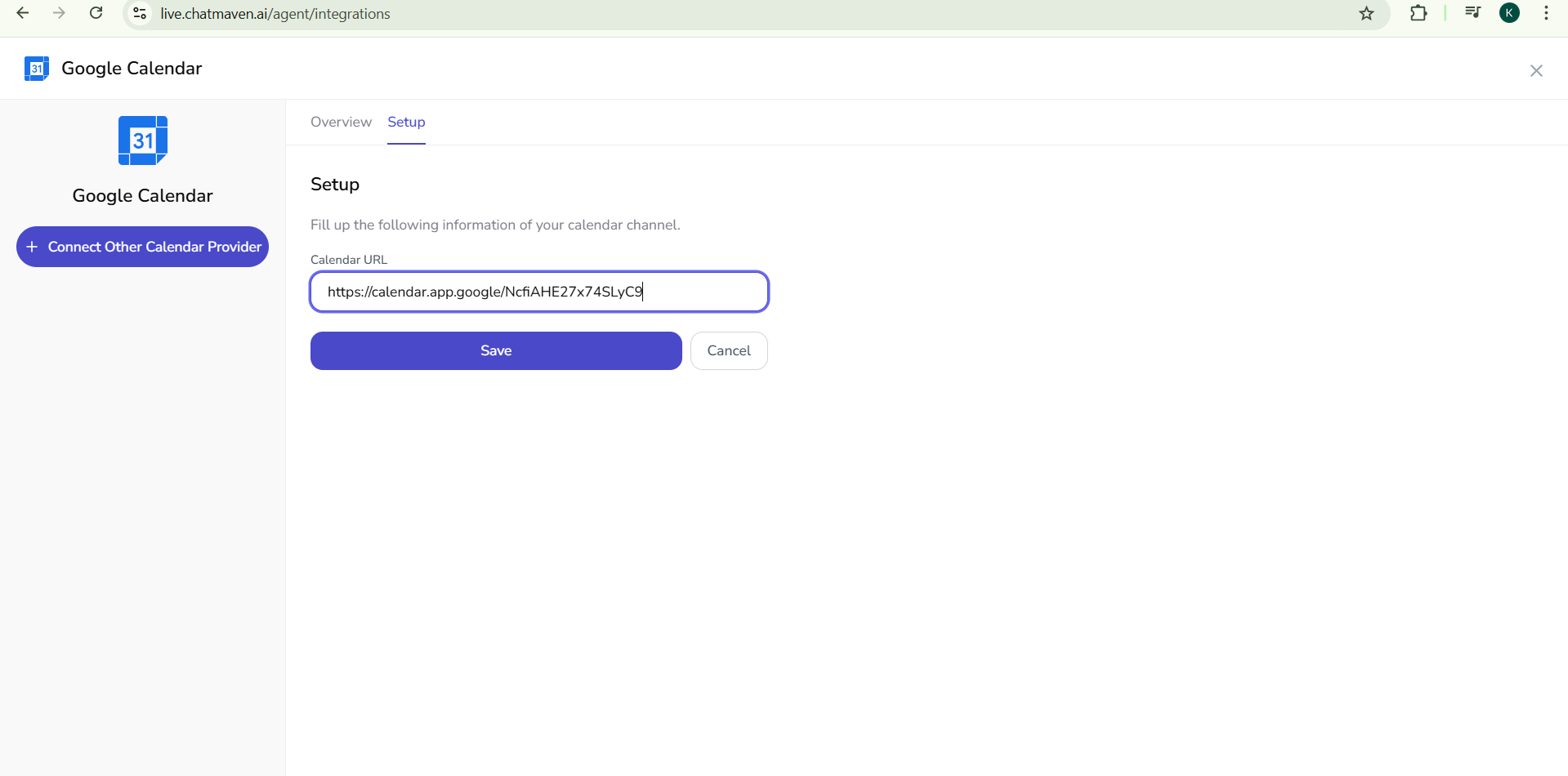 3. Save or Connect to finish the setup.
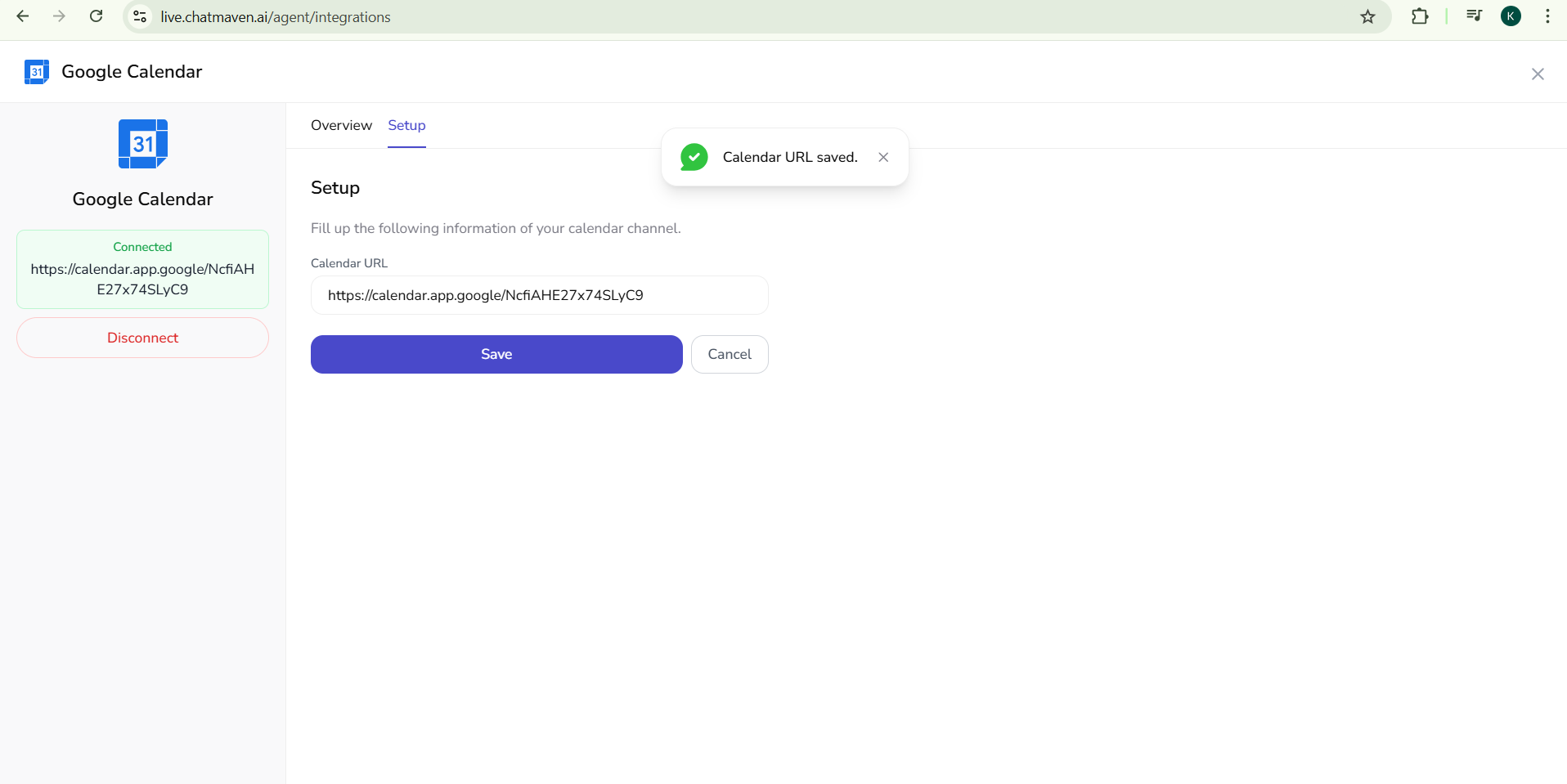
6. You’re done🎉
Your Google Calendar is now connected. Your agent can use this URL so visitors can book or view your availability through the chatbot.
Quick recap
| Step | Where | What to do |
|---|---|---|
| 1 | ChatMaven | Go to Agents → Integrations → Google Calendar |
| 2 | Same page | See Connect other calendar Provider — you need your Google Calendar URL |
| 3 | Google Calendar | Schedule a meeting or appointment (date + time) and save it |
| 4 | Google Calendar | Your meeting/appointment URL is created — copy it |
| 5 | ChatMaven | Paste the URL in the Google Calendar integration and save |
Tips
- Use a dedicated booking event: Create one event (e.g. “Book a call with me”) and use its URL in ChatMaven. You can reuse the same link; you don’t need to paste a new URL for every meeting.
- Appointment slots: In Google Calendar you can create appointment slots; use that event’s URL for a bookable link.
- Keep the link updated: If you create a new event type or change how you want to be booked, paste the new URL in Agents → Integrations → Google Calendar.
Troubleshooting
- URL not working: Make sure the event is saved in Google Calendar and that you copied the event’s meeting/appointment URL, not the main calendar page URL.
- Calendar not updating in the bot: Re-paste the latest meeting or appointment URL from Google Calendar after creating or changing the event.
Need help?
FAQ and troubleshooting
Calendar events are not created or updated.
Reconnect Google and accept all calendar scopes. Ensure the Google account you picked owns or can edit the target calendar. Check the agent or automation logs for API quota or permission errors.
Wrong calendar or timezone on bookings.
Pick the default calendar in the integration settings if offered, and set the workspace or user timezone in the product so slots display correctly to visitors.
Why did access expire?
Google OAuth tokens can expire or be revoked. Re-authorize the integration; rotate refresh tokens if your admin enforced a security policy.