Managing Emails in Inbox
The Inbox supports email conversations along with other communication channels, allowing you to manage all your messages from a single place. This article explains how to send, reply to, and organize emails in Chatmaven’s Inbox, including how to use the email composer, channel switcher, and other composer tools.
Requirements
Before you can send emails to contacts from Inbox, you must connect a valid email account (e.g. via Gmail SMTP or your Google Gmail integration).
Conversation list and email
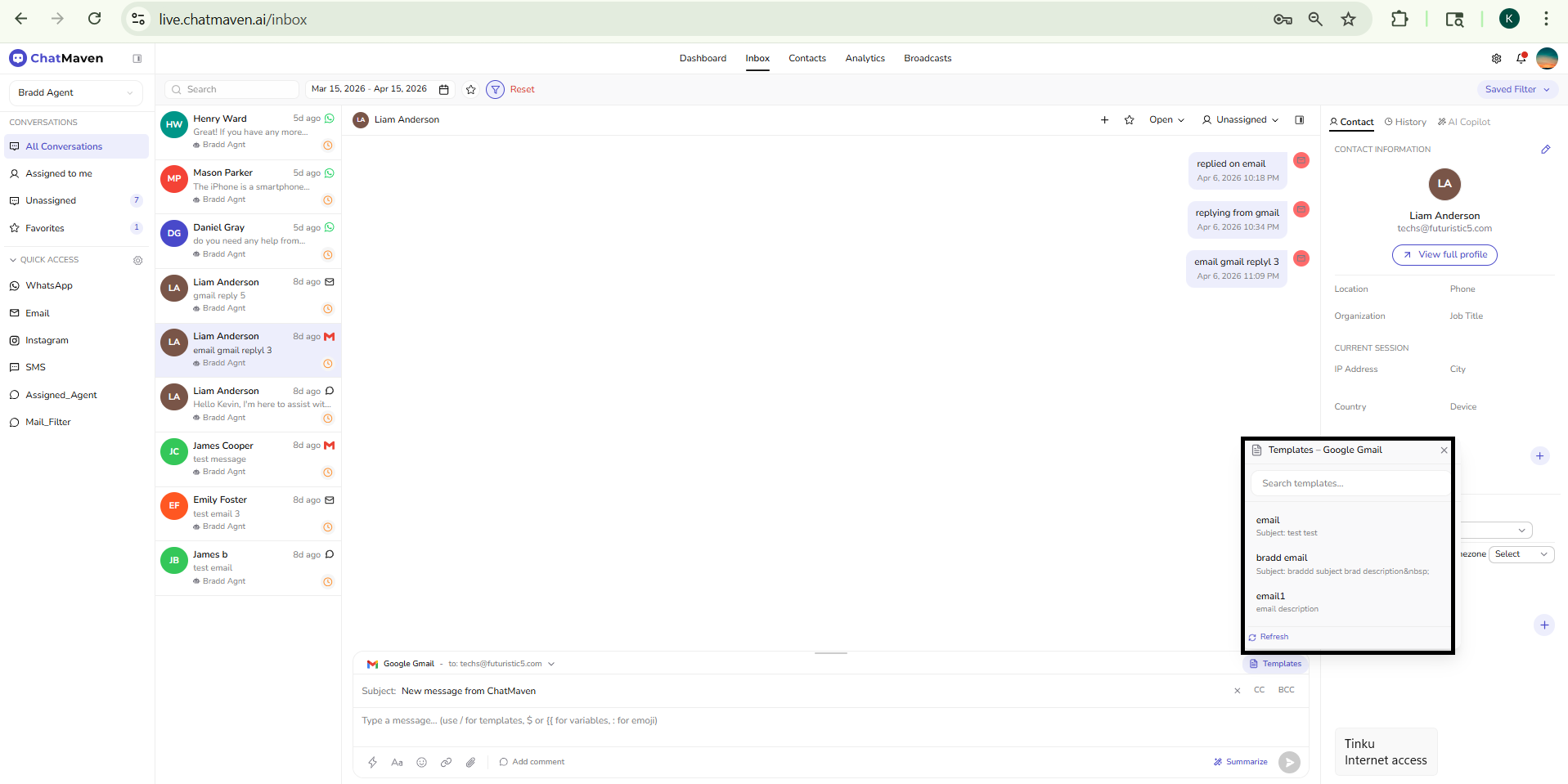
In the conversation list (left panel), email threads look like other conversations but use a red "M" channel icon so you can tell at a glance that the conversation is over email. Each row still shows the contact’s avatar (with initials), name, last message preview, bot label (e.g. "Bot3"), timestamp (e.g. "7d ago"), and the orange clock status icon. Selecting an email conversation opens the conversation window with the email composer ready when the email channel is selected.
Channel switcher
At the bottom of the conversation window, the channel selector dropdown lets you choose how to reply. Depending on your workspace, the list can include:
- Email SMTP — e.g. "Email SMTP - …@gmail.com" or a “to” context, so you send from the connected SMTP account.
- Google Gmail — when the Gmail integration is connected.
- Web Chat — e.g. website widget, to switch to chat for that contact.
- WhatsApp or Instagram — when those channels are connected.
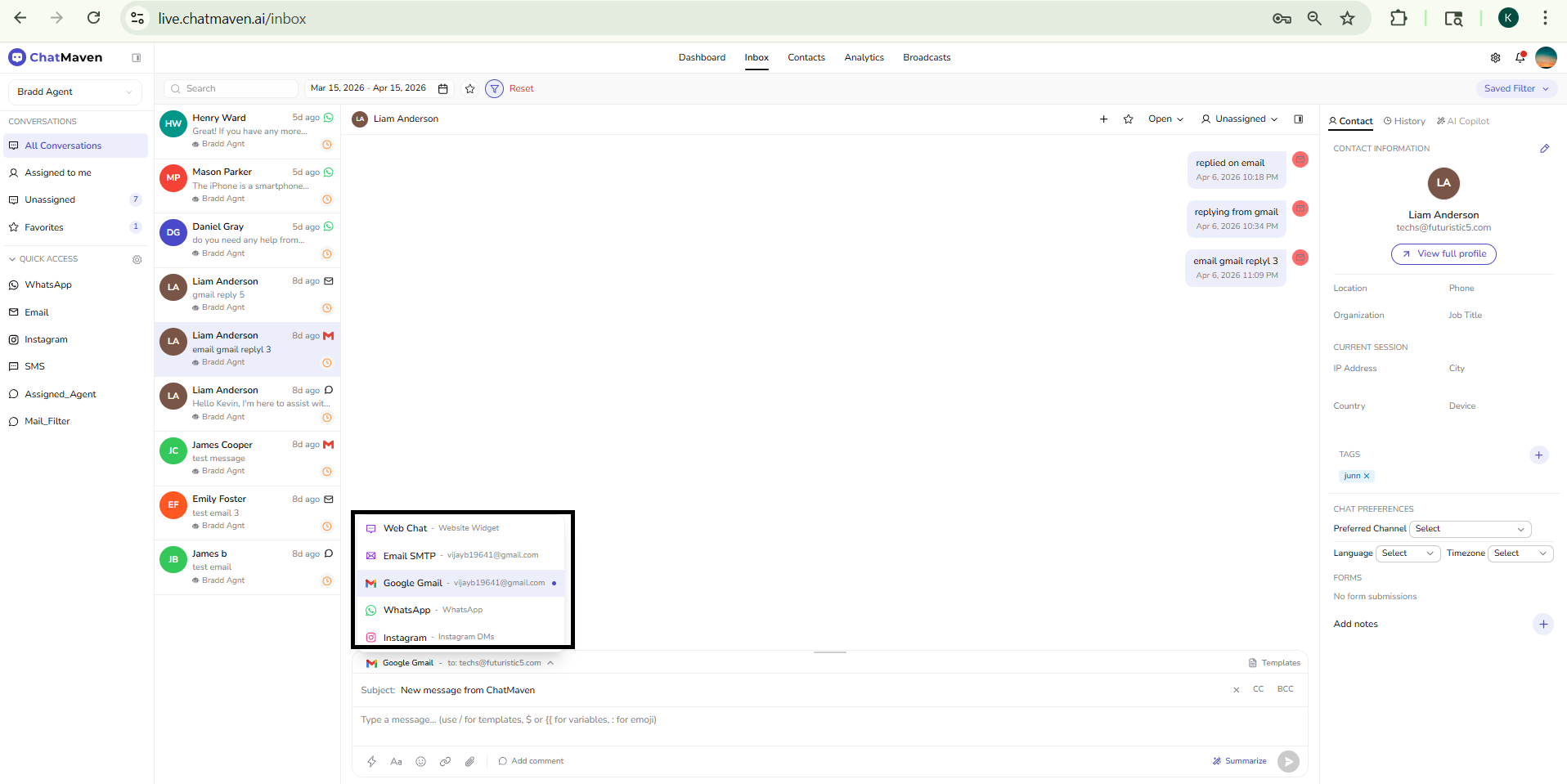
Use the switcher to stay on the right channel without leaving the conversation.
Email composer
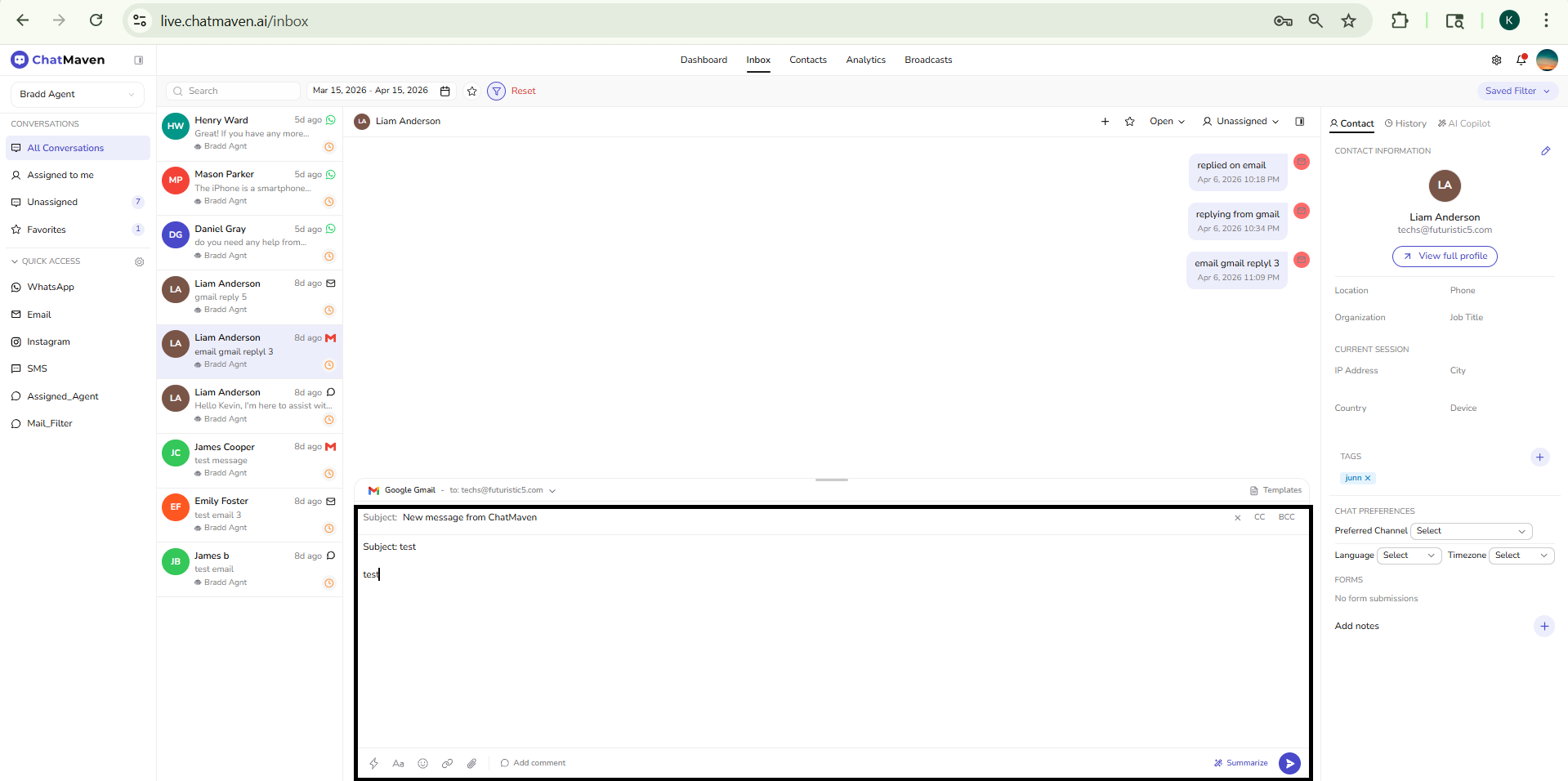
When the selected channel is email, the message composer becomes an email composer with extra fields and tools for formatting and sending emails. If you switch to another channel, the composer reverts to the standard chat composer.
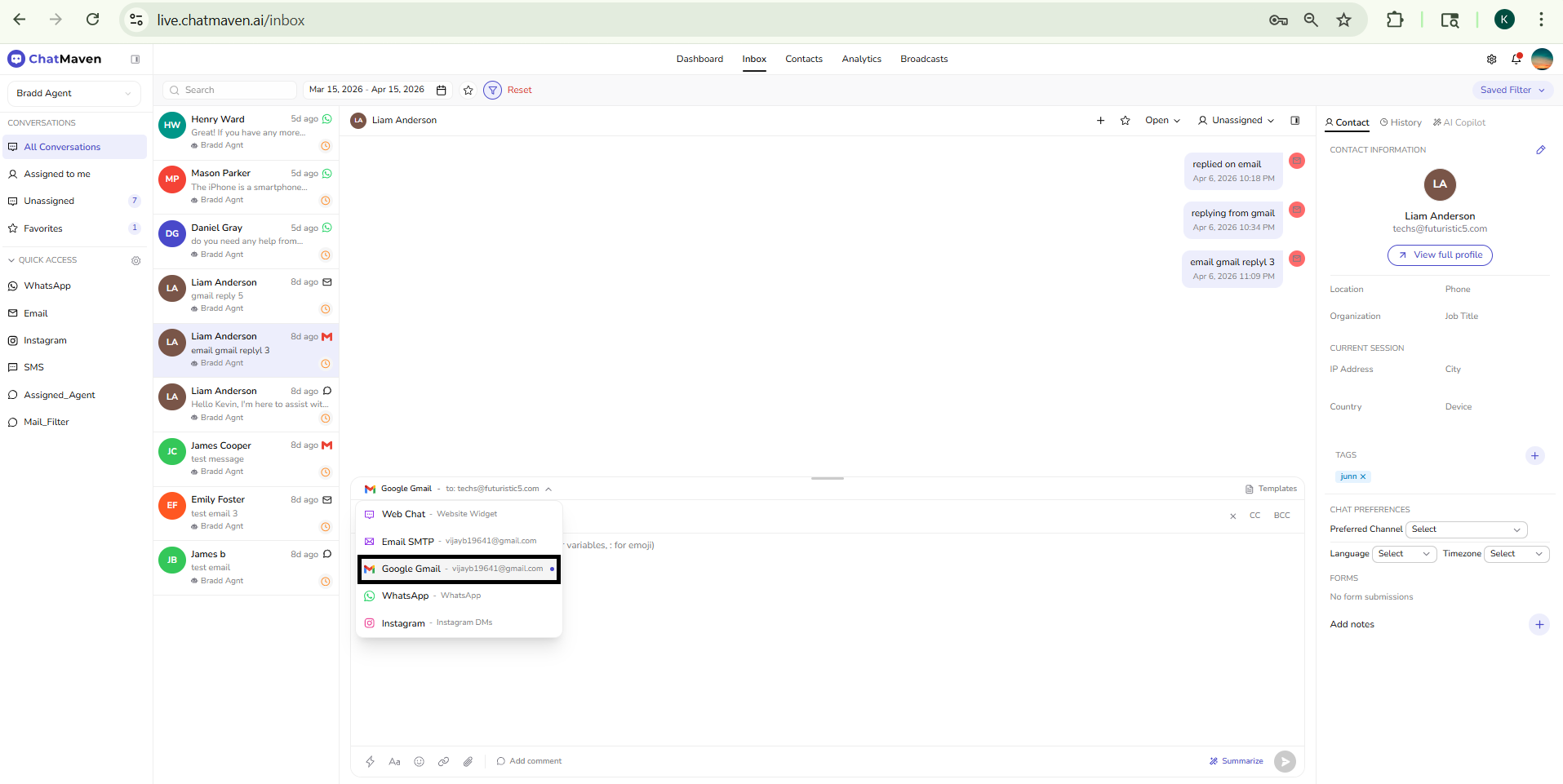
The email composer in Chatmaven includes:
Subject line
- Subject — Editable field above the body (defaults such as “New message from ChatMaven” may appear until you change them).
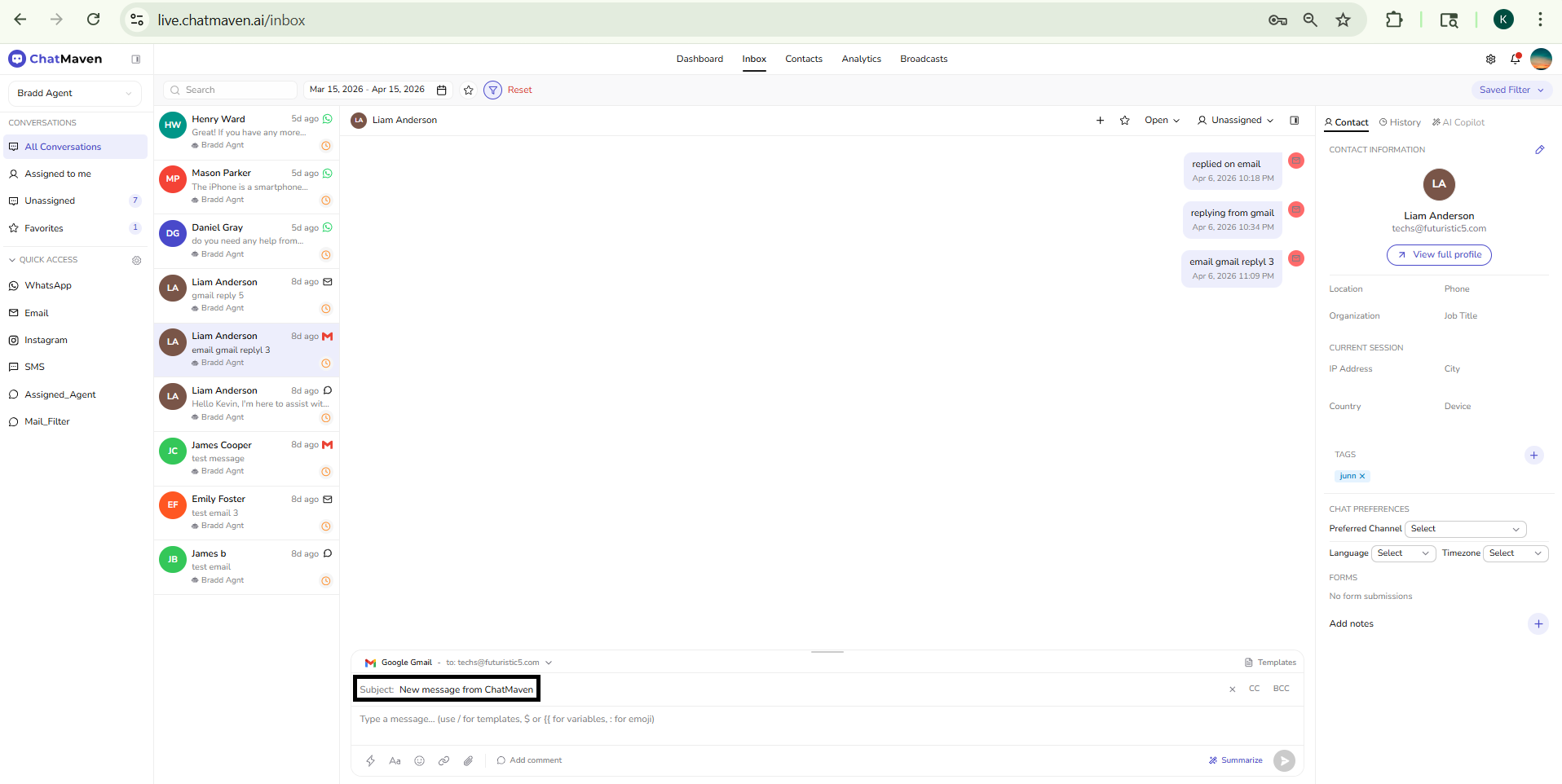
Recipient and sending identity
- To — Shown in the channel label or header context (e.g. email address or routed identifier). Pick the exact Email SMTP or Google Gmail line in the channel dropdown to send from the right account.
- You can choose which connected email account or identity to send from via the channel selector (e.g. "Email SMTP - your-workspace@gmail.com").
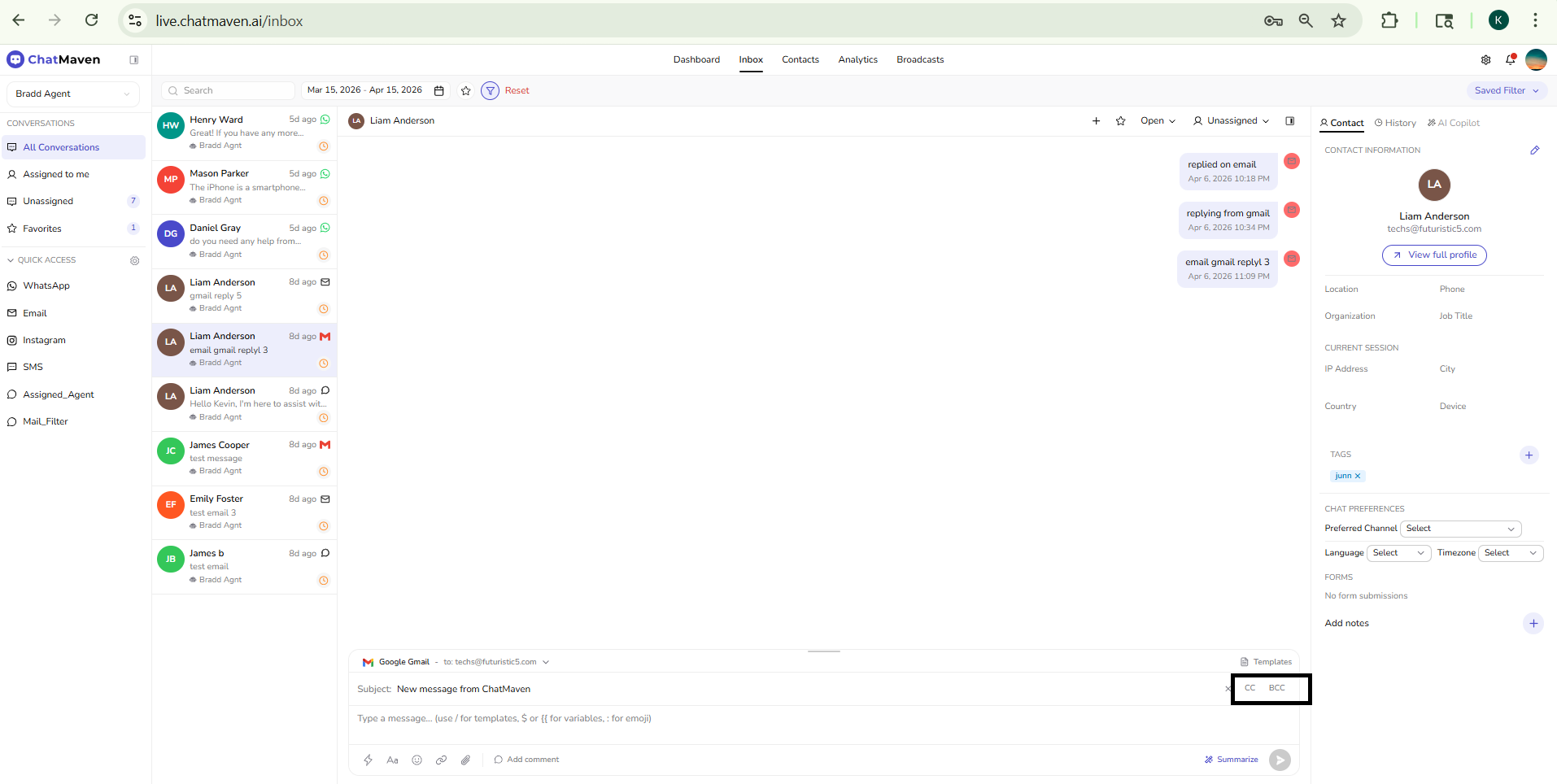
CC and BCC
- CC and BCC options are available (often shown as "X CC BCC" or similar), so you can add Carbon Copy and Blind Carbon Copy recipients. Adding existing contacts in CC or BCC keeps everyone on the same email thread; it does not start a separate conversation.
Message input and templates
- Message input — A text area for the email body. The placeholder may mention
/for templates,$or{{for variables, and:for emoji. - Templates — The Templates button opens a panel titled for the active channel (e.g. Templates – Email SMTP) with Search templates…, a scrollable list of template names and short descriptions, and Refresh to reload templates from the server.
Formatting and message actions bar
Below the input, a row of icons provides formatting and actions:
| Tool | Description |
|---|---|
| Lightning bolt | AI-powered features to refine or generate replies. |
| Aa | Rich text editing for formatting the message (e.g. bold, lists). |
| Smiley | Insert emojis. |
| Paperclip | Attach files. |
| Chain link | Add hyperlinks; you can set link text and URL. |
| Add comment | Add an internal note (not sent to the contact). |
| Summarize | Generate a short summary of the conversation (e.g. for handoffs). |
| Send | Send the email (e.g. paper plane icon). |
Send an email
Type your message in the email composer, add a subject if required, use CC/BCC and formatting as needed, and click Send. The sent email appears in the conversation window so you and your team can see the full thread. The email composer only applies when the channel is email; switching to another channel shows the standard message composer instead.
Email timestamps and quick actions
- Timestamps — Hover over sent or received emails in the thread to see when the email was sent or received. Sent emails may show sent, delivered, and read timing where the channel supports it.
- Quick actions — Depending on your plan, you may have actions on individual email messages (e.g. Show original email to view full headers and formatting, Reply to reply to that specific email, Show more for long content). Use these to review and reply to emails without leaving the conversation window.
Next steps
You’ve seen how to manage email conversations in Inbox—from the channel switcher and email composer to CC/BCC, formatting, and sending. Continue with:
- Managing Conversations in Inbox — Conversation list, indicators, and the conversation window.
- Getting Started with Inbox — Side panel, list, and main view.
- Gmail SMTP — Connect Gmail to send emails from Inbox.
FAQ and troubleshooting
Email threads split incorrectly.
Matching depends on headers and subjects. Broken threading often comes from forwarded mail or rewritten subjects—merge threads manually if offered.
Images or attachments missing.
Size limits and virus scanning can strip files. Ask the sender to retry or host large files as links.
Outbound email bounces.
Verify SPF/DKIM, the From domain, and that the recipient address is valid. Check integration health under Email docs.