Whitelabel
Whitelabel under Accounts lets you customize how your organization appears in ChatMaven: display name, logo, and primary brand color. These settings affect branding shown across the application for the selected account.
In the hosted product, open this screen at https://live.chatmaven.ai/accounts/whitelabel (URL path /accounts/whitelabel).
Open Whitelabel
- Sign in to ChatMaven.
- In the top navigation, click Accounts (alongside Profile, Agents, and Workspaces). You may also use Home, Settings, Notifications, and your profile menu from the top bar.
- In the Accounts left sidebar, click Whitelabel (highlighted when active).
Use the account dropdown at the top of the sidebar to confirm you are editing branding for the correct account.
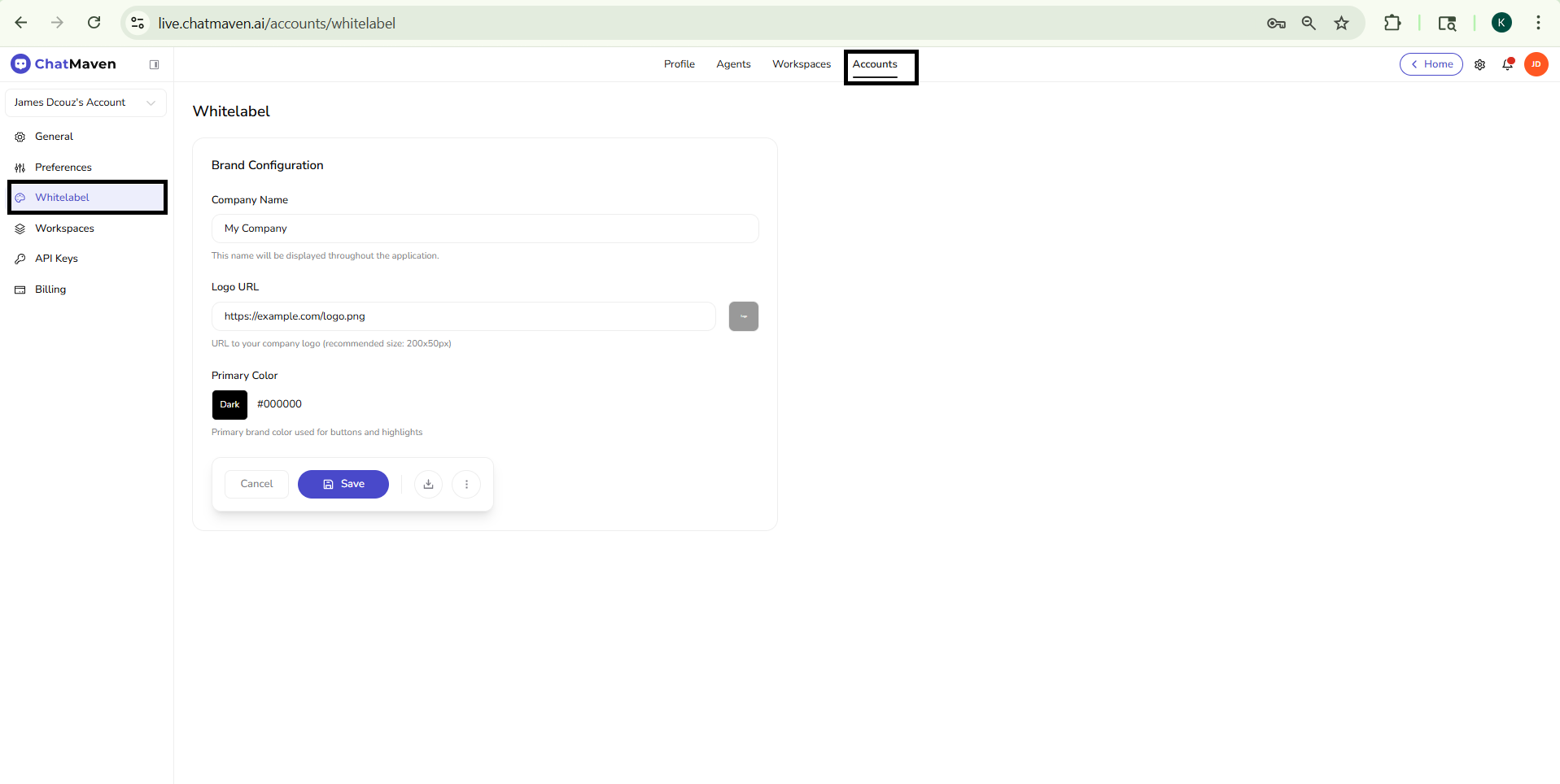
Brand Configuration
The main content is titled Whitelabel. All fields sit in a Brand Configuration card.
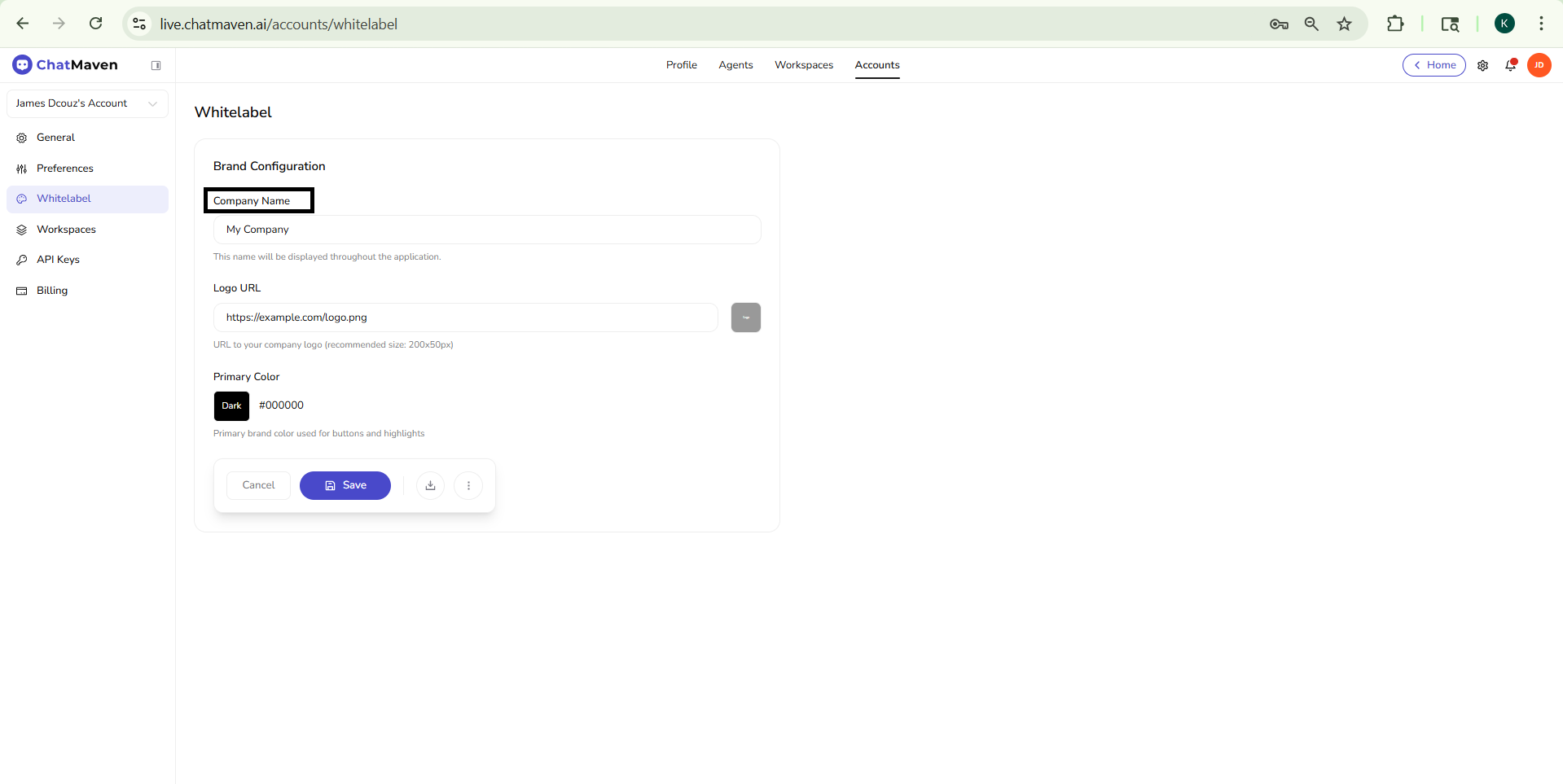
Company Name
| Item | Detail |
|---|---|
| Field | Company Name |
| Purpose | Text label shown throughout the app for your brand. |
| Helper text | This name will be displayed throughout the application. |
| Example | Placeholder or sample value such as My Company. |
Logo URL
| Item | Detail |
|---|---|
| Field | Logo URL |
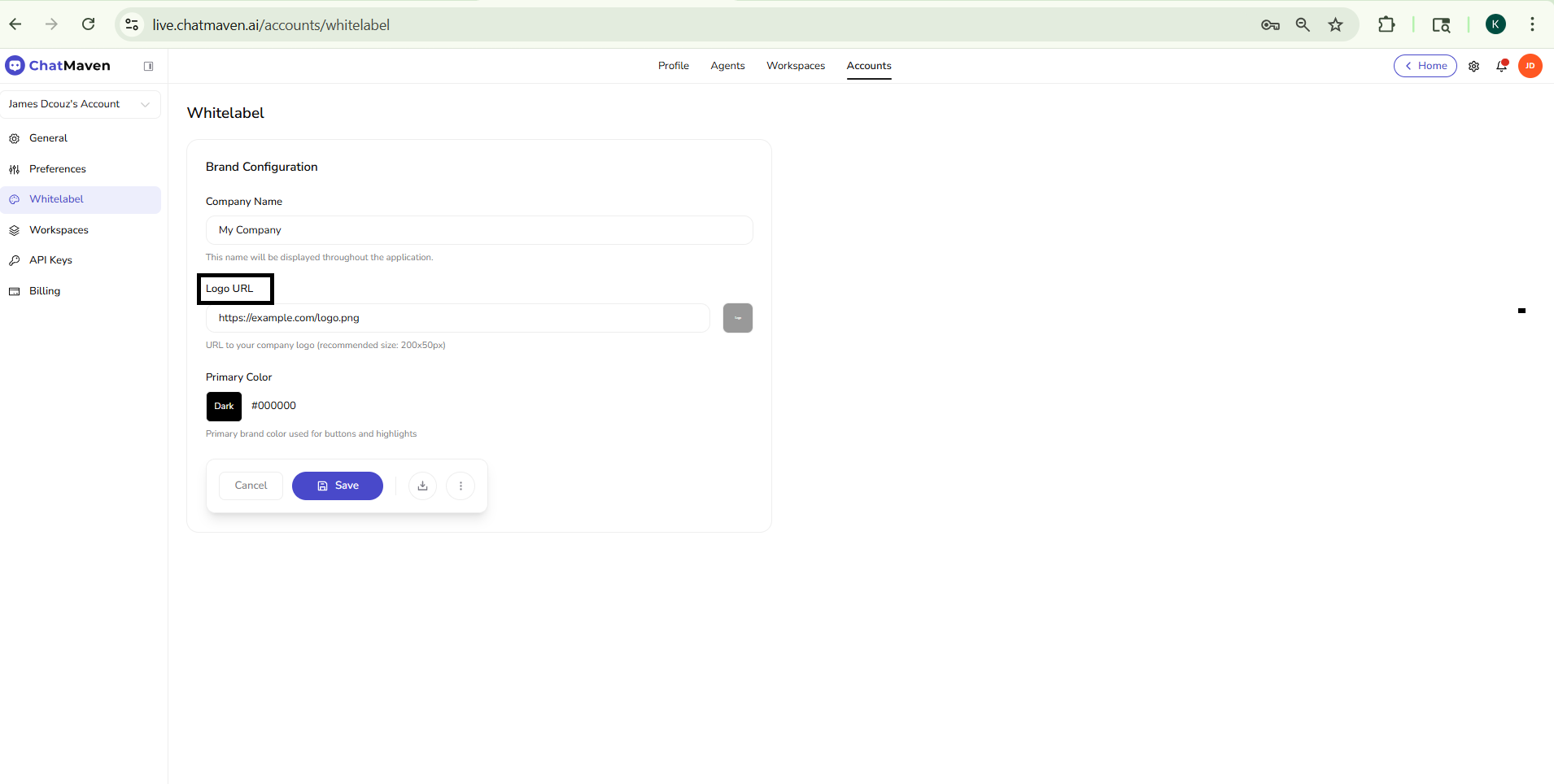
| Purpose | Public URL of your company logo image. |
| Helper text | URL to your company logo (recommended size: 200x50px) |
| Example | https://example.com/logo.png |
| Minus (–) control | A small control beside the field can clear or remove the current URL entry (exact behavior follows the live UI). |
Host the logo at a stable, HTTPS-accessible URL so it loads reliably for all users.
Primary Color
| Item | Detail |
|---|---|
| Field | Primary Color |
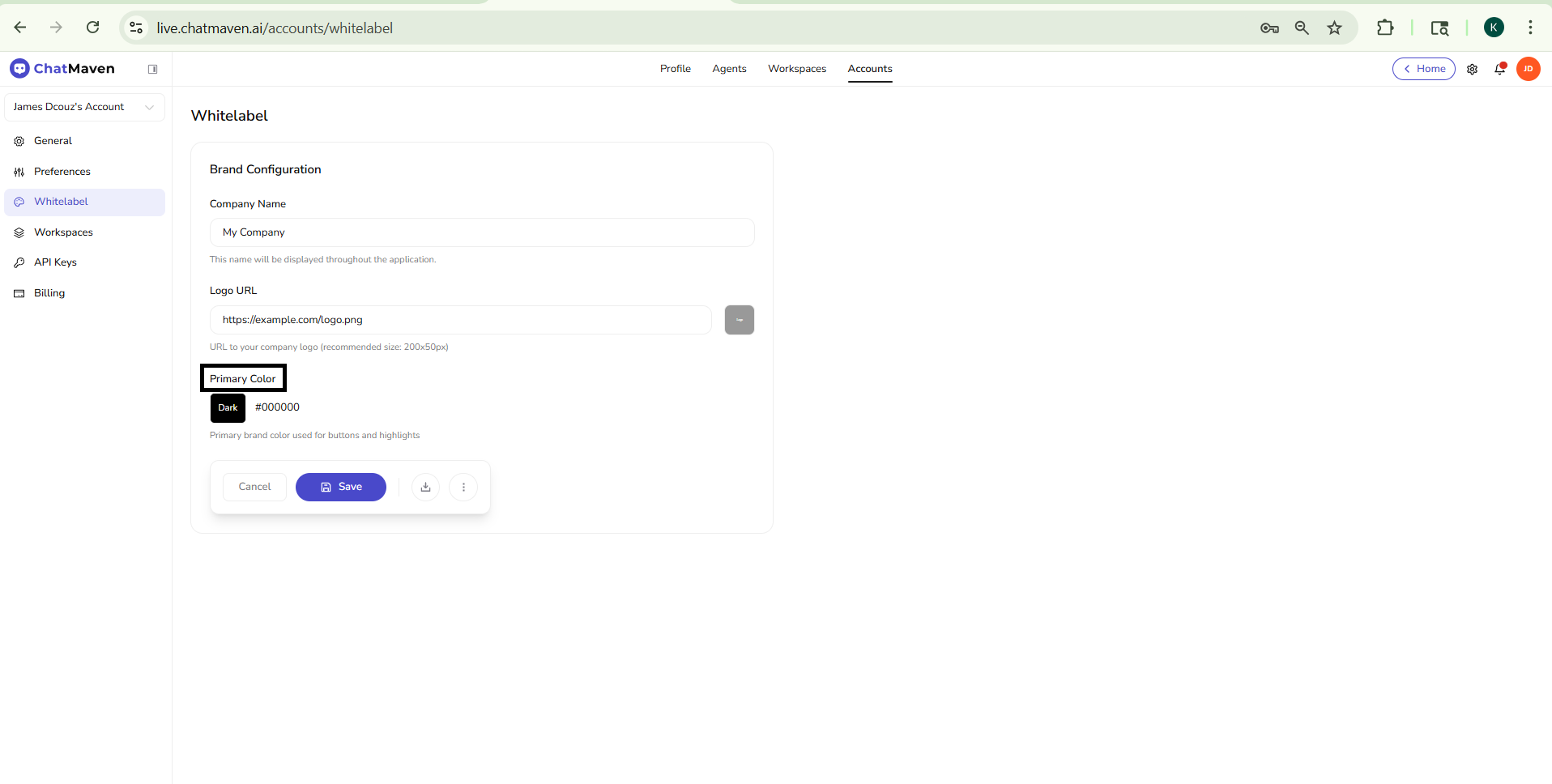
| Control | Color picker with a named swatch (for example Dark) and hex value (for example #000000). |
| Helper text | Primary brand color used for buttons and highlights. |
Pick a color that meets contrast needs for buttons and highlighted UI so text remains readable.
Save, cancel, and extra actions
At the bottom of the Brand Configuration card:
- Cancel — Discard unsaved changes and revert the form toward the last saved state (behavior matches the product).
- Save — Primary action (purple in the default theme), often shown with a disk icon; commits Company Name, Logo URL, and Primary Color for this account.
- Upload / import-style control — A compact icon button (arrow into a tray) may open upload or import flows for branding assets or configuration, depending on your plan and product version.
- More options — A ⋮ (three dots) button may expose additional whitelabel or export actions; open it in the app to see what is available for your workspace.
Always click Save after edits if you want them to apply; navigating away without saving may lose changes.
FAQ and troubleshooting
Logo or colors do not update everywhere.
Some surfaces cache branding; allow a few minutes and hard-refresh. Confirm you saved in ChatMaven and that users are not seeing an old custom domain cache.
Custom domain or SSL issues.
DNS must point to the targets ChatMaven provides; SSL provisioning can take time. Fix CNAME/A conflicts with your DNS host before opening a ticket.
What is included in whitelabel vs normal branding?
Whitelabel usually removes or replaces ChatMaven marks in the widget and emails where supported. Exact scope depends on your contract—compare with sales or support.
See also
- Getting Started with Accounts — Account name on General and account navigation.
- Preferences — Session and sign-in behavior for the account.