Agent Preferences
Preferences control how much context your agent exposes from the knowledge base, whether visitors must accept AI-specific terms, and related compliance settings. Use this page when you want stricter attribution, clearer sourcing, or a terms gate before chat starts.
In the app, the page title is Agent Preferences, with the subtitle Control knowledge base visibility, compliance prompts, and attribution rules for your AI agent.
Sign in to ChatMaven, open Agents in the top navigation, select your agent from the sidebar dropdown, then click Preferences in the left sidebar (below SPOTLIGHT items such as Web Chat). The in-app path is live.chatmaven.ai/agent/preferences when you are signed in with that agent selected.
Open Preferences
- Open Agents from the top navigation (Profile, Agents, Workspaces, Accounts).
- Choose the agent from the dropdown at the top of the left sidebar.
- Click Preferences (grid icon in the lower sidebar group).
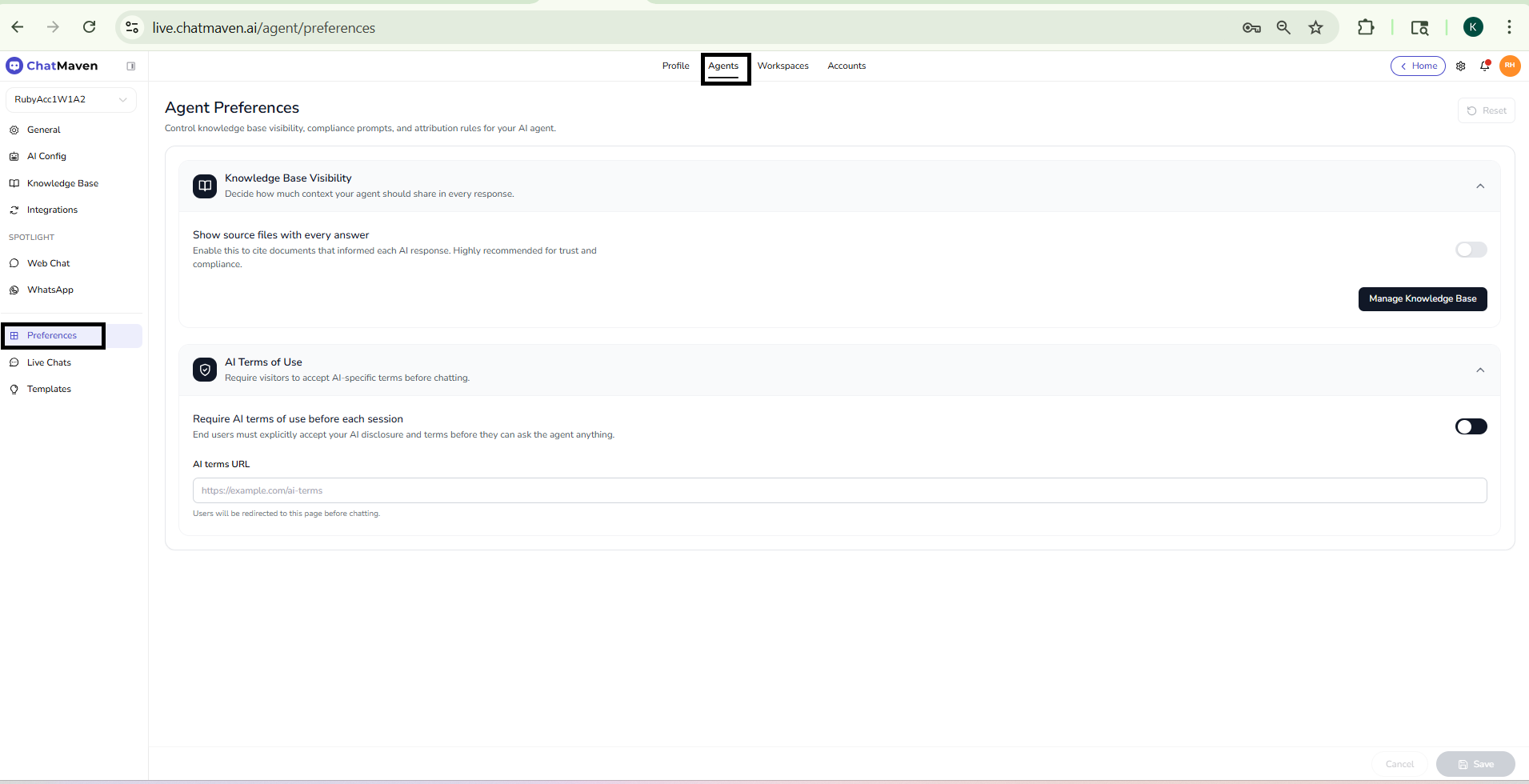
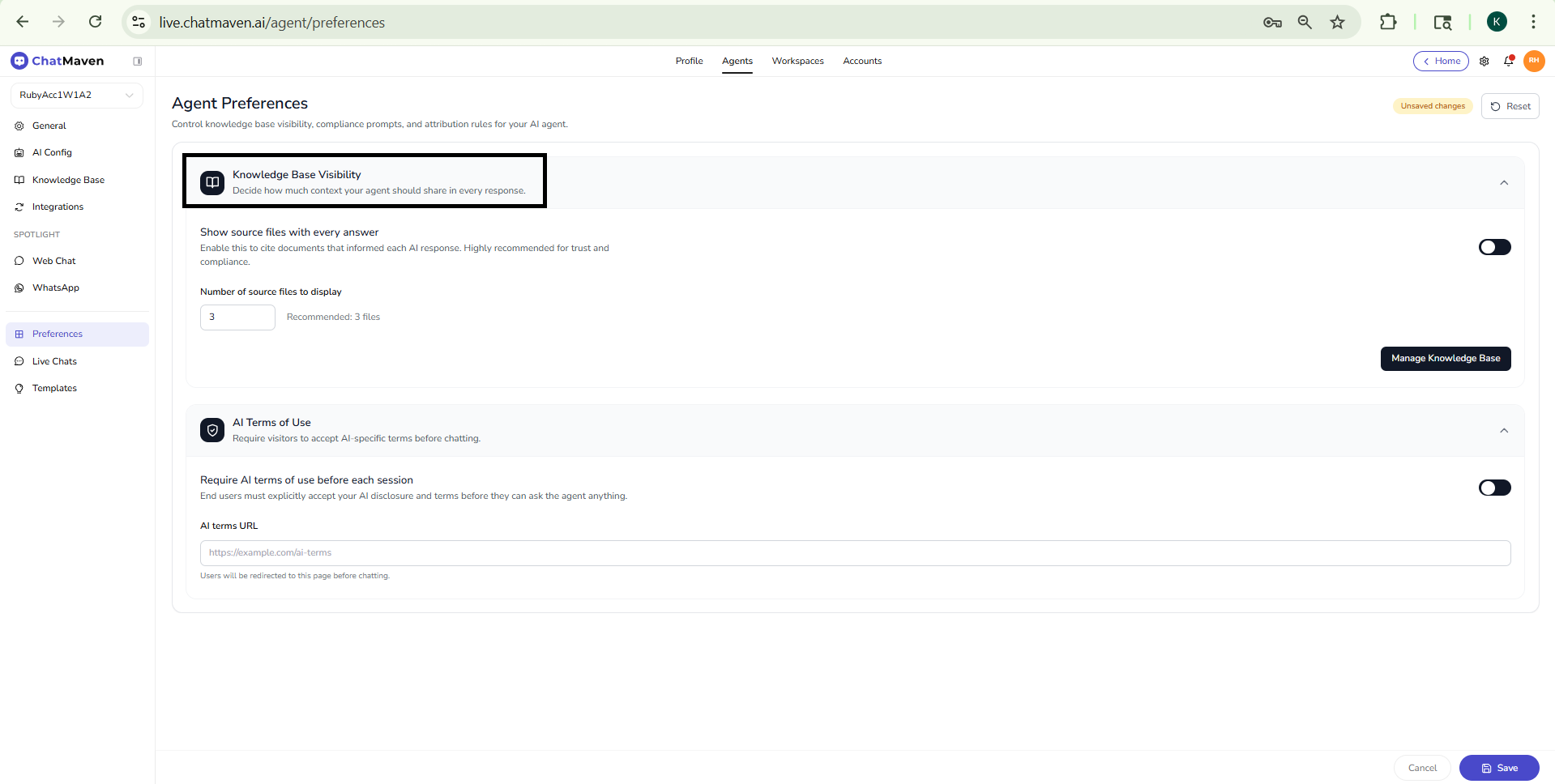
Knowledge Base Visibility
This section decides how much context your agent should share in every response.
| Control | Purpose |
|---|---|
| Show source files with every answer | When enabled, answers can surface which knowledge base files or sources were used, so visitors see where information came from. |
| Manage Knowledge Base | Opens the knowledge base workflow for this agent so you can add or curate content that feeds those answers. |
Use the toggle to turn source visibility on or off according to your support and compliance needs.
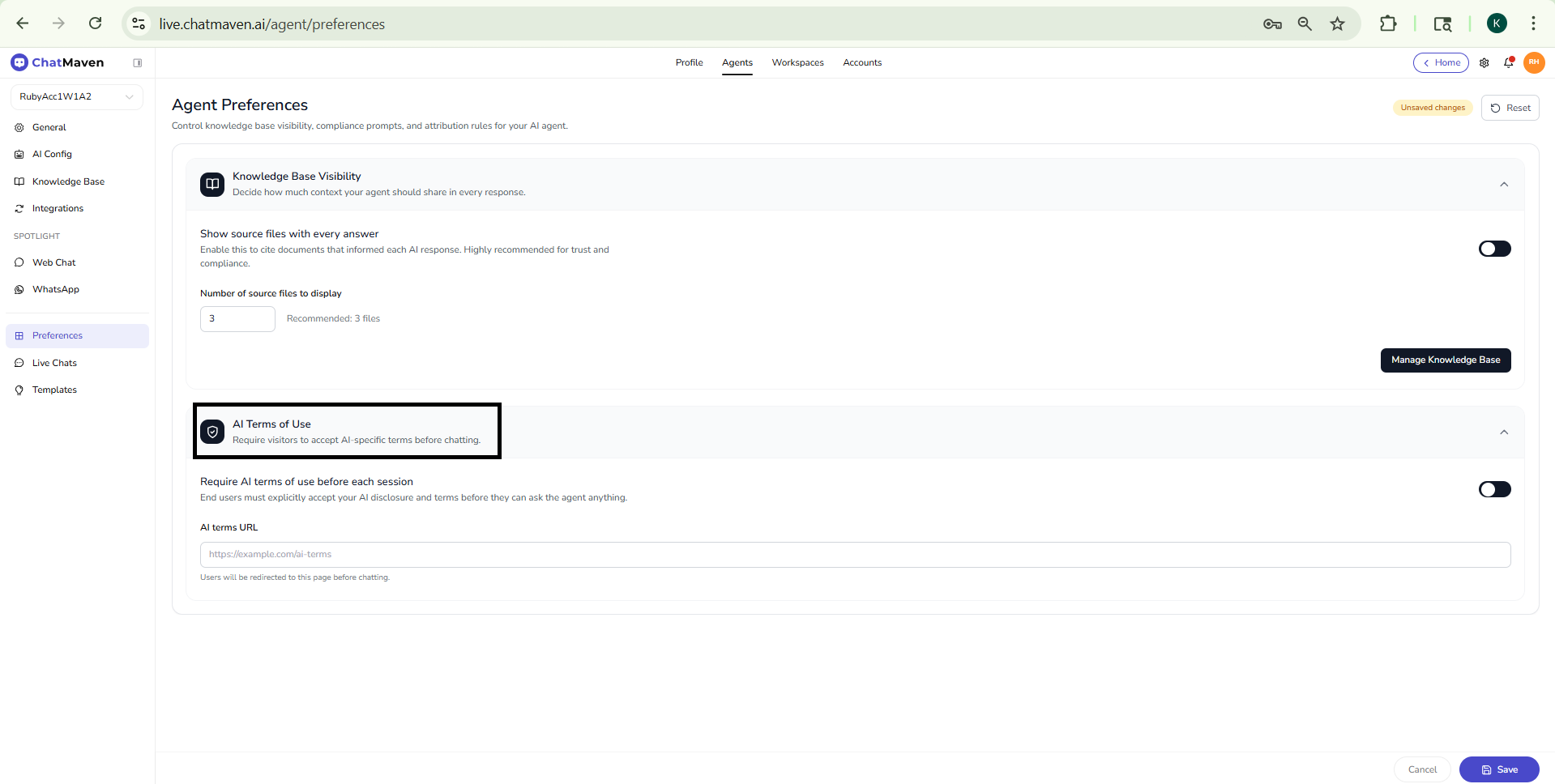
AI Terms of Use
This section lets you require visitors to accept AI-specific terms before chatting.
| Control | Purpose |
|---|---|
| Require AI terms of use before each session | When enabled, users must accept your AI terms before the session proceeds. |
| AI terms URL | Link to your published AI terms (for example https://example.com/ai-terms). Visitors are directed to this URL as part of the acceptance flow. |
Save your changes
- Reset (top right) discards unsaved changes on the page and restores the last saved values.
- Cancel and Save (bottom right) leave without saving or persist your updates.
Always click Save after changing toggles or the terms URL if you want them to apply to live conversations.
Related pages
- Knowledge Base — Add and organize content your agent uses.
- Web Chat (Agents) — Widget appearance and deploy.
- Live Chats — Configure handoff from the AI to human agents.
FAQ and troubleshooting
Preference changes do not stick.
Click Save where shown and wait for confirmation. Some toggles apply per workspace—verify the workspace selector.
What is safe to let end users configure?
Keep sensitive toggles admin-only. Document customer-visible options (languages, handoff) in your own help center.
I do not see a preference my teammate mentioned.
Role or plan may hide it. Compare accounts or ask an owner.