WhatsApp Automations for Shopify Orders
After Shopify is connected, you can send automatic WhatsApp updates to customers when Shopify order and checkout events fire — using approved Meta WhatsApp templates.
This page covers each automation on the Shopify Automations tab, how to enable it, and what to check if messages do not send.
Shopify must be Connected, WhatsApp Business API must be connected to the same agent, the customer phone number must be present on the order or checkout, and you must select an approved WhatsApp template for each automation you enable.
Open WhatsApp automations
- Go to Agents → Integrations.
- On the Shopify card, click Configure.
- Open the Automations tab.
You will see WhatsApp automations with a short description that these automations send approved Meta WhatsApp templates based on Shopify webhooks. The left rail should still show Connected and your store domain.
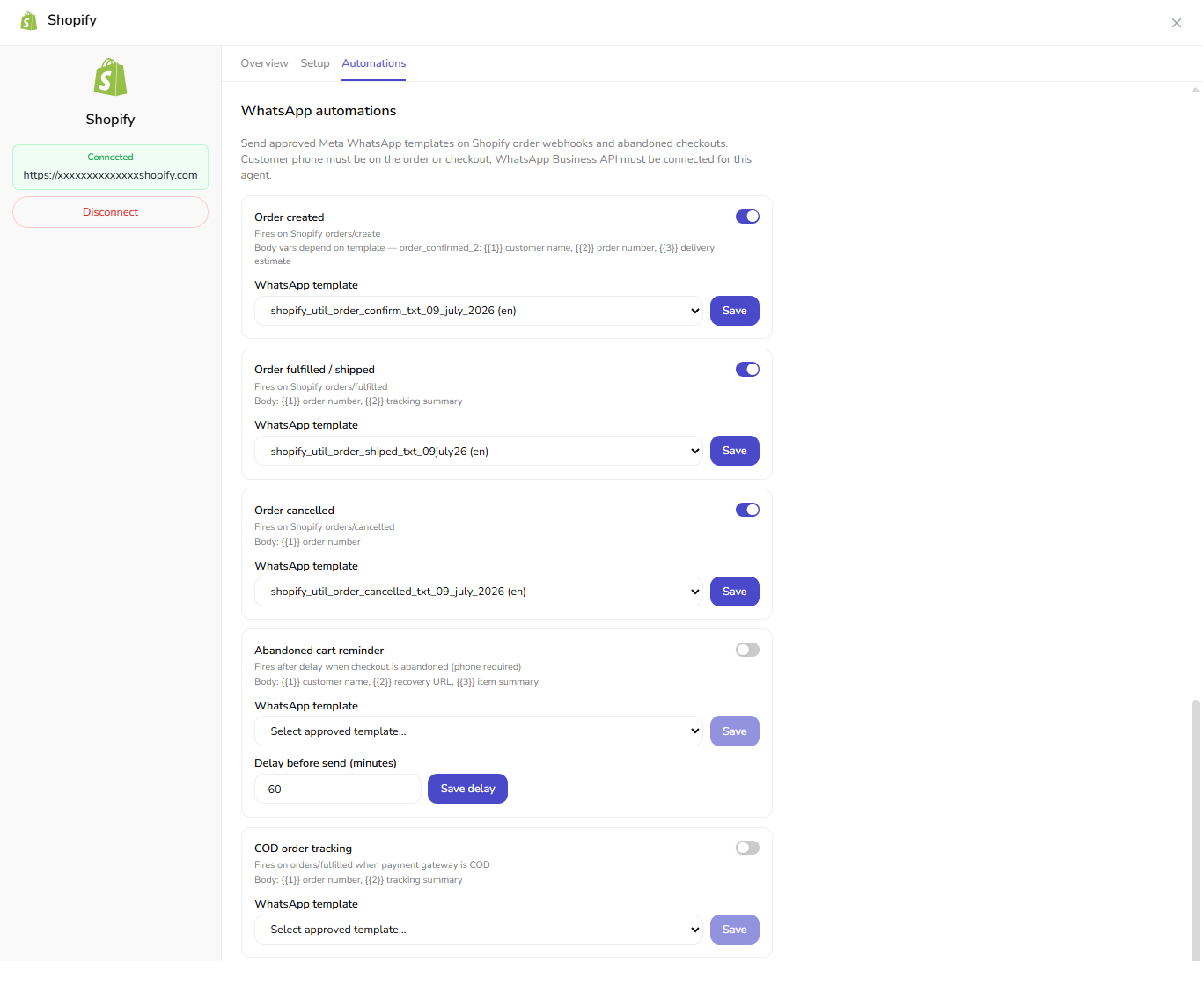
How to enable an automation
For each automation card:
- Turn the toggle on.
- Choose an approved WhatsApp template from the dropdown.
- Click Save.
For Abandoned cart reminder, also set Delay before send (minutes) (for example 60) and click Save delay.
Template variable order must match how your Meta template is defined. If a message fails or looks wrong, check the template body against the variable list on each automation card.
Automations reference
Order created
- Trigger: Shopify
orders/createwebhook - Typical variables:
{{1}}customer name,{{2}}order number,{{3}}delivery estimate (match your template placeholders)
Order fulfilled / shipped
- Trigger: Shopify
orders/fulfilledwebhook - Typical variables:
{{1}}order number,{{2}}tracking summary
Order cancelled
- Trigger: Shopify
orders/cancelledwebhook - Typical variables:
{{1}}order number
Abandoned cart reminder
- Trigger: Fires after a configurable delay when a checkout is abandoned (phone number required)
- Typical variables:
{{1}}customer name,{{2}}recovery URL,{{3}}item summary - Delay: Set Delay before send (minutes) and click Save delay
COD order tracking
- Trigger: Shopify
orders/fulfilledwhen the payment gateway is COD (Cash on Delivery) - Typical variables:
{{1}}order number,{{2}}tracking summary
FAQ and troubleshooting
Automation is not sending
Check all of the following:
- Shopify left rail shows Connected and the Integrations toggle is on
- WhatsApp Business API is connected to the same agent
- The automation toggle is on, a template is selected, and you clicked Save
- The order or checkout includes a customer phone number
- The Meta template is approved and variable placeholders match the automation card
Do I need WhatsApp connected before Shopify?
You can connect Shopify first. Automations only fire after WhatsApp Business API is connected to the same agent and each enabled automation has an approved template selected.
What happens if I disconnect Shopify?
WhatsApp automations for Shopify events stop firing for that agent until you reconnect Shopify and re-enable the automations you need.