Files Library
Workspace Files Library stores shared files your team can send from Inbox without re-uploading each time. Subtitle in the product: Workspace files your team can send in inbox without re-uploading each time.
Live URL: live.chatmaven.ai/workspaces/files-library
Open Files Library
Top bar Workspaces → sidebar Files Library.
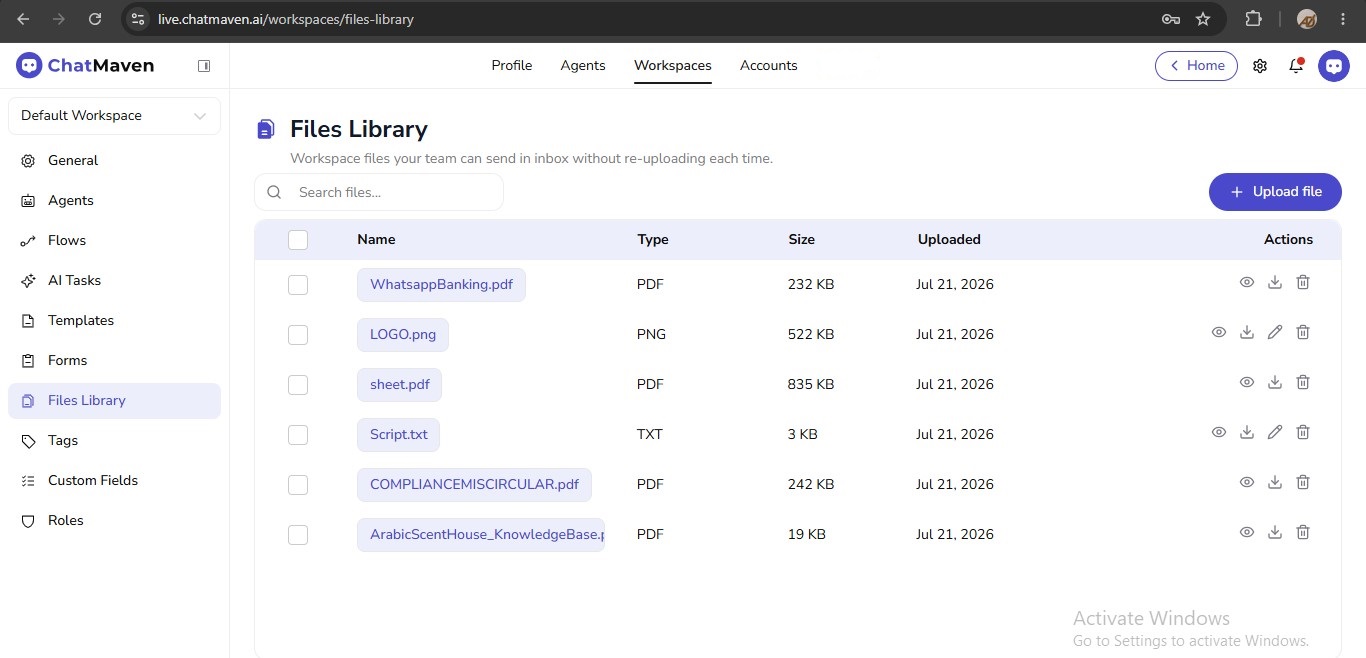
What you see on the page
| Control / column | What it does |
|---|---|
| Search files… | Filters the list by file name. |
| + Upload file | Adds a file to the workspace library (or brings a previously removed file back into the list when storage still has it). |
| Name | Display name (open/view when preview is supported). |
| Type | Format such as PDF, PNG, or TXT. |
| Size | File size. |
| Uploaded | Date the file was added. |
| Actions | View, download, replace/edit (when available), and remove from library. |
Empty library message: No files yet. Click "Upload file" to add brochures, price lists, or images. If search finds nothing: No files match your search.
Upload a file
- Click + Upload file.
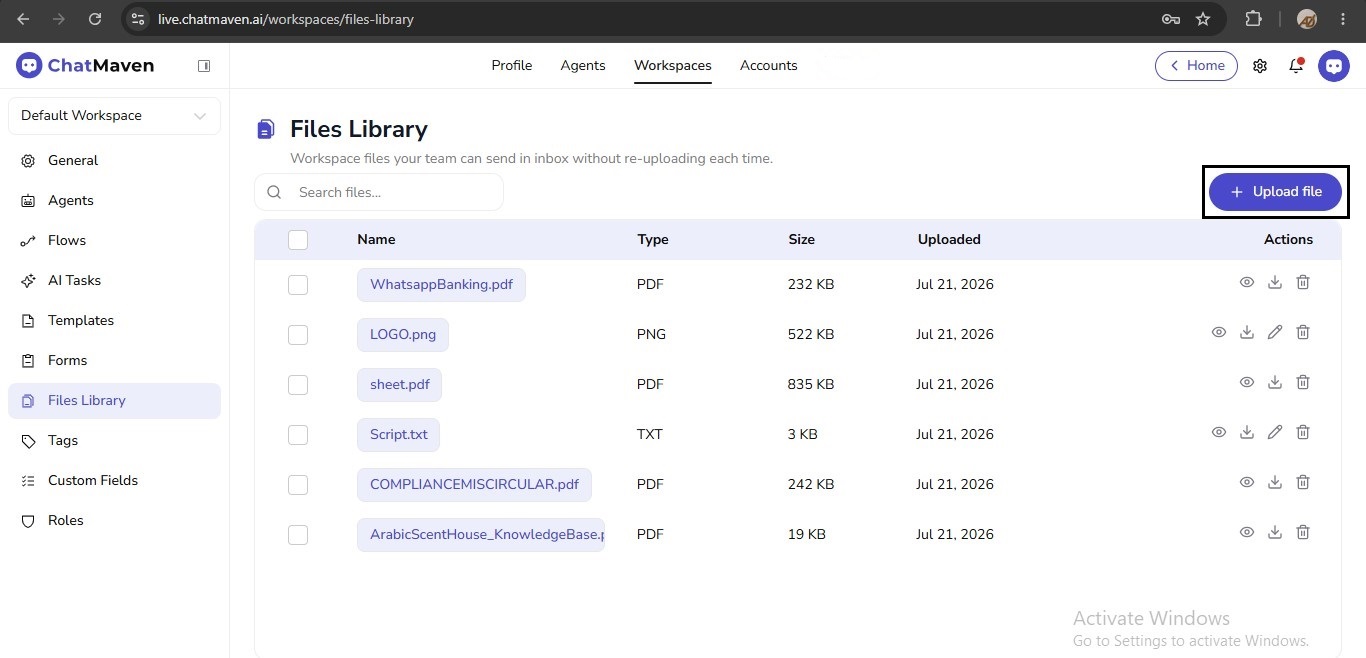
- Choose a file from your computer.
- When the upload succeeds, ChatMaven shows File added to library and the row appears in the table.
Upload, preview, and download need an active agent context. If none is selected, the product may prompt you to select an agent first (Agents tab).
Restore a removed file
Remove from library hides the file from the list but keeps it in storage until account purge. Upload the same file again with + Upload file to make it available in the library (and in Inbox) again.
View, download, replace, and remove
View (preview)
Click the file name or the eye action. Preview opens when the type supports it. For unsupported types, ChatMaven shows: Preview is not available for this file type. Use Download instead.
Download
Use the download action to save a copy locally.
Replace or edit
Depending on file type, Actions may include:
- Replace file — Download the file, update it on your computer, then upload the new version (tooltip: Download this file, update it on your computer, then use Replace file to upload the new version.). Success toast: File replaced.
- Inline edit — For supported text-style files, edit in place and save (File updated).
Remove from library
- Click the trash action on the row.
- In Remove from library?, read: The file stays in storage until account purge; it will be hidden from the library.
- Confirm Delete to hide it, or Cancel. Success toast: File removed from library.
Use Files Library from Inbox
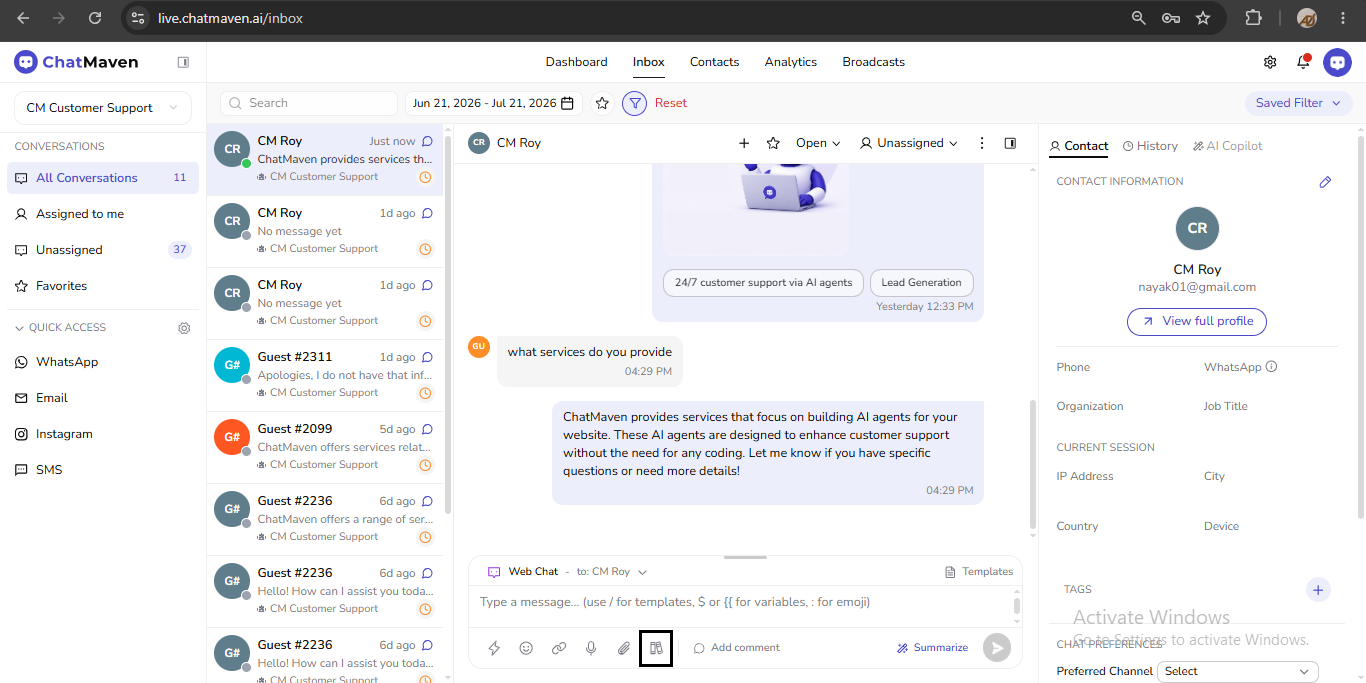
Agents fetch workspace library files from the conversation typing bar and share them in chat—same files you manage under Workspaces → Files Library, without re-uploading.
Live URL: live.chatmaven.ai/inbox
Open the library picker
- Open Inbox.
- In the typing bar toolbar (with quick actions, emoji, attach, and dictate), click the books / binders icon. Hover tooltip: From files library.
Add files to your message
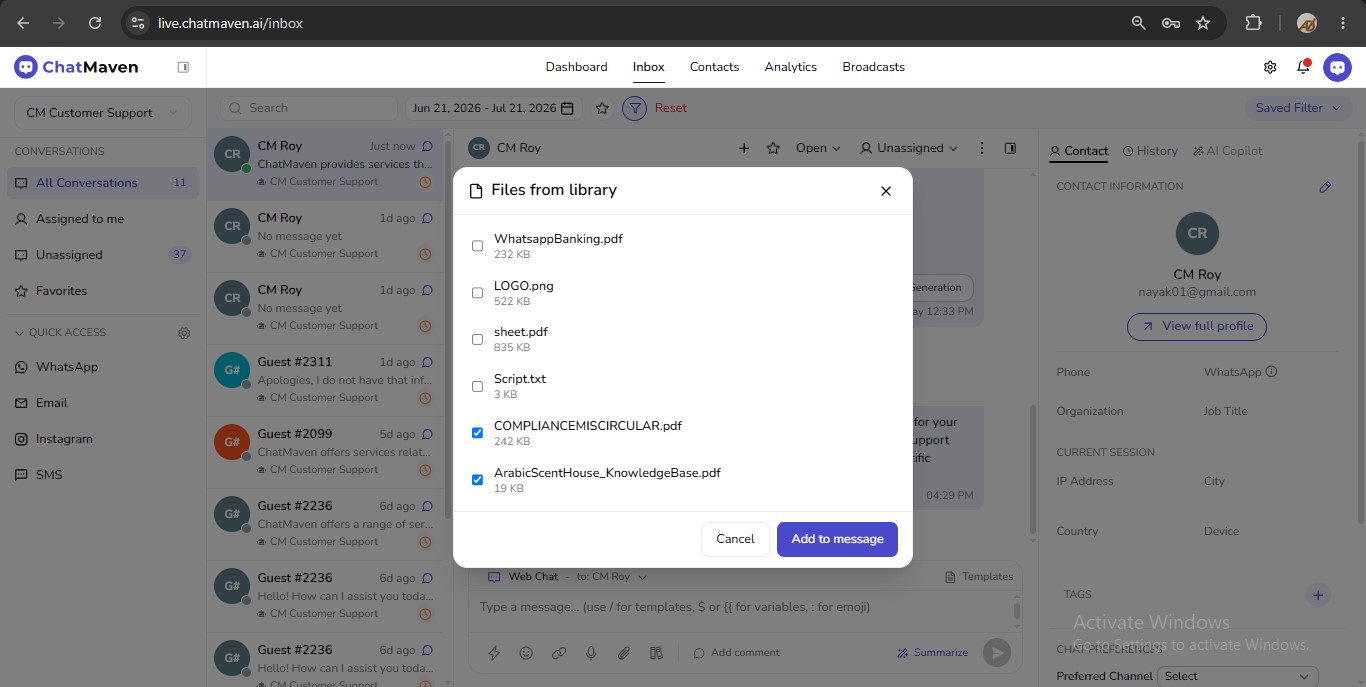
- The Files from library dialog lists workspace library files (name and size), matching what you uploaded under Workspaces → Files Library.
- Select one or more files with the checkboxes (up to 10 library files per message).
- Click Add to message, or Cancel / X to close without attaching.
- Selected files appear above the message box as chips labeled Library plus the file name (for example Library Script.txt). Use the chip’s X to remove a file before sending.
- Optionally type a message, then Send. In the thread, shared files show as attachment cards (name and size), the same way previously sent library files appear in the chat.
If the workspace library is empty, the dialog says to add files under Workspaces → Files Library.
Upload common assets (price lists, policies, logos, scripts) once in Files Library, then reuse them from any Inbox conversation with From files library.
FAQ and troubleshooting
Upload says to select an agent first.
Open Workspaces → Agents (or ensure an agent is active for the workspace), then try Upload file, preview, or download again.
I removed a file but need it again.
Removal hides the file from the library list; it remains in storage until account purge. Use + Upload file to add it back so it shows in the library and in the Inbox picker.
Preview does not open.
Some types are download-only. Use Download, or replace with a supported format if agents need in-app preview.
Inbox shows no files in the picker.
Confirm files exist under Workspaces → Files Library for the current workspace, then reopen From files library on the typing bar.
I cannot select more than 10 files.
The Inbox picker allows a maximum of 10 library files per message. Send additional files in a follow-up message if needed.
Related
- Getting Started with Workspaces
- Templates — Reusable message text per channel.
- Forms — Workspace forms used with agents and flows.