Knowledge Base
The Knowledge Base is where you add data sources that train your AI agent: Files, URLs, and Text/QnA. ChatMaven processes those sources so the agent can answer from your content. Everything you add appears in the Knowledge Sources table.
Watch the Knowledge Base video
Watch the walkthrough below, or follow the written steps on this page.
Open the Knowledge Base video on Google Drive if the player does not load.
Where you can add knowledge
You can add data sources in two places:
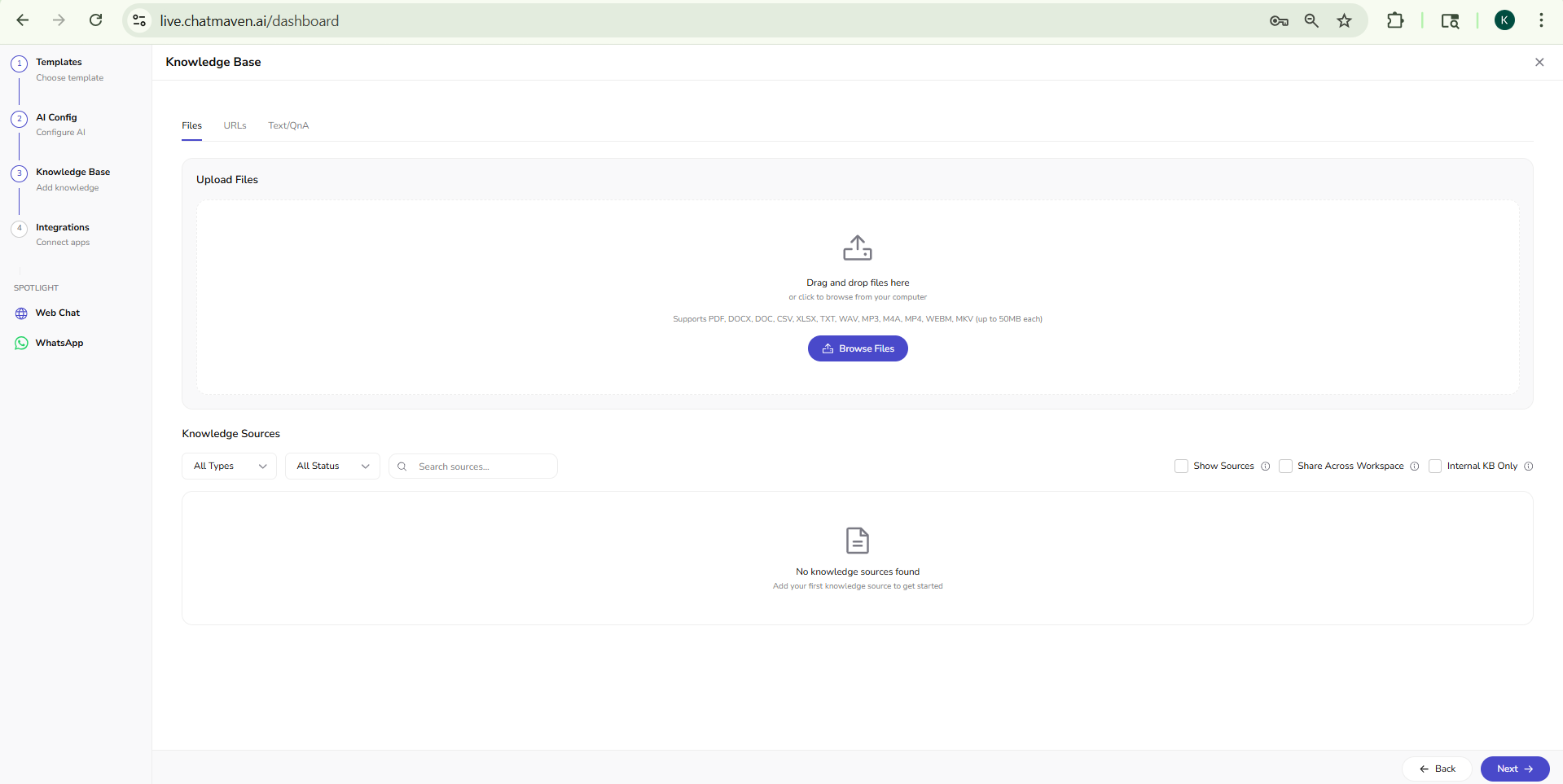
When you create the agent
- Start creating an agent from Agents or Dashboard → Create New Agent.
- After Templates and AI Config, step 3 is Knowledge Base.
- Add files, URLs, or Q&A there, then continue to Integrations.
After the agent exists
- Open Agents in the top navigation.
- Choose the agent in the dropdown at the top of the left sidebar.
- Click Knowledge Base (beside General, AI Settings, and Integrations).
You will see three tabs — Files, URLs, and Text/QnA — and the Knowledge Sources table below them.
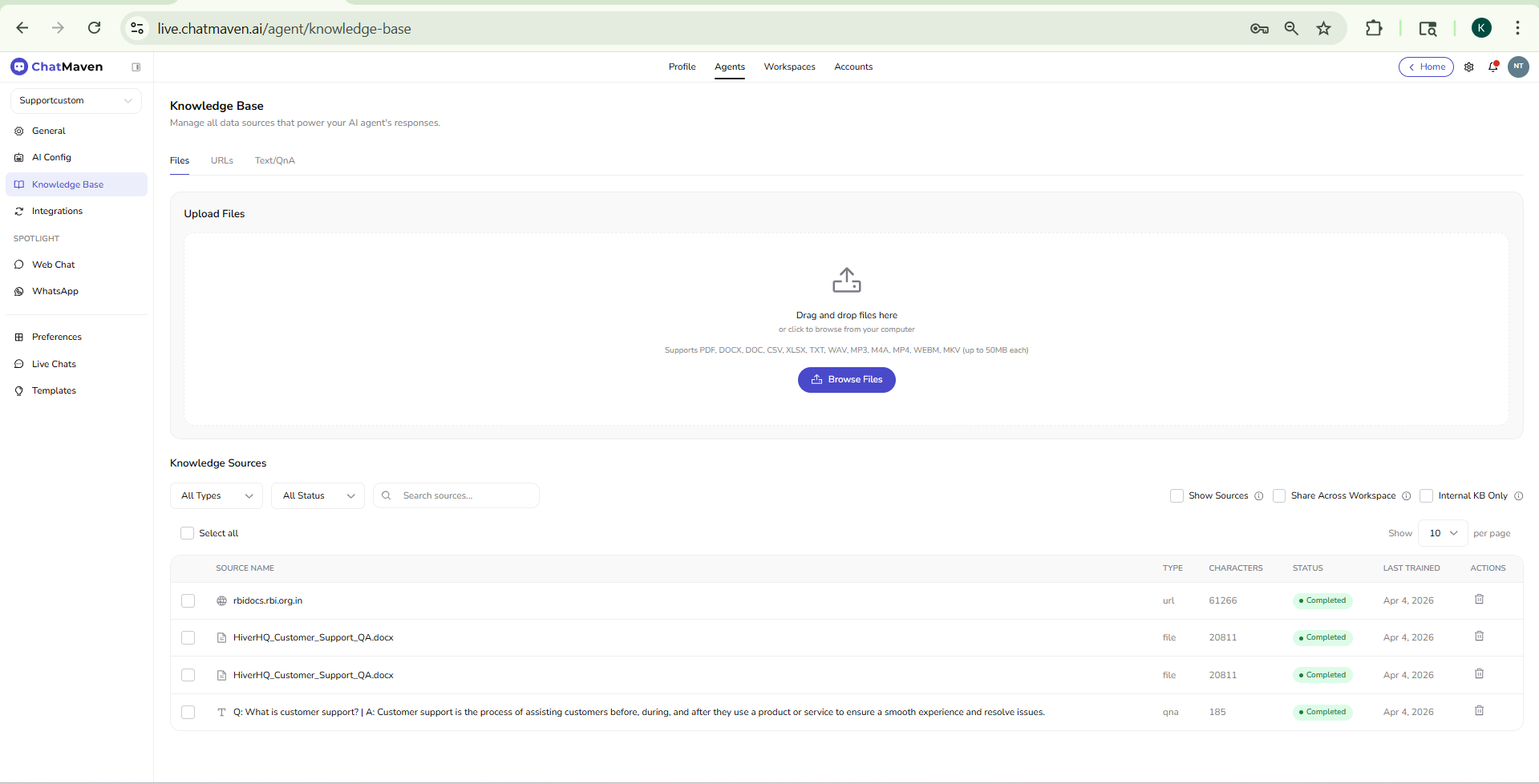
Wait until a source shows Completed before you expect the agent to use it. Click Refresh if the status looks stale.
Data sources for agent training
These three tabs are the data sources you use to train the agent. Mix them on the same agent as needed.
Files
Upload documents and media from your computer. ChatMaven extracts the text (and, for audio or video, the spoken content) and trains the agent on it.
- Drag and drop files onto the dashed area, or click Browse Files.
- Supported formats: PDF, DOCX, DOC, CSV, XLSX, TXT, WAV, MP3, M4A, MP4, WEBM, MKV.
- Each file can be up to 50 MB.
How to upload
- Stay on the Files tab.
- Click Browse Files or drop a file onto Drag and drop files here.
- Wait for the upload to finish.
- In Knowledge Sources, the new row starts as Processing. When training finishes, it changes to Completed.
The table labels the type — for example file for a PDF or DOCX, audio for MP3 or WAV, and video for MP4 or WEBM.
Workspace Files Library is different. That library is for files your team sends from Inbox, not for training the agent.
URLs
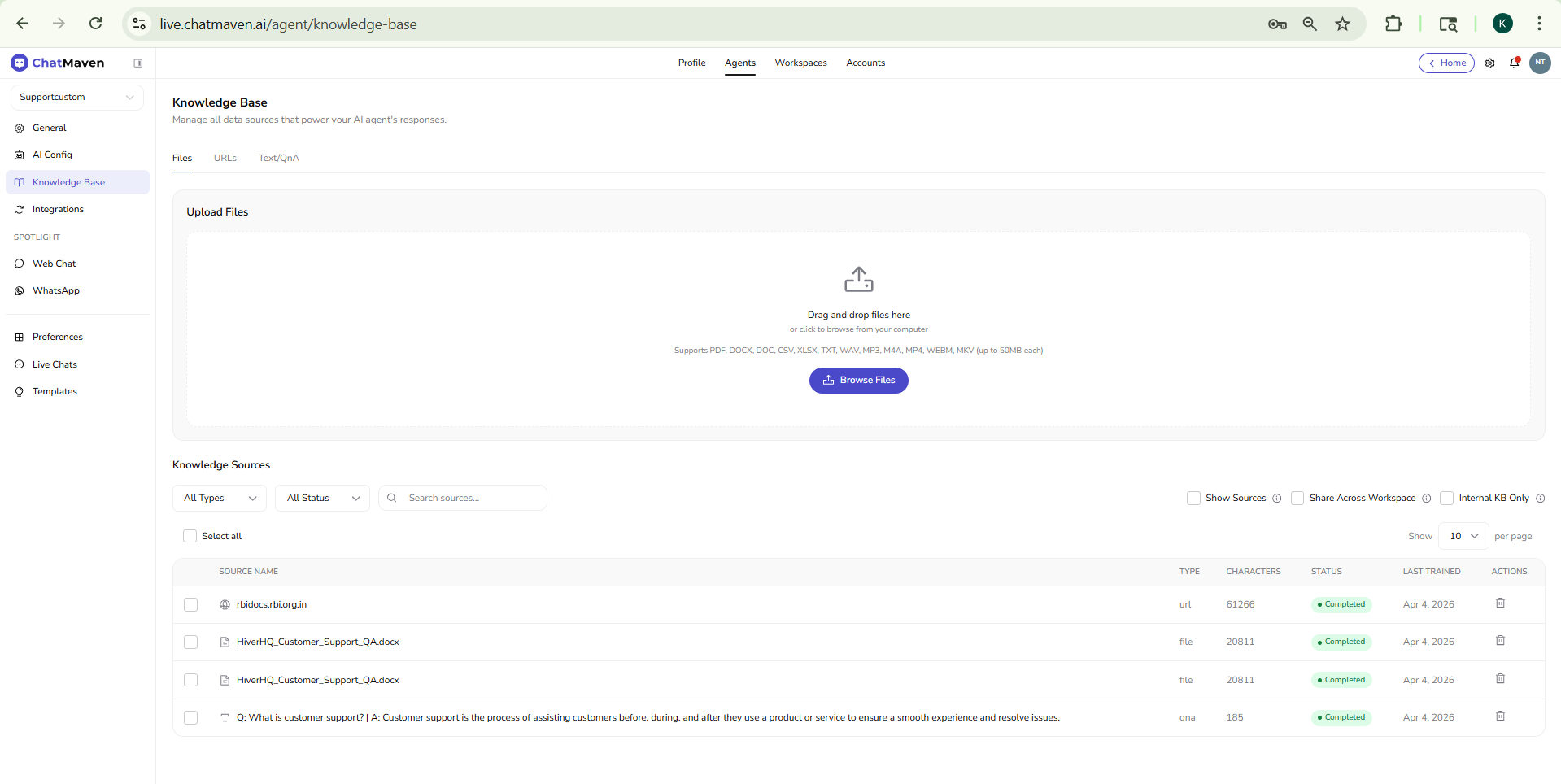
Add content from the web: a site, a single page, a hosted document, or a YouTube video. The card is titled Link or Upload Your Data Source.
| Option | Typical use |
|---|---|
| Website | A whole site or a large section. Set Crawl depth from 1 to 5. |
| Webpage | One page. |
| Doc, pdf, word doc, csv | A file hosted at a URL. |
| Youtube | A YouTube video as a knowledge source. |
How to add a URL
- Open the URLs tab.
- Choose the source type.
- For Website, choose a Crawl depth.
- Paste the URL.
- Click Discover site to start processing.
Use URL Crawl History to review earlier crawl runs. On a URL row you can Open source, Retrain, or Delete.
Pages behind a login cannot be crawled. Upload those as files instead.
Text/QnA
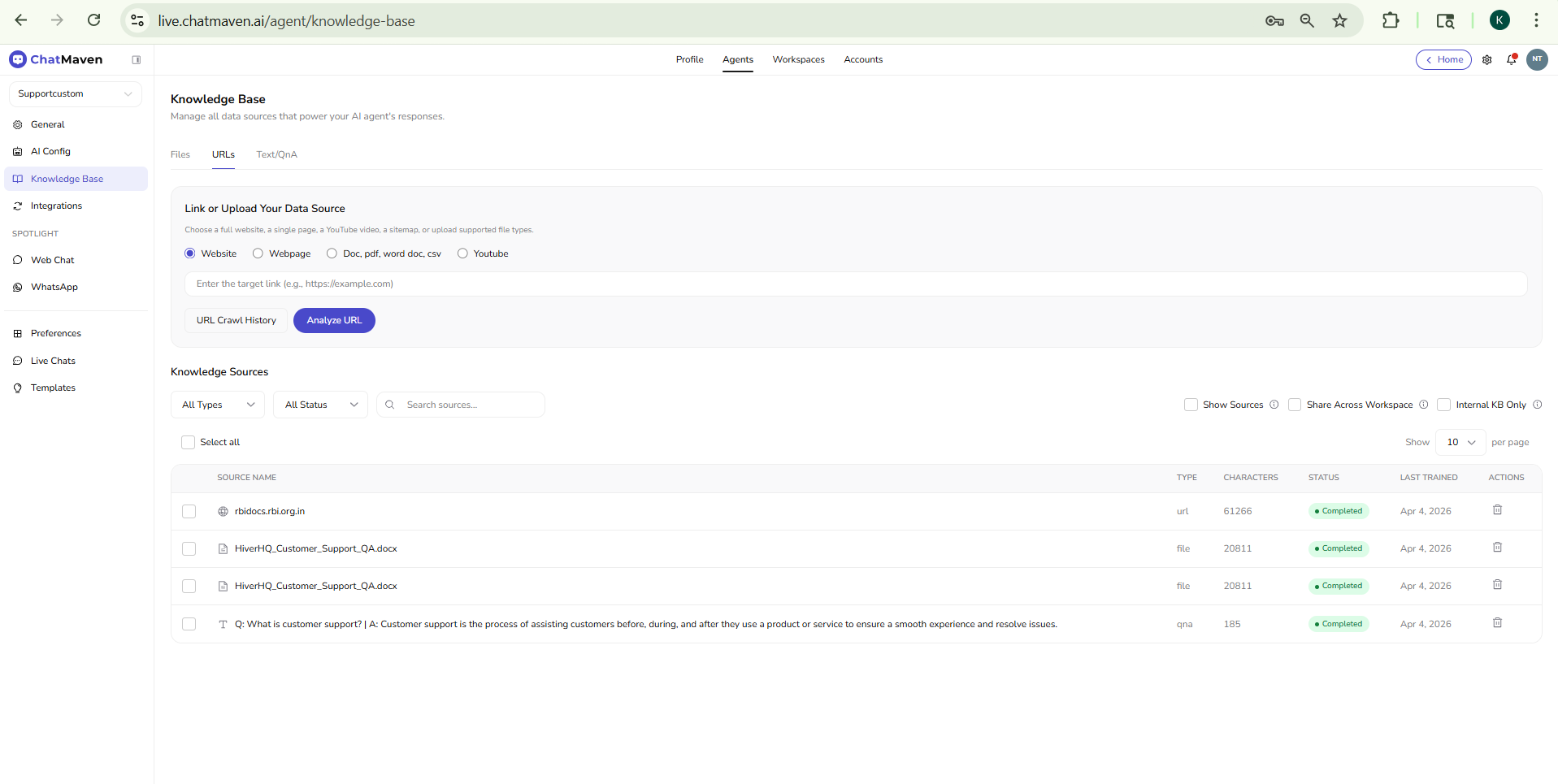
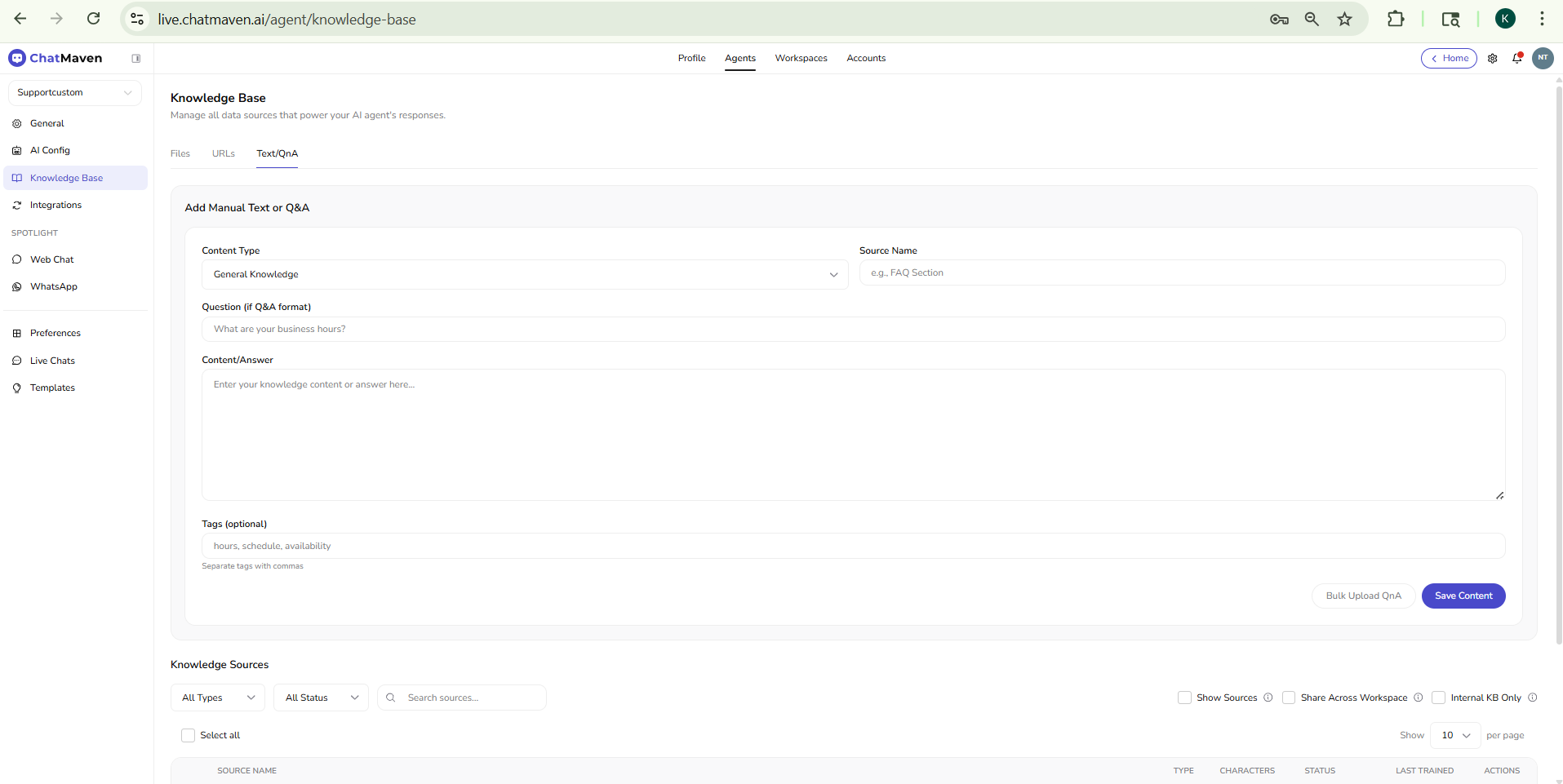
Type knowledge yourself instead of uploading or crawling. The section is titled Add Manual Text or Q&A.
| Field | Purpose |
|---|---|
| Content Type | How the entry is stored. Choose Q&A Format for a question and answer. |
| Source Name | Optional label for this entry. |
| Question | The question customers might ask. |
| Answer | The text the agent should use. |
| Tags | Optional comma-separated labels. |
Then Save Content to add the entry, or Bulk Upload QnA to add many pairs at once. The row appears in Knowledge Sources with type qna.
Knowledge Sources
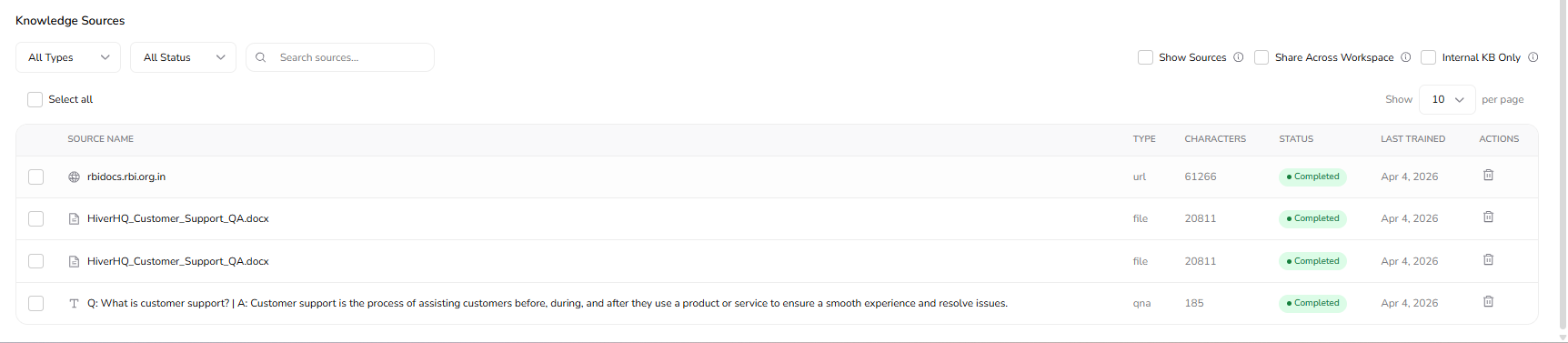
This table lists every data source attached to the agent.
Find a source
- All Types — File, Text, Audio, Video, PDF, DOCX, Website, Q&A, or YouTube.
- All Status — Completed, Ready, Processing, Failed, or Pending.
- Search sources… — Filter by name or URL.
- Refresh — Reload the table after an upload or while a source is still processing.
- Show [N] per page — How many rows appear at once.
Source options
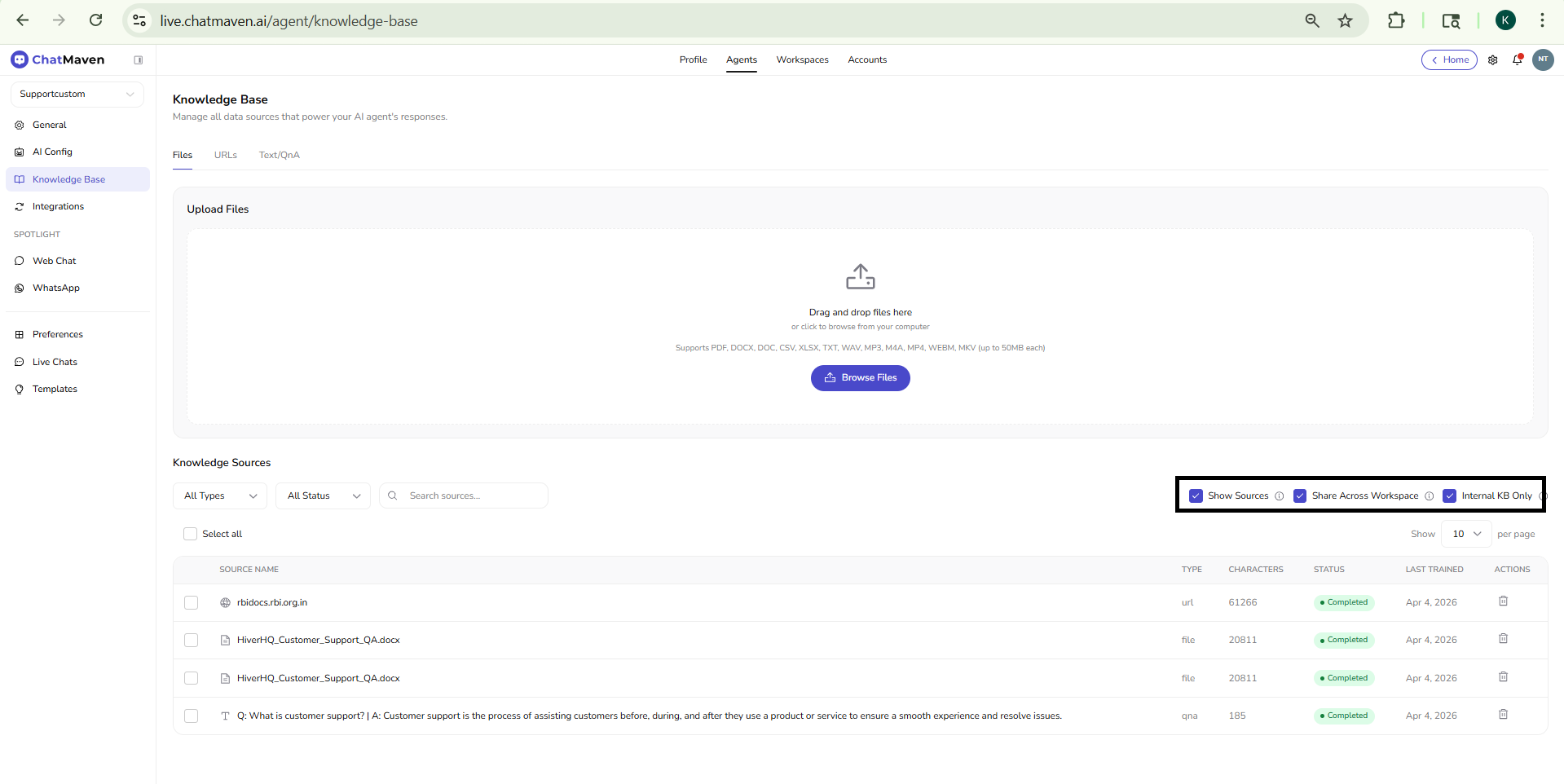
Three checkboxes sit above the table. They apply to the sources you select (or to all rows if you use Select all). The same options appear on a single file when you open File settings.
| Option | What it does |
|---|---|
| Show Sources | Lets the agent cite this source to visitors. How many citations appear is set on Preferences (Show source files with every answer and Number of source files to display). |
| Share Across Workspace | Makes the source available to every agent in the workspace. |
| Internal KB Only | Marks the source for internal use. Teammates can ask about it from Inbox Ask Knowledge Base. This is a checkbox, not a separate tab. |
On a file row, File settings opens the same three choices for that file only. Share across workspace moves the file in storage so other agents in the workspace can use it.
Columns and actions
| Column | Meaning |
|---|---|
| SOURCE NAME | File name or URL. The icon shows the type. |
| TYPE | For example file, url, audio, video, or qna. |
| CHARACTERS | Approximate size of the extracted text. |
| STATUS | Processing while ChatMaven trains the source; Completed when it is ready; Failed when something went wrong. |
| LAST TRAINED | When the source was last processed. |
| ACTIONS | Open source, File settings (files), Retrain (URLs), and Delete. |
Use the checkboxes on each row for bulk changes. Pagination at the bottom shows ranges such as 1–10 of N sources.

Tips
- Add the data sources that hold your official answers first, then wait for Completed.
- If a source Failed, try a smaller file, a different format, or a single page instead of a whole site.
- Turn on Show Sources when visitors should see where an answer came from. Then set the citation count on Preferences.
- Use Internal KB Only for material that should help your team in Inbox, not the public agent.
FAQ and troubleshooting
The file uploaded but the agent does not use it.
Wait until STATUS is Completed. Click Refresh if the row still says Processing. Then ask a question that appears in that document.
Two sources give different answers.
Remove or update the outdated source so the agent has one current answer.
Can I use only Q&A, without files?
Yes. Add entries on the Text/QnA tab. You can add files or URLs later.
Related topics
- Preferences — Citations, terms, uploads, and related agent settings.
- Creating an AI agent — Knowledge Base step in the wizard.
- Ask Knowledge Base in Inbox — Uses sources marked Internal KB Only.
- Files Library — Workspace files for Inbox, not agent training.