Embedding the Chatbot on Your Store
After Shopify is connected, add the ChatMaven chat widget to your storefront so shoppers can ask about products, orders, and more — live on your Online Store.
This page covers the recommended App embeds path and the fallback theme.liquid script method, with step-by-step images.
Complete How to connect ChatMaven to Shopify first. Configure must show Connected, and the Shopify Integrations toggle must be on.
Watch the chatbot embed video
Watch the video below for a walkthrough of embedding the ChatMaven chatbot on your Shopify store. You can also follow the written steps in this guide.
Open the Shopify chatbot embed video on Google Drive in a new tab if the player above does not load.
Add to a Website
On the Shopify Overview tab, under Add to a Website, ChatMaven shows two paths:
Recommended (Shopify): Enable the Theme App Extension in Shopify (App embeds) and paste your Agent unique ID there.
Fallback: Copy the script snippet from Overview and add it to your theme (steps below). Use this path for manual theme edits or non-Shopify sites.
The script format looks like:
<script defer src="https://live.chatmaven.ai/chat-bot-embed.js" data-bot-id="YOUR_AGENT_UNIQUE_ID"></script>
Use the Copy script control next to the code block so you paste your real data-bot-id.
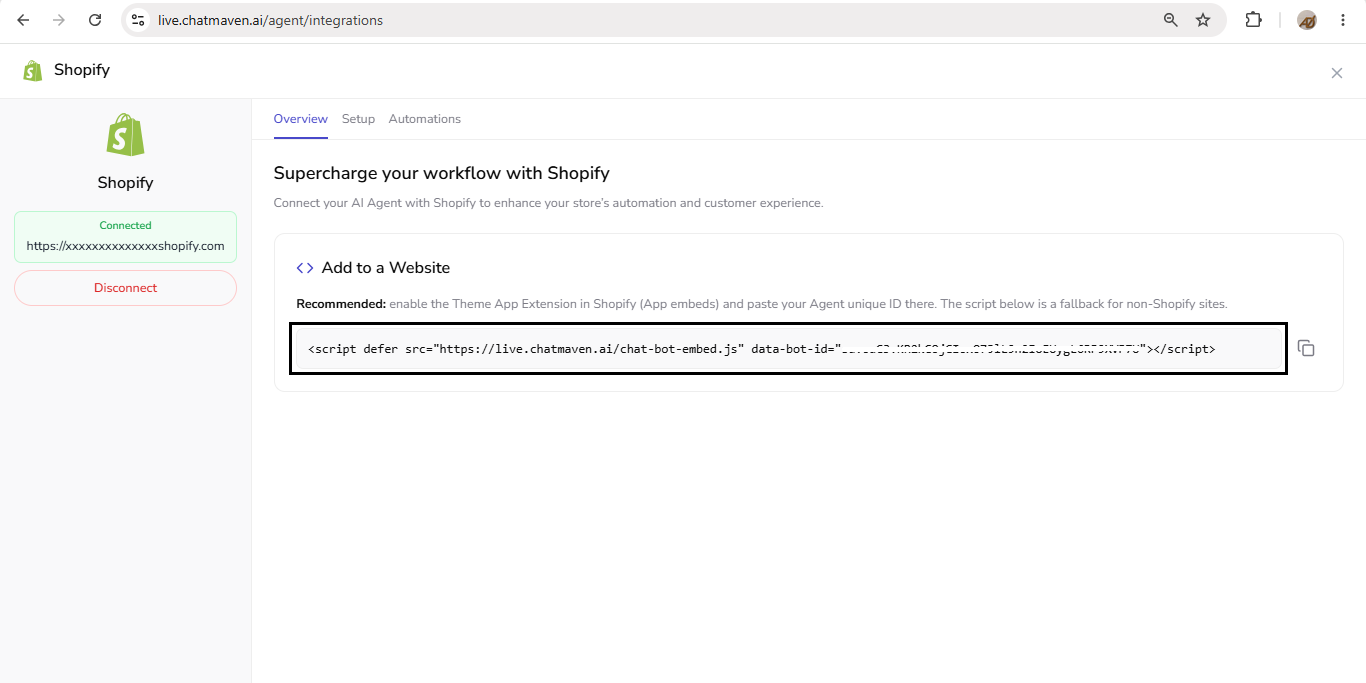
Fallback: paste the script in theme.liquid
Step 1: Copy the embed script in ChatMaven
- Go to Agents → Integrations.
- On the Shopify card, click Configure.
- Open the Overview tab.
- Under Add to a Website, click Copy script.
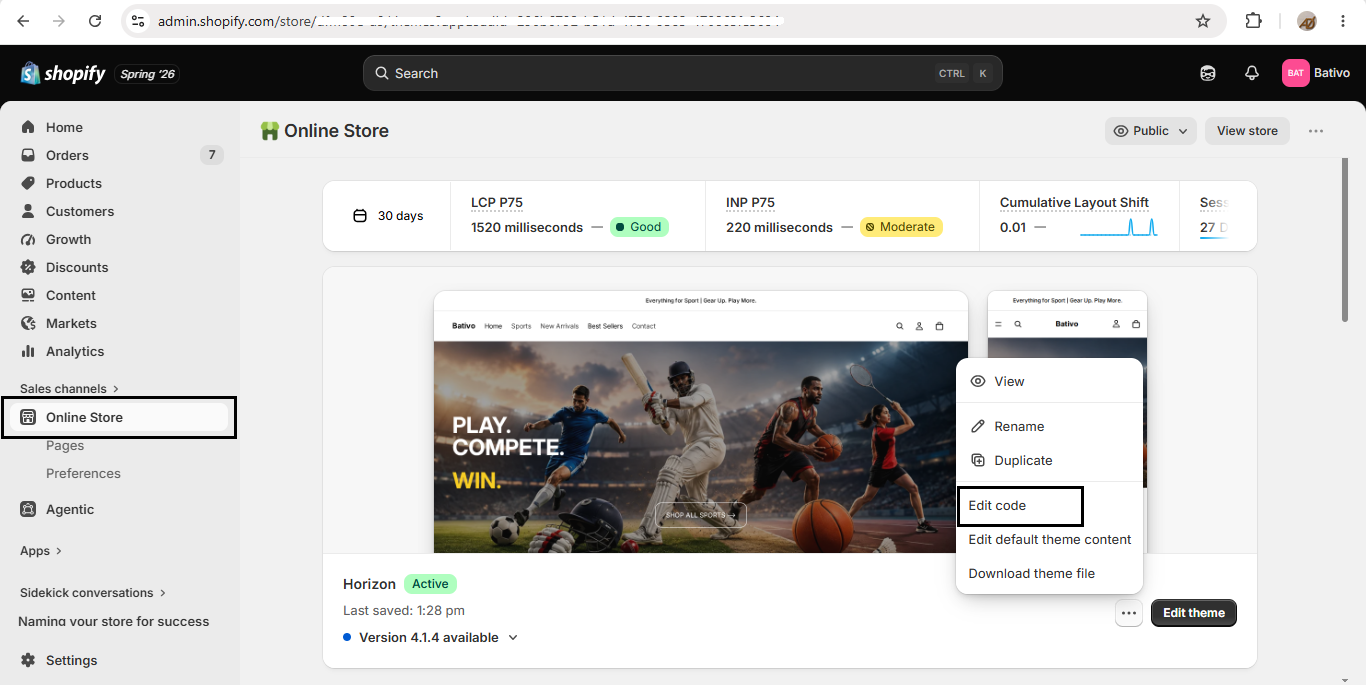
Step 2: Open Edit code in Shopify Admin
- In Shopify Admin, go to Online Store → Themes.
- On your active theme, open the … (more actions) menu.
- Click Edit code.
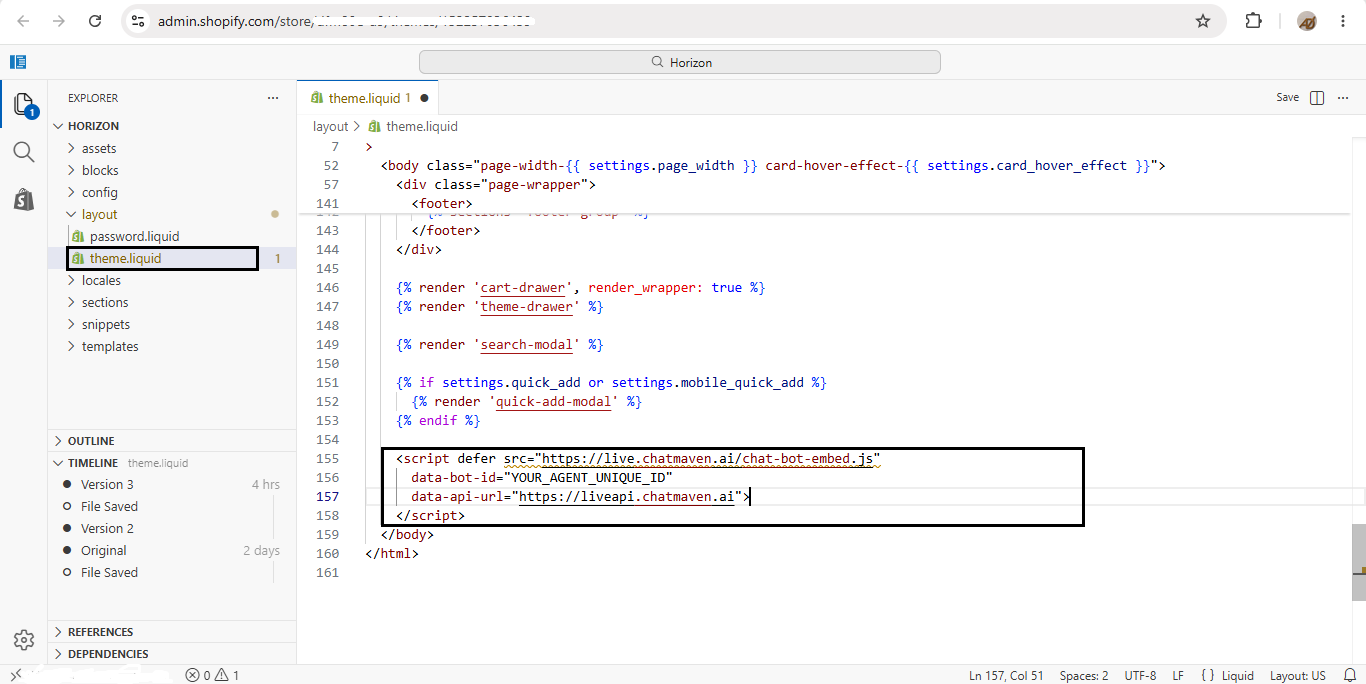
Step 3: Paste the script before </body>
- In the theme code editor, open Layout → theme.liquid.
- Paste the ChatMaven script just before the closing
</body>tag. - Save the file.
Step 4: Confirm the widget on your storefront
Open your Online Store and look for the ChatMaven chat launcher (for example bottom-right). Click it to open the chat — shoppers can ask questions such as order status.
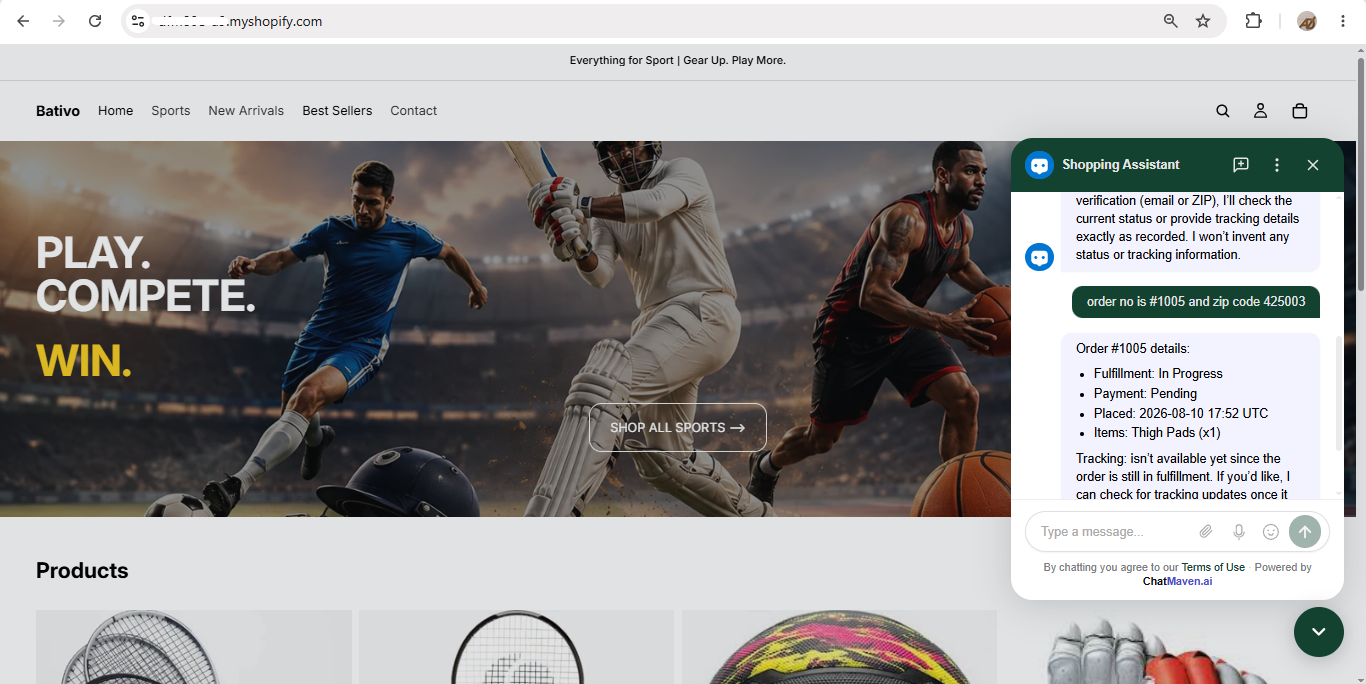
The widget uses the same agent you connected under Integrations. Test with a real or sandbox order so you can confirm order lookup and product answers behave as expected.
FAQ and troubleshooting
The chat widget does not show on my storefront
Confirm the Theme App Extension / App embeds path is enabled with your Agent unique ID, or that the fallback script is present in theme.liquid before </body>. Save the theme, preview in an incognito window, and hard-refresh the storefront.
Which method should I use?
Prefer the recommended Theme App Extension / App embeds path when available. Use the theme.liquid script as a fallback when you need a manual embed or are placing the widget on a non-Shopify page.
Do I need a different script per store?
The script’s data-bot-id is your Agent unique ID. Use the Copy script value from the agent you connected to Shopify so the storefront talks to the correct agent.